 Fellow Canadians: All inFlow plans are available in Canadian dollars



 Home
Home


Connecting inFlow to Jobber (beta)
Ready to track the parts your field team uses on every job? Connecting inFlow to Jobber keeps your inventory accurate without any retyping. Read below to learn more.

How the inFlow and Jobber integration works
With this integration, inFlow watches your Jobber jobs and creates a sales order for each visit. It matches the customer and each product line, so the parts your team uses are reserved when the work is booked and deducted when it’s done.
You’ll quote, schedule, and complete your jobs in Jobber as usual. inFlow picks up any meaningful change to a job within a few minutes. There’s nothing to export or enter by hand.
Before connecting to Jobber
Product matching
inFlow matches each line on a Jobber visit to your inFlow products by name. The match isn’t case-sensitive, but the names do need to match exactly.
Because Jobber’s Products & Services catalog doesn’t use SKUs, we recommend making sure the product names in your Jobber catalog match your inFlow product names before connecting. You can choose what happens when a line doesn’t match anything in inFlow. See the settings below.
Where stock is deducted
Jobber doesn’t track locations, so inFlow needs to know which location your job parts come from. You pick a default location while you’re setting up the connection, and you can’t finish connecting until you choose one. You can change it later in the integration settings.
How to connect Jobber to inFlow
- Go to inFlow’s integration settings (from the Main Menu, click the Integrations icon
 ).
). - Select the Jobber tile, then click Connect with Jobber, where you’ll be directed to Jobber to sign in.
- Click Log In and sign in to your Jobber account.
- Click Allow Access to approve inFlow’s access to your jobs and clients.
- Jobber returns you to inFlow, and the settings screen opens. Choose your default location and adjust the other settings.
- Click Connect.
- You’ll see a Jobber is now connected! message. Click Close to finish.
Only administrators can connect, configure, or disconnect the Jobber integration.
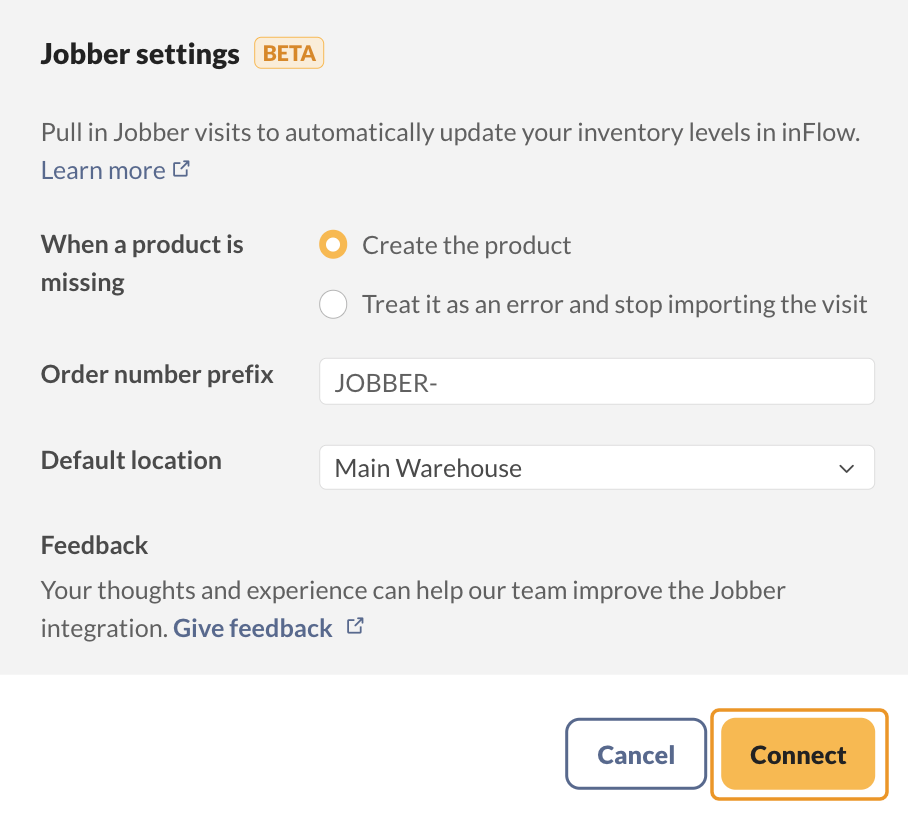
Jobber integration settings
Once connected, you can adjust how inFlow imports your jobs. Open the Jobber tile in your integration settings to get to them.
| Integration setting | What it does |
|---|---|
| When a product is missing | inFlow handles lines that don’t match any product by either creating the product (default) or treating it as an error, which stops the import so that you can correct the name and try again. Select the option you’d prefer. |
| Order number prefix | This order prefix lets you identify which sales orders in inFlow were generated from the Jobber integration. By default, the prefix is set to “JOBBER-,” but you can update it to your preference. The prefix can be a maximum of 30 characters long. |
| Default location | The location in inFlow where your job parts are reserved. This setting is necessary for connection. |
We encourage you to select the Give feedback option to share your thoughts on the Jobber integrations. Your input is valuable and helps us improve!
Which fields sync from Jobber?
When inFlow pulls a visit, the sales order carries:
- Customer: the Jobber client, matched to an existing inFlow customer by name, or created if there’s no match.
- Products: each product line, with the quantity your team recorded. These reserve stock while the order is open and deduct it once it’s fulfilled.
- Service lines: labor, call-out fees, and other service lines come across as service-type products, which never affect stock.
- Address: the job’s property (the jobsite) becomes the order’s shipping address.
- Assigned to: the team member assigned to the visit in Jobber, matched to an inFlow team member by name.
- Sales rep: the job’s salesperson, matched the same way. The match only looks at team members who are allowed to be sales reps.
- Order date: the visit’s scheduled date, or the date it was completed once the order is fulfilled.
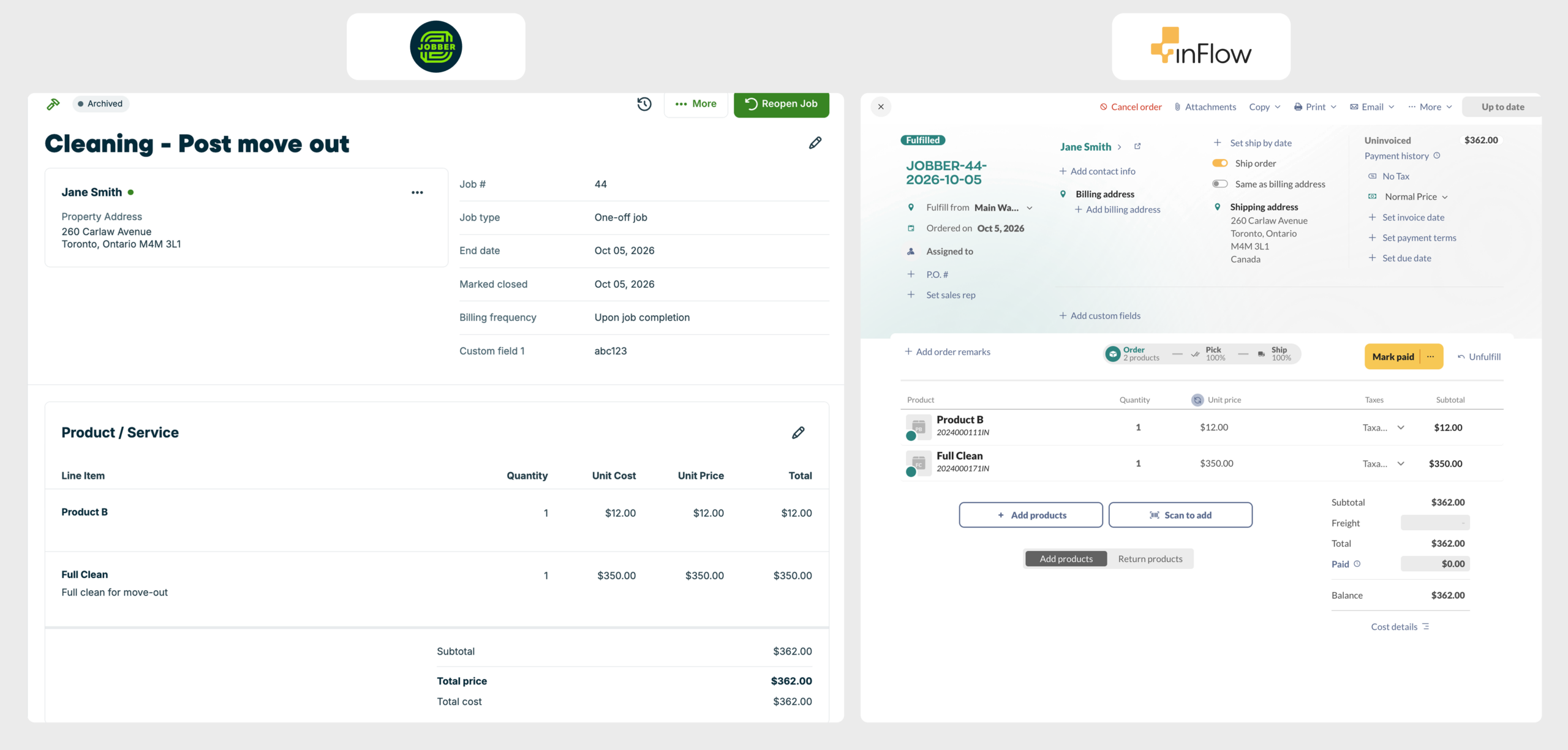
How Jobber orders are numbered
The order number is built from your prefix from the inFlow integration settings, the Jobber job number, and the visit’s scheduled date, so a one-off job looks like JOBBER-24-2026-09-08.
A recurring job adds the visit ID on the end to keep each visit’s order unique, like JOBBER-700-2026-06-01-98765. The number is set when the order is created, so rescheduling the visit in Jobber later doesn’t rename it.
When does a job/visit sync to inFlow?
Each order goes through two stages:
- Open. As soon as inFlow sees the visit in Jobber, it creates an open sales order. The product lines are reserved, so the stock is spoken for but still on your shelf.
- Fulfilled. When the work is finished in Jobber, inFlow fulfills the order and deducts the stock.
How a job maps to orders depends on the job type:
- A recurring job creates one sales order per visit. Each one is fulfilled when that visit is marked complete.
- A one-off job creates a single sales order for the whole job, no matter how many visits it has, because its line items are billed once. That order is fulfilled when you close the job in Jobber. Completing the visits isn’t enough.
This integration is one-way. inFlow reads your jobs from Jobber, but it doesn’t send anything back. Your jobs, invoices, and payments stay in Jobber, untouched.
How inFlow keeps orders up to date
inFlow watches for changes to your Jobber jobs and syncs them within a few minutes. Editing a line item, changing the salesperson or assignee, rescheduling a visit, completing a visit, or closing a job all count as changes.
While the order is open, inFlow keeps it matched to the visit. Add, remove, or change a line in Jobber, and the inFlow order follows. Any unit prices you’ve typed on the order yourself are left alone.
Once the order is fulfilled, it’s frozen. Later edits in Jobber won’t reach it. If you reopen the job or mark the visit incomplete in Jobber, the inFlow order stays fulfilled. Reopen it in inFlow yourself and syncing picks up again.
Deleting a job or visit in Jobber doesn’t remove its inFlow order, because Jobber doesn’t tell us about deletions. Delete the order in inFlow if you don’t need it.
Prices, taxes, and invoicing
This integration tracks your stock, not your money. Job lines come into inFlow without prices, and no taxes or payments are imported. Jobber stays your system of record for quoting, invoicing, and getting paid.
This keeps your inFlow reports clean: Jobber-sourced orders won’t show up as unpaid sales waiting to be collected.
 Yes, thanks!
  Not really

0 Comments