 Fellow Canadians: All inFlow plans are available in Canadian dollars




 Home
Home


How to charge a customer in a different currency
If you sell to customers who use different currencies, tracking their payments can be a bit tricky. But don’t worry! With inFlow, managing these transactions is a breeze.
Web

Currencies and pricing schemes
In inFlow, pricing schemes are specific to the currency being used. By default, pricing schemes are set to your home currency.
Adding a new currency/pricing scheme to inFlow
- Go to inFlow’s Order settings.
- Select Pricing schemes.
- Click on Add pricing scheme. Type in the name of the pricing scheme, select if it should be tax-inclusive or not, then choose the currency from the drop-down menu.
- Select the star icon next to one of the pricing schemes to set it as the default in inFlow.
- Click Save when done.
Selecting a different currency/pricing scheme on a sales order
- Open a sales order, then select the Pricing scheme field.
- Select one of the options in the drop-down menu.
- Save the sales order when done.
How can I track exchange rates on sales orders?
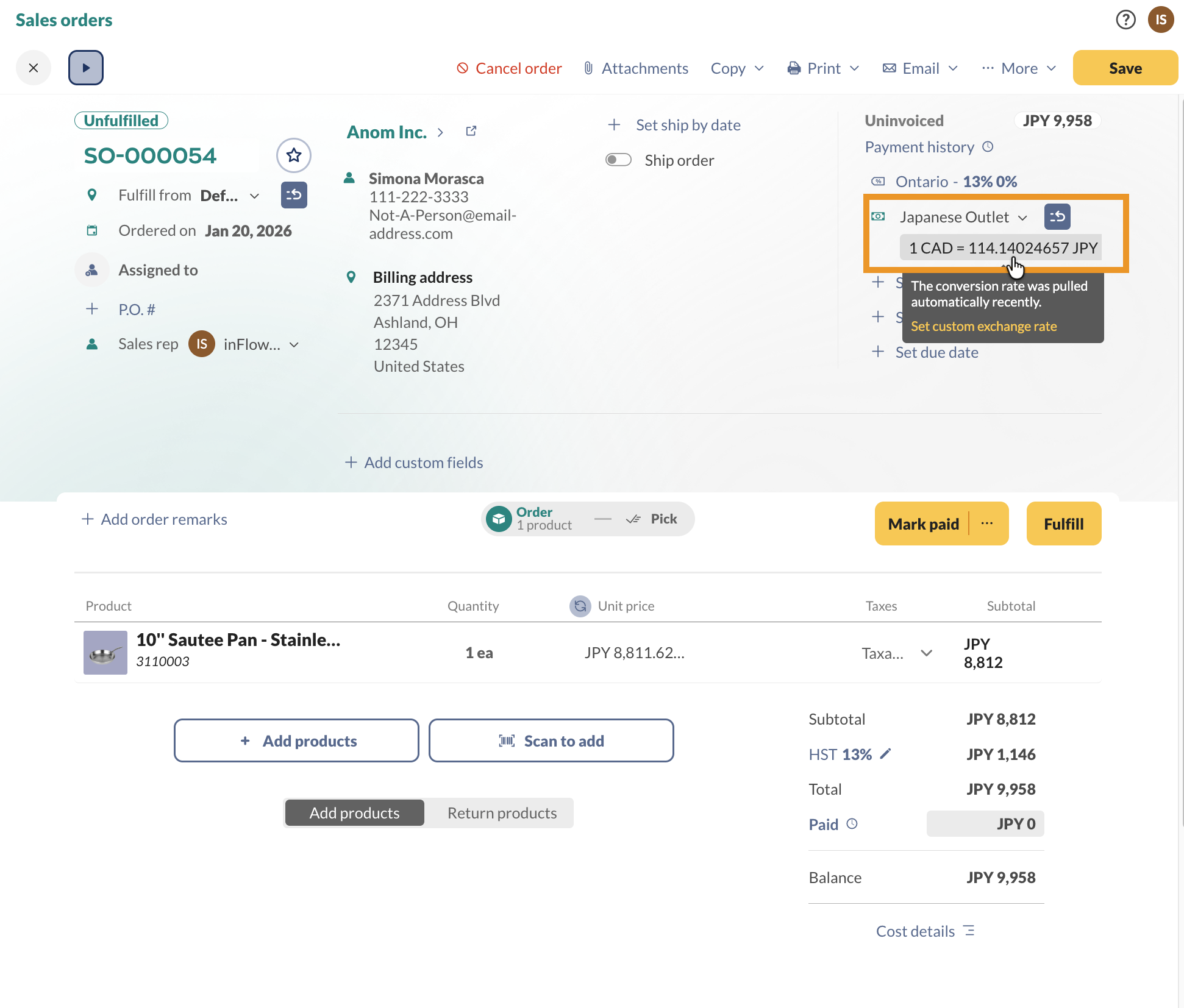
If your team uses multiple currencies when selling, inFlow will automatically pull the latest exchange rates for your sales orders.
Just select a different currency from the Pricing/Currency drop-down menu, and inFlow will display the latest rate below.
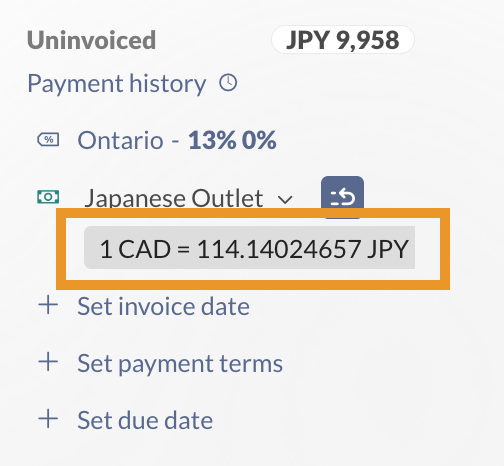
Team members with sales order editing access can select the blue icon with the white arrow to save this currency preference to the customer record.
How can I update the exchange rate on an open sales order?
After creating the order, inFlow will continue to pull the latest exchange rates. If you want the sales order to use an updated rate, click on the circular arrows next to the exchange rate to refresh it.
Refreshing the exchange rate won’t change the prices or balance on the sales order in the selected currency. The exchange rate updates are shown on the Sales Order Profit Report
How often does inFlow update the exchange rate?
inFlow will pull new rates daily from Open Exchange Rates.
How can I manually set the exchange rate?
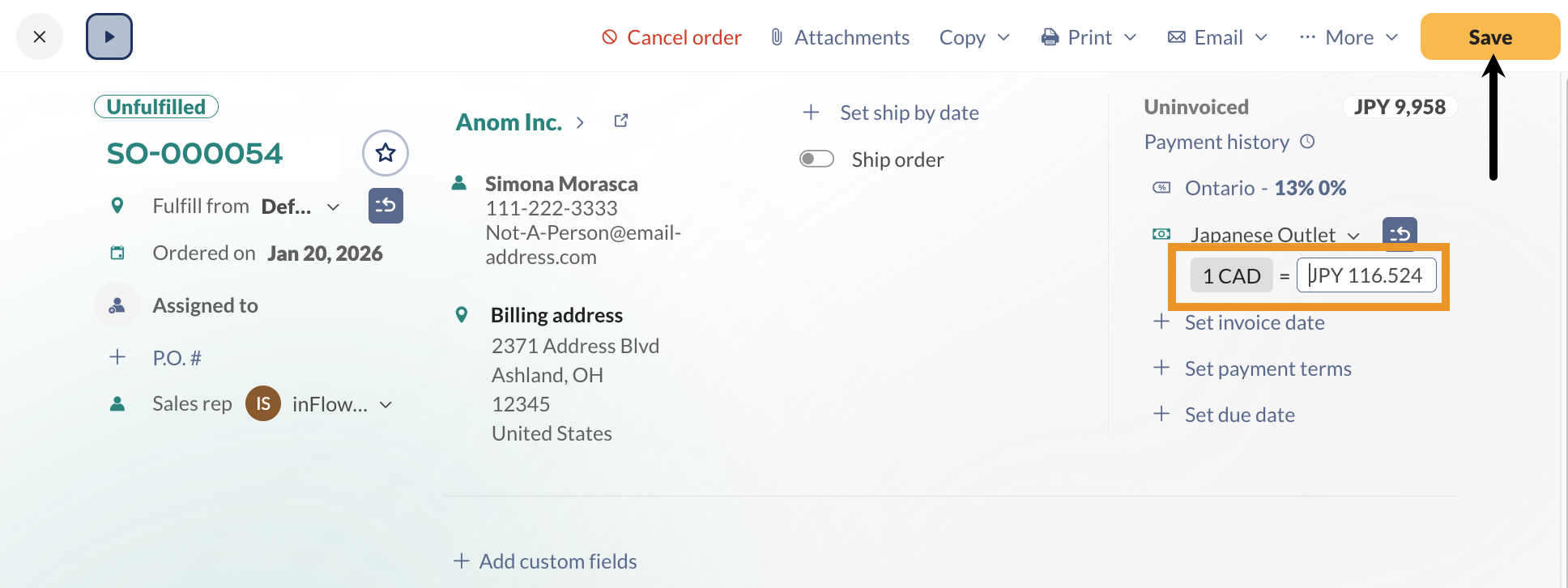
- Click on the exchange rate on the sales order, then select the grey exchange rate field, then choose Set custom exchange rate.
How can I add custom exchange rates to inFlow?
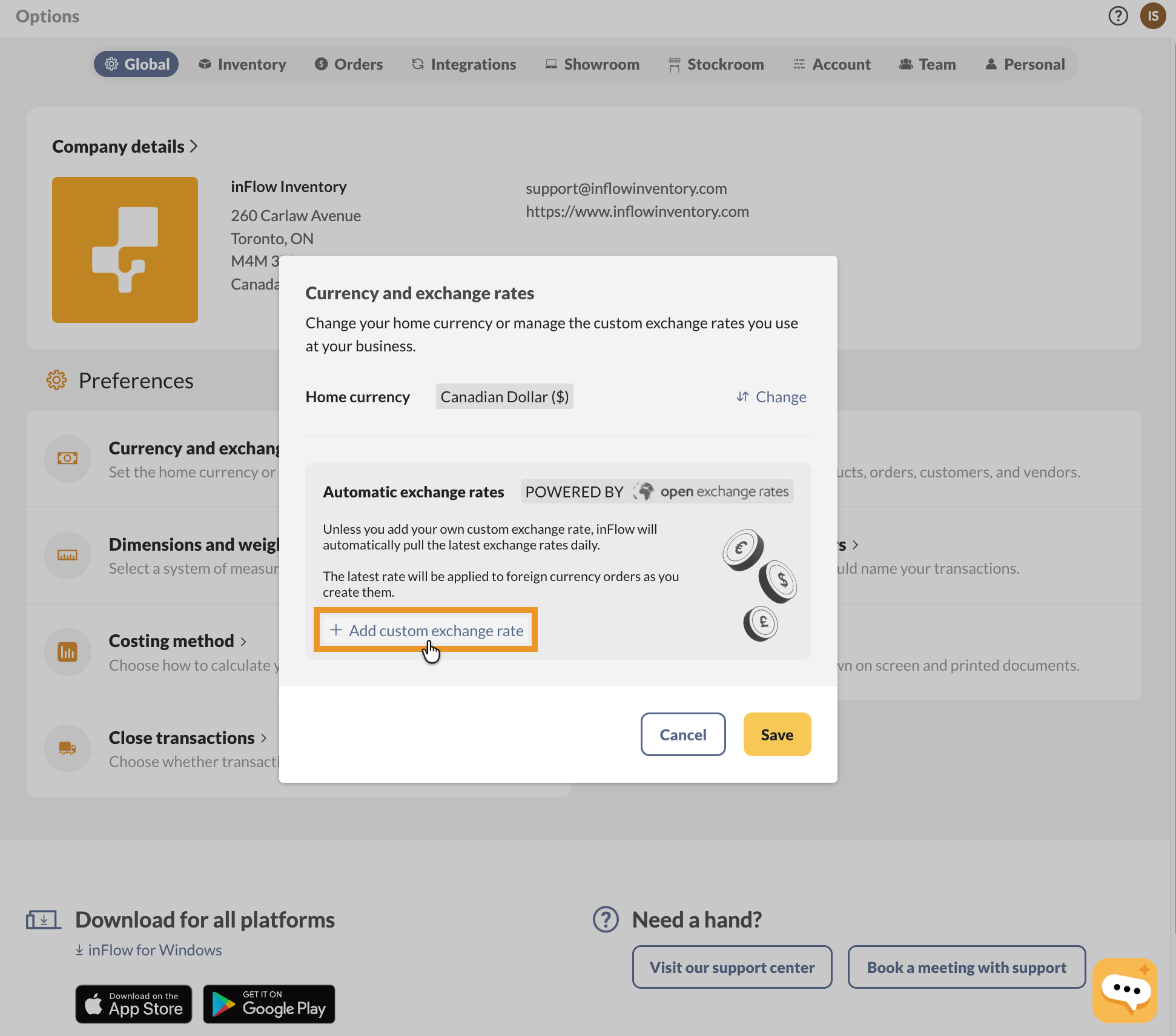
You can add custom exchange rates for currencies that will be available across inFlow.
- Go to the Global inFlow settings.
- Select Currency and exchange rates.
- Click on Add custom exchange rate.
- Select a currency from the list, then click Next.
Type in the exchange rate, then click Save when done.
To remove custom rates and have inFlow pull up-to-date exchange rates, select Set all to automatic.
Windows
Currencies and pricing schemes
In inFlow pricing schemes are specific to the currency being used. The default pricing schemes are in your home currency.
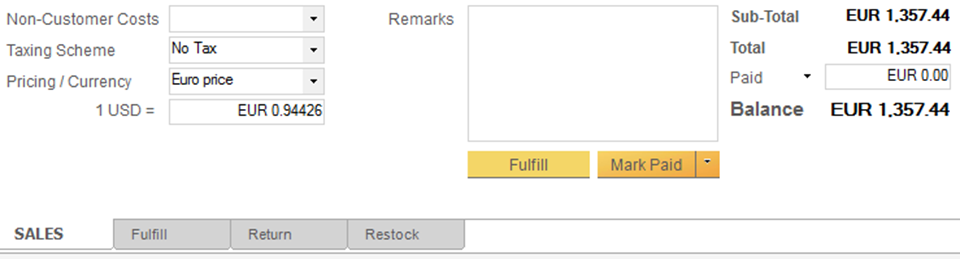
However, if you need to charge your customers in another currency, you can easily do so by selecting the appropriate pricing scheme in the Pricing/Currency section located at the bottom left of your order.
If you don’t have a pricing scheme for that currency, you can create one directly from the sales order screen.
How to add a currency/pricing scheme
- Click the drop-down beside Pricing/Currency.
- Choose Add New Pricing Scheme from the list.
- Within the resulting window, you can add another pricing scheme and select the correct currency.
- Click Save & Close.
- If it is not already included, enter the conversion ratio from this currency to your home currency.
- Re-select your scheme to convert your prices.
 Yes, thanks!
  Not really

0 Comments