 Fellow Canadians: All inFlow plans are available in Canadian dollars



 Home
Home


How to scan and create GS1 barcodes in inFlow
GS1 barcodes pack more than a product code into a single barcode. They can include the lot number, expiry date, and quantity, so one scan fills in details you’d otherwise type by hand. This is especially useful for lot-tracked products like food, cosmetics, or pharmaceuticals. See below for full details.
What is a GS1 barcode?
A GS1 barcode is a barcode built on standards from GS1, the global organization behind the barcodes you see in retail stores. A global trade item number (GTIN) identifies the product, and the barcode can carry extra details alongside it.
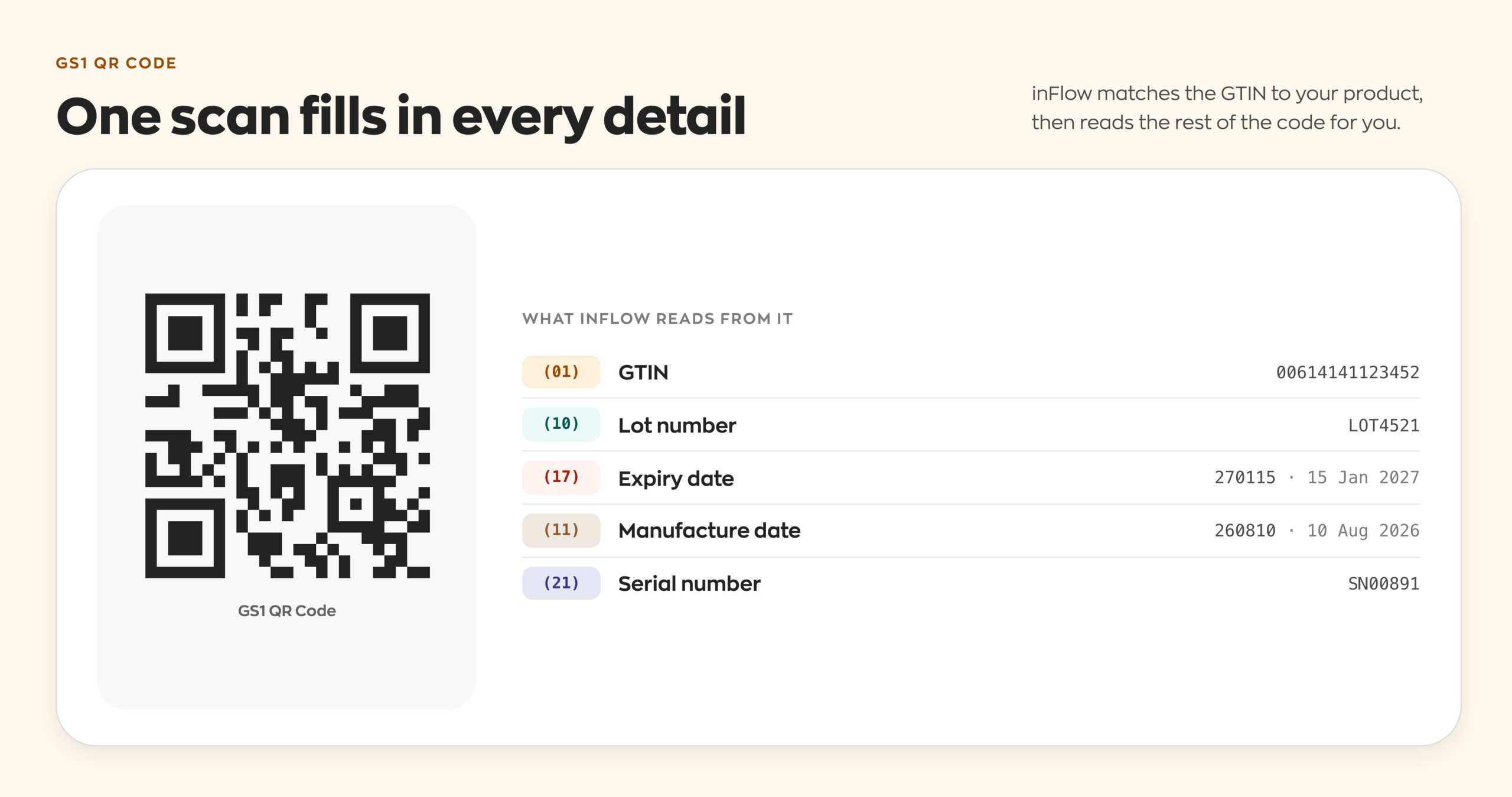
When you scan a GS1 barcode, inFlow matches the GTIN to your product and fills in any of these details found in the barcode:
- Lot number
- Expiry date
- Manufacture date
- Serial number
- Sublocation
- Unit of measure
GS1 barcode scanning works in inFlow for Web and inFlow for Mobile.
What GS1 barcodes can inFlow scan?
inFlow can read:
- Retail barcodes with a GTIN, like UPC and EAN barcodes. These identify the product only.
- GS1 digital link QR codes that carry extra details like the lot number and expiry date, and the unit of measure.
Unit of measure barcodes
If your vendors use GS1 QR Codes and provide different barcodes for different packaging sizes, you can scan it, and inFlow will use either the standard, sales, or purchasing unit of measure based on that barcode.
How to scan a GS1 barcode
GS1 scanning works anywhere you can scan a barcode in inFlow: receiving a purchase order, picking a sales order or manufacture order, adjusting stock, transferring stock, and counting stock.
Receiving lot products on purchase orders
Here’s an example of receiving with a GS1 barcode. Many vendors print GS1 barcodes on their products or cases, so one scan fills in the lot details for you.
- Open a purchase order, then click on the Receive tab.
- Click Scan to receive, then scan the barcode.
- inFlow fills in the lot number; confirm the lot number is correct, then click Continue.
- If the fields are populated, confirm they’re correct; otherwise, enter the lot details, then click Assign and receive.
GS1 QR codes work best with a scanner that can read 2D barcodes, like the inFlow Smart Scanner or the inFlow Rugged Bluetooth Scanner, both available from the inFlow Shop.
How to create GS1 QR code labels
inFlow can generate GS1 standard QR codes, so you can print your own labels that carry the lot number, expiry date, and more in a single scannable code. You set these up in the inFlow Label Designer.
- Go to the Inventory settings (hover over the Settings icon, then go to Inventory).
- Click Create/Manage labels.
- Create a new label, or open an existing one to edit it, or select the QR Code label template.
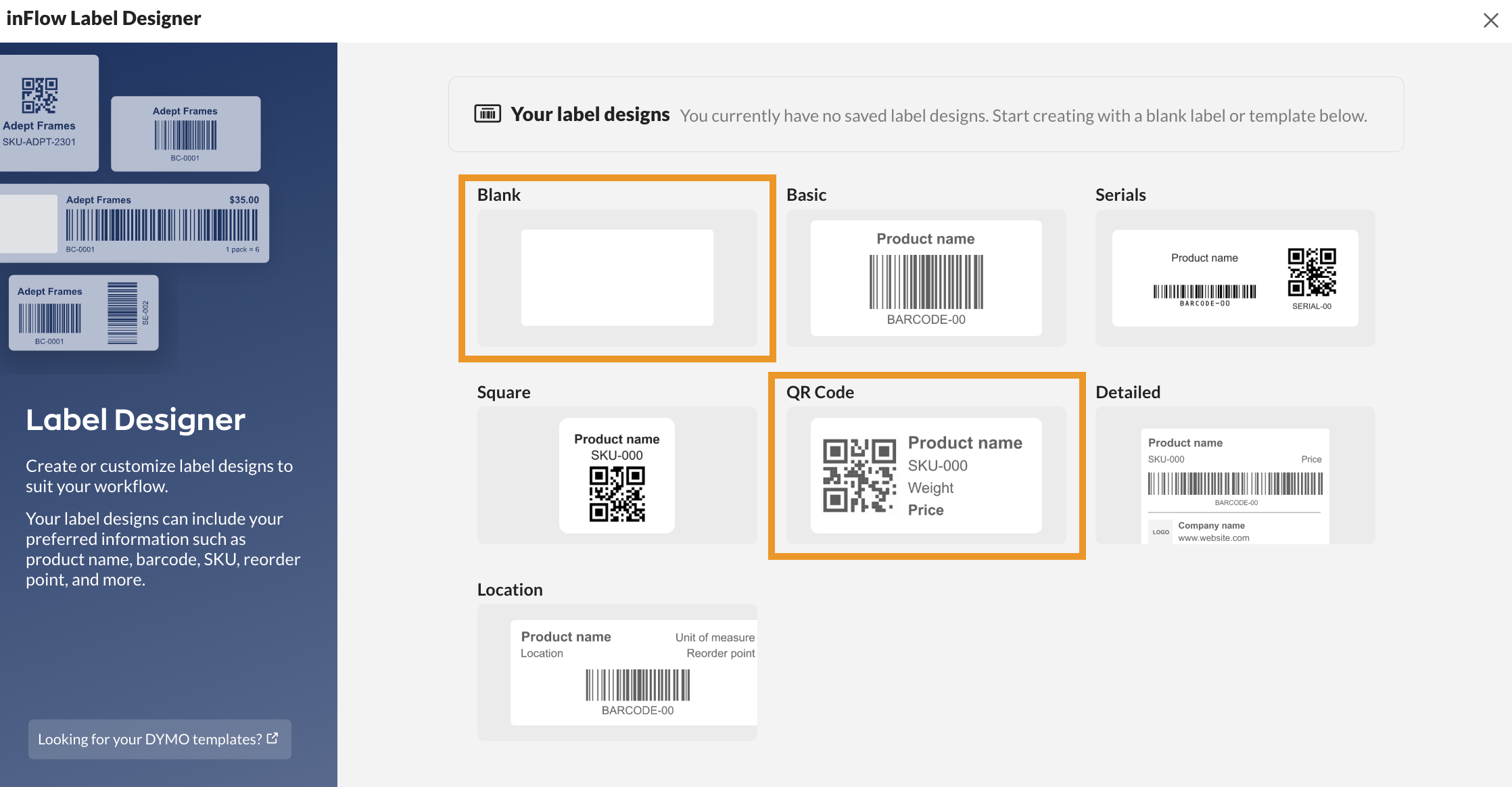
- Add a QR code element to the label.
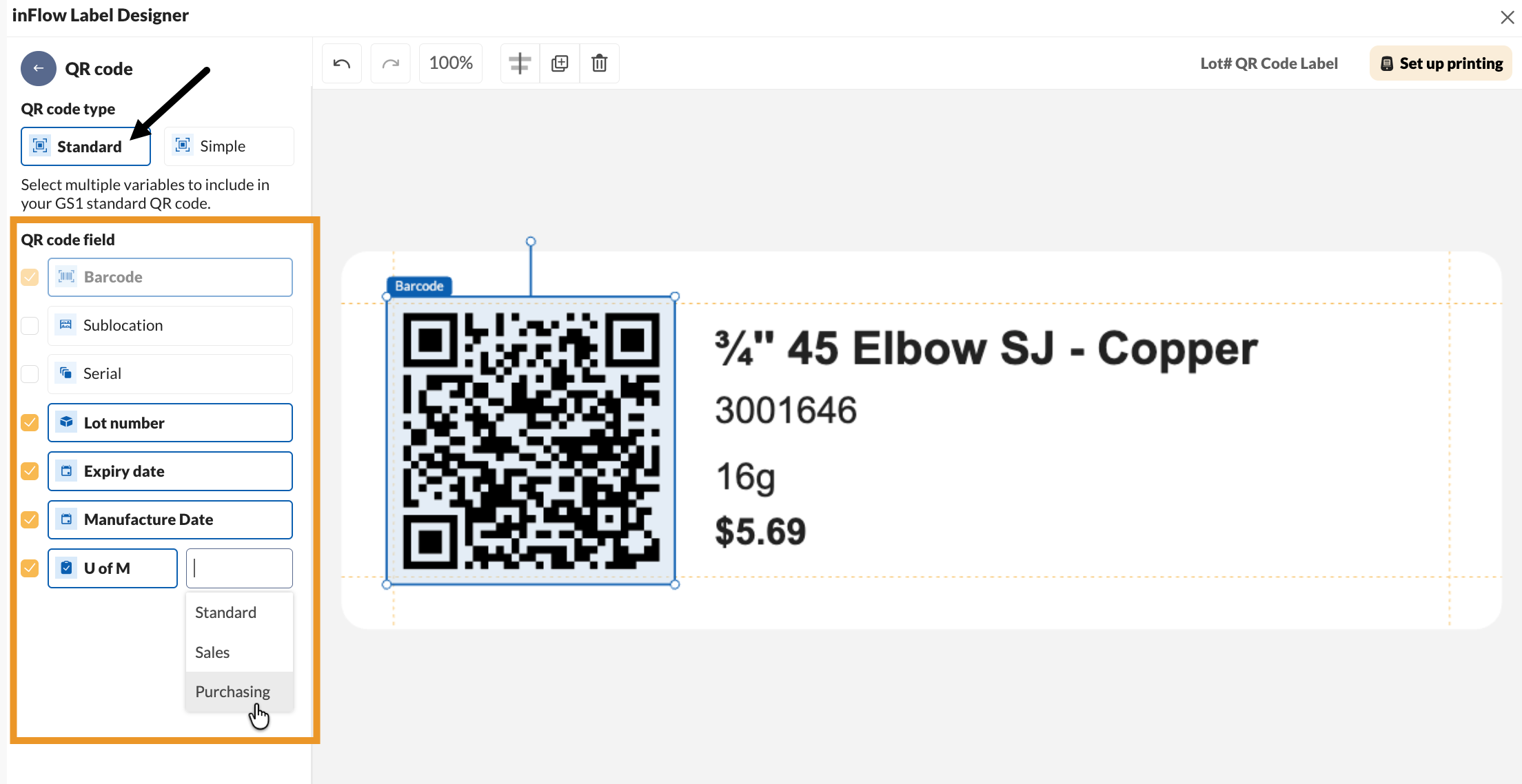
- Once added to the label, select the QR code, then choose the QR code type Standard (rather than Simple).
- Under the QR code field, check the variables to include in the code: Sublocation, Serial, Lot number, Expiry date, Manufacture date, or U of M. The product Barcode is always included.
- Name the label, then click Save & close.
For U of M (unit of measure), use the drop-down to choose the Standard, Sales, or Purchasing unit for the QR code.
How to print your labels
Once your label is ready, you can print it from several places in inFlow. Just look for the Print labels button. You’ll find it in these areas:
- Product records
- Current stock
- Purchase orders (under the Print button)
- Sales orders (under the Print button)
- Manufacture orders (under the Print button)
- inFlow for Mobile: tap Actions, then Print labels from a product record or purchase order
For help connecting your label printer to inFlow, see Printing labels in inFlow.
You’ll need a label printer to print your labels. Most thermal label printers work with inFlow, like the inFlow Portable Printer. For setup help, see the inFlow Portable Printer guide.
Where can I buy GS1 barcodes?
If your products don’t have GTIN barcodes yet, you can buy them with inFlow. We’ve partnered with GS1 to become an official partner.
For more details, check out the GS1 Barcode Shop, or see Buy GS1 barcodes.
Learn more about lot tracking
GS1 scanning saves the most time on lot-tracked products. To set up lot numbers and expiry dates in inFlow, see Lot numbers & expiry dates.
 Yes, thanks!
  Not really

0 Comments