 Fellow Canadians: All inFlow plans are available in Canadian dollars




 Home
Home


How to create service products in inFlow
If your team needs to track services that your organization provides or receives from third parties, then take a look below to learn how to create service products.
Web
For service products, inFlow won’t track quantities for those services. Essentially, this means that you can set up products for service fees or labor charges.
Moreover, you can track the profit of those services by entering the cost of the service or labor in the product record.
How to create a service product
- From the Main Menu, select the Create button (the plus icon), then Product.
- In the pop-up window, enter the name of the service or labour charge in the Product name field.
- In the Product type section, select Service.
- Click Create. You’ll be redirected to your new service product, where you can enter more details into the product record.
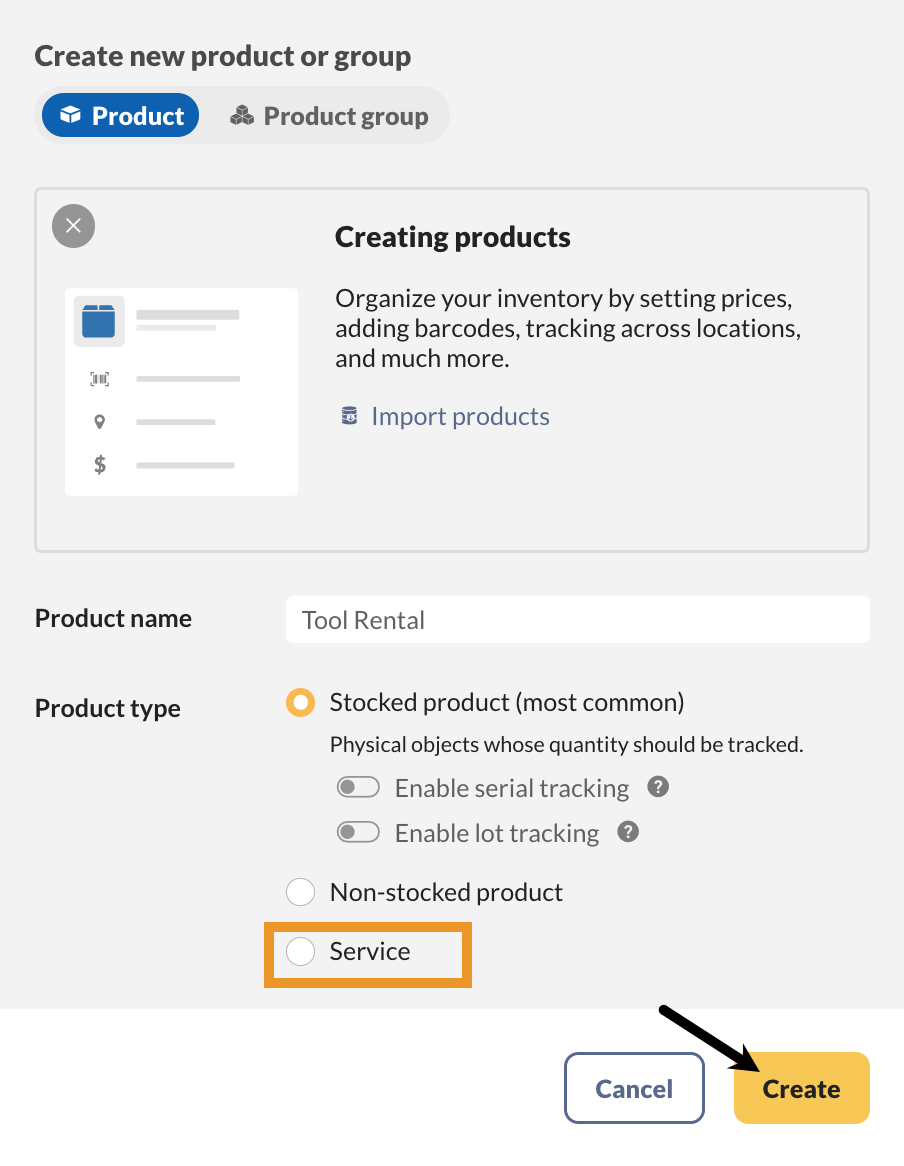
Product Types are permanent and cannot be changed once saved.
Windows
For service products, inFlow won’t track quantities for those services. Essentially, this means that you can set up products for service fees or labor charges.
Moreover, you can track the profit of those services by entering the cost of the service or labor in the product record.
How to create a service product
- Create a new product by going to Main Menu > Inventory > New Product.
- Enter the name of the service or labor charge in the Product name field.
- Choose Service from the Product type dropdown. On the product record, you can add any other details you wish to include (such as the employee’s wage).
- Click Save.
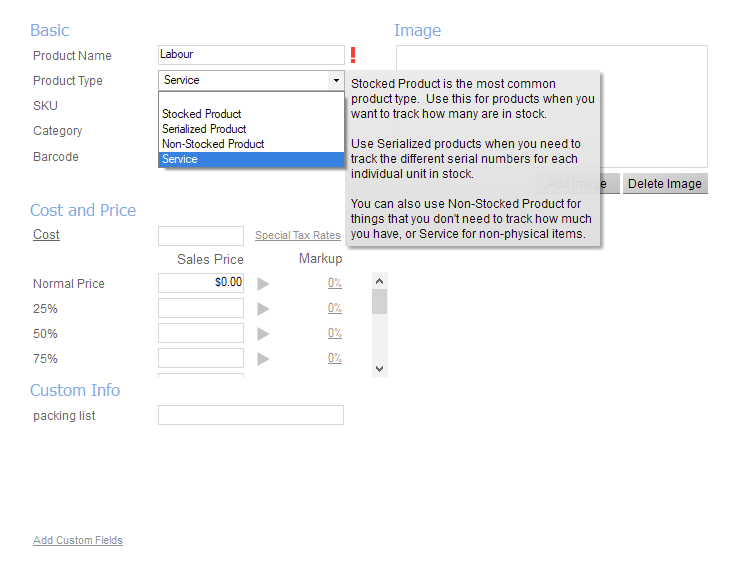
Product Types are permanent and cannot be changed once saved.
 Yes, thanks!
  Not really


0 Comments