 Fellow Canadians: All inFlow plans are available in Canadian dollars



 Home
Home


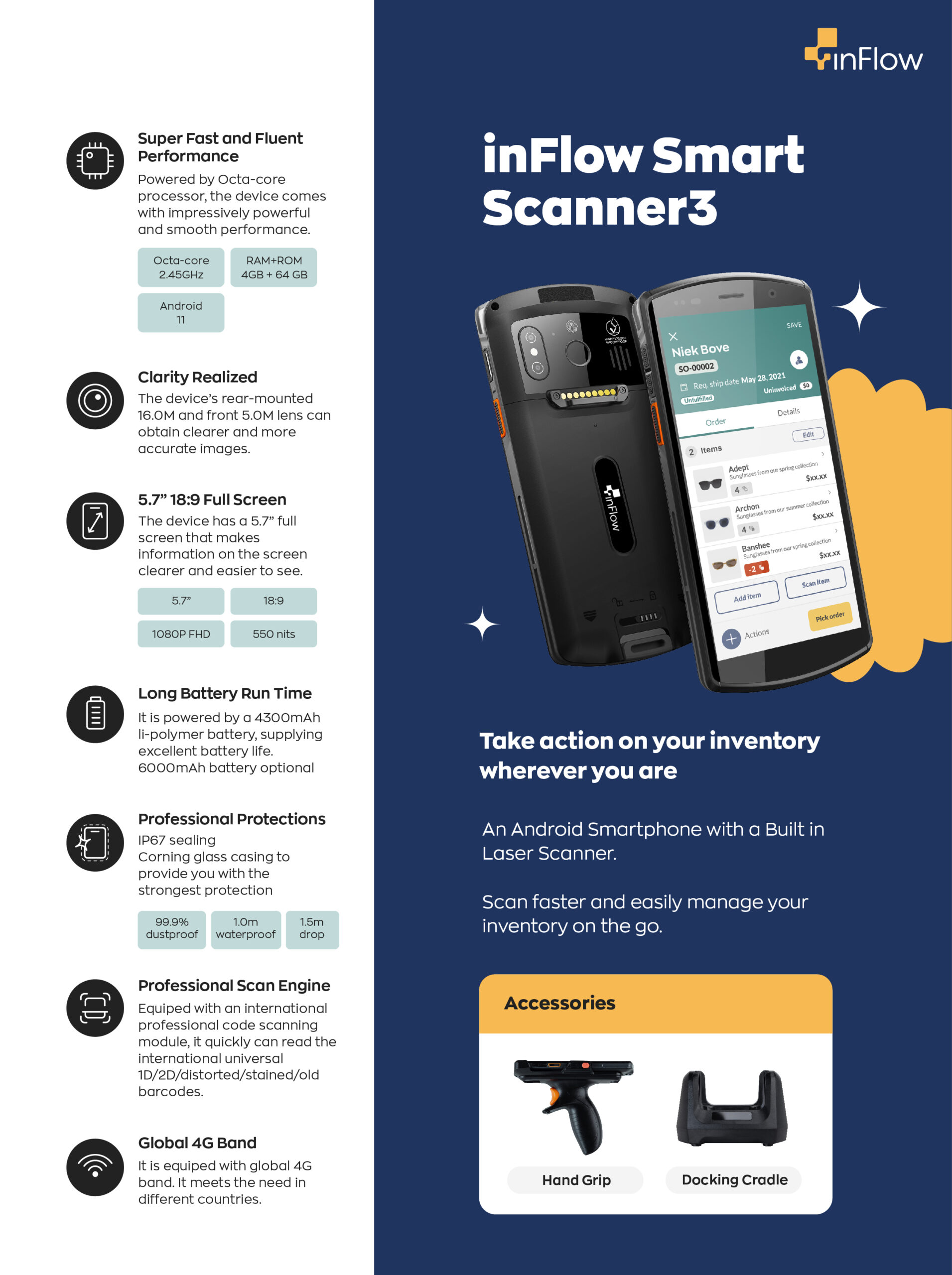
inFlow Smartphone Scanner 3
inFlow’s very own Smartphone Scanner is here! Featuring a built-in dedicated barcode scanner, you’ll be able to instantly scan your items at least 2x faster and more accurately than any camera app. If you don’t have one yet, you can get one here!
Scanner info
The Smartphone Scanner is perfect for warehouse management, mobile picking, counting inventory, mobile sales orders, easy stock adjustments, and more. It’s built tough to withstand your business’s day-to-day operations.

Box Contents
Other than the Smartphone Scanner 3, the box includes:
- USB-C charging cable
- AC charger
- Case
- Battery
Installing the Battery
The Smartphone Scanner 3 comes with the case installed but not the battery. To install the battery:
- Take the battery out of the packaging bag
- Remove the case form the Smartphone Scanner
- Below the battery cover is a lock switch, push the lock switch to the left to unlock the battery cover
- Press and push the battery cover down to open the battery cover
- Insert the battery with the text facing down and the pins facing up
- Place the battery cover on
- Press and push the battery cover up to close the battery cover
- Below the battery cover is a lock switch; push the lock switch to the right to lock the battery cover
Smartphone Scanner specifications
Find all the information you need to know about inFlow’s Android Smartphone Scanner here.
You can also download the full Smartphone Scanner Specifications.
Basic characteristics
- Octa-core 2.45 GHz 64-bit processor
- RAM – 4GB ROM: 64GB
- O.S. – Android 13 (Earlier shipments came pre-installed with Android 11)
Peripherals
- Camera – 13MP auto-focus color rear camera with flash, 5MP front-facing camera.
- NFC – RFID 13.56MHz, ISO15693, ISO14443A/B,Mifare, Felica.
- GPS – GPS, A-GPS, Bei-Dou satellite navigation system, GLONASS.
- Sensor – Light sensor, range sensor, acceleration sensor, compass, gyroscope, barometer.
- Slots – Micro SD/TF x 1, Nano- SIMx2.
- Interfaces – TypeC x 1, support OTG, support USB 3.1, Bottom POGO PIN x 2, back POGO PIN x 9.
- Audio – Dual-Microphone (noise cancellation), Speaker, Receiver, 3.5mm audio jack.
- Includes – Power adapter, data cable, and one battery.
Radio communication
- Wi-Fi – IEEE 802.11a/b/g/n/ac/d/e/h/i/k/r/v/w (2.4G/5G dual band WIFI) IEEE 802.11ax ready
- Bluetooth – BT5.0 + BLE
- Cellular – 4G/ 3G/ 2G Dual-SIM, Dual-Standby
User environment
- Operating Temperature -40°F to 158°F (-40°C to 70°C)
- Storage Temperature -40°F to 158°F (-40°C to70°C )
- Humidity 5% ~ 95% (No condensation)
- Drop Durability – 3 ft (1.5m)
- Sealing – IP67
Warranty
- Software support – Ongoing with a subscription to inFlow Inventory
- Hardware (including all accessories) – 1 year limited warranty*
*Bonus: Your hardware is covered for a full 2 years as long as you maintain an active inFlow subscription.
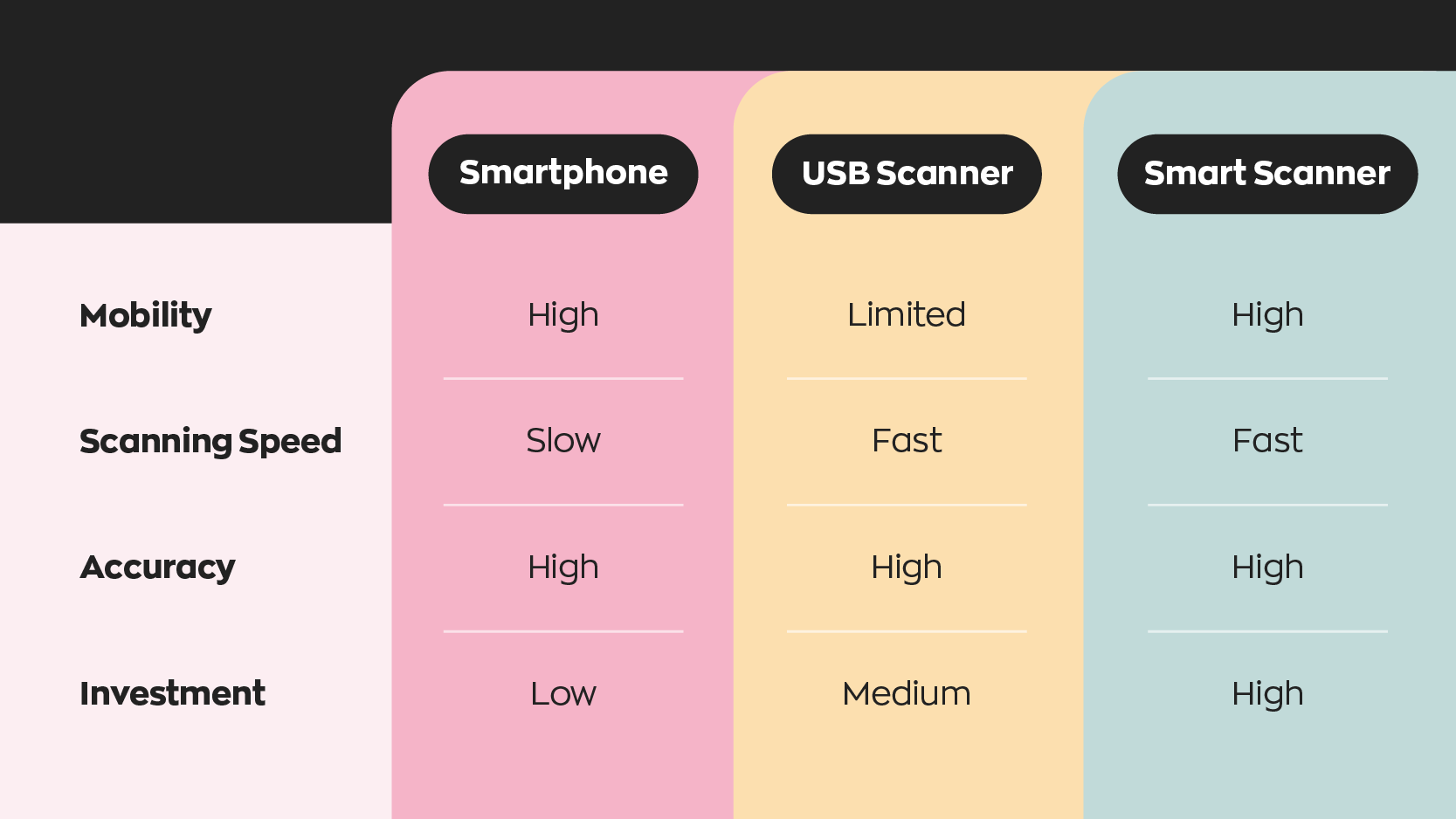
Scanner comparison
For more info about the inFlow Inventory mobile app, check our Full Guide.
Installing the inFlow Inventory App
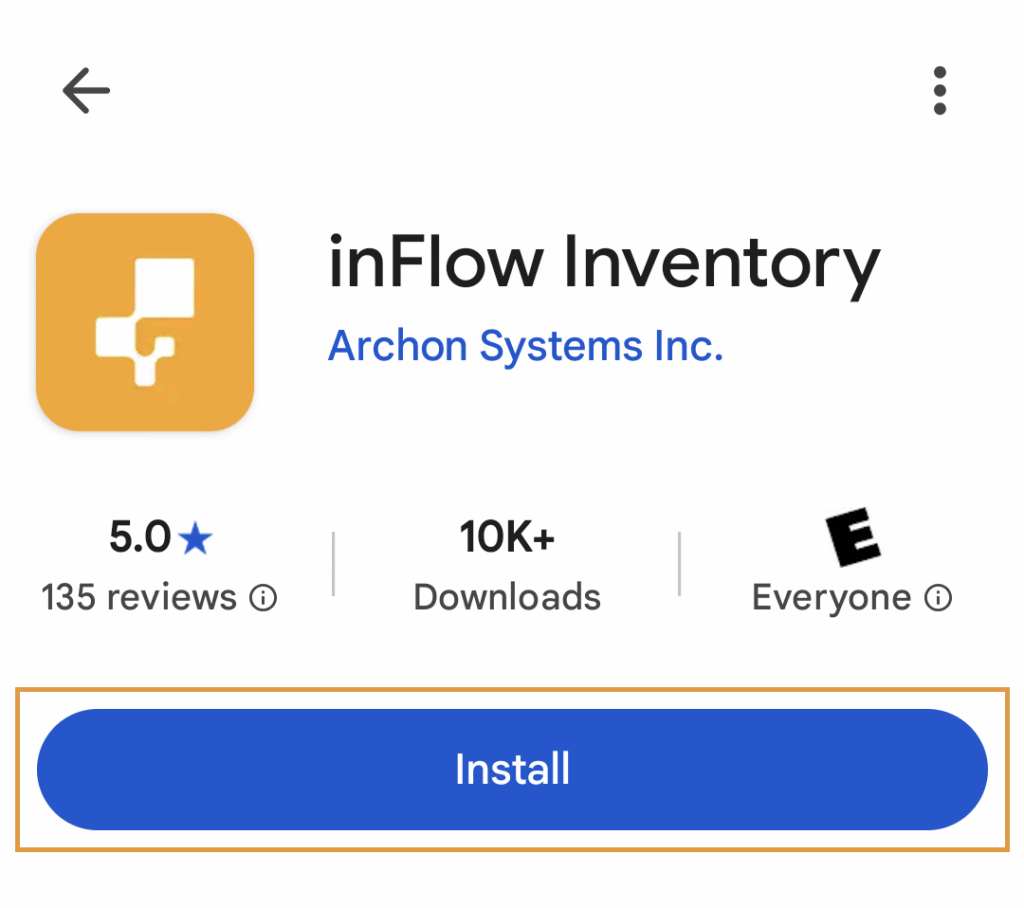
You can find a direct link to the inFlow Inventory Android app in the Google Play Store by clicking this link here, or take a look at the steps below.
- Search for the inFlow Inventory app in the Google Play Store. (You’ll need to log in or create a Google/Gmail account (if you haven’t already).
- Tap Install to download the app on your Android Device.
- Tap Open when done.
Using the app and scanner
- Open the inFlow Inventory app.
- Log in to your inFlow Inventory account.
- Click into any field you would search for a product (ie, Products search field)
- Use the orange button on either side to activate the scanner
- Scan a barcode, and an on-screen indicator will show you the results
Scanner Debug App
The Smartphone Scanner comes preloaded with an app called Scanner. This app can be used to configure how the built-in barcode scanner behaves and make any needed changes for the region/barcodes you may be using.
Most people will not need to modify these settings, these are strictly for people who want to change the default scanning behaviors.
Click below to jump to a specific section in this guide.
- Changing the Coding format
- Adding a prefix or suffix to your scanned barcodes
- Reset scanner options to default
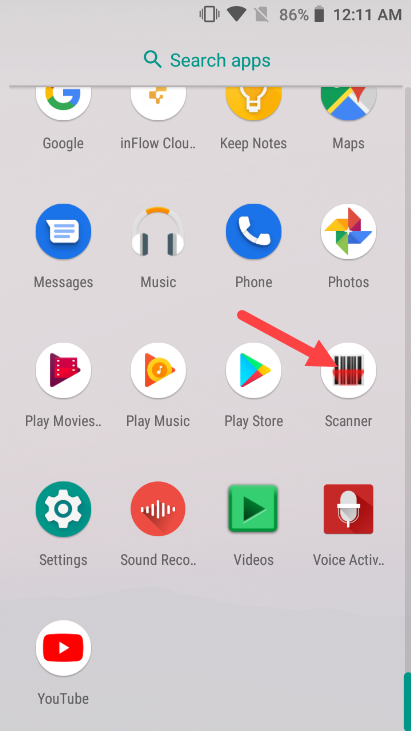
Changing the coding format
- Open the scanner app
- Click the gear icon in the top right of the screen
- Scroll down to find Coding format header and click it
- Choose a new coding format and click it (default is UTF-8)
- Your changes are saved right away
Adding a prefix or suffix to your scanned barcodes
This will allow you to add a prefix or suffix to barcodes you scan, for example, if you have a product with a barcode ‘12345′, but you want all your barcodes to start with an ‘M’, you would add ‘M’ as a prefix, and then when you scan a barcode, it would be input like ‘M12345′.
- Open the scanner app
- Click the gear icon in the top right of the screen
- Scroll down to find the Label formatting header and click it
- To add a prefix, click on Label prefix and enter your desired prefix
- To add a suffix, click on Label suffix and enter your desired suffix
- Click Append formatting header, and select which labels you want to add to your barcodes (Label prefix for only a prefix, Label suffix for only a suffix, Label prefix and suffix for both etc)
- Your changes are saved right away
Reset scanner options to default
- Open the scanner app
- Click the gear icon in the top right of the screen
- Scroll down to find the Reset Configuration header and click it
- Click OK when prompted
- Scanner settings will reset back to default
Enabling the Pistol Grip
- On the inFlow, Smartphone Scanner, swipe up to open up all your apps
- Go to “Scanner”
- Hit the Gear icon in the upper right-hand corner
- Under Scan Handle, make sure the box is checked off
Troubleshooting
Google/Android
The inFlow Smartphone Scanner uses the Android operating system. For general questions and articles related to how to use your new Android device, please visit: https://support.google.com/android/
I can’t find the inFlow app or the Stockroom app
The inFlow and Stockroom apps are available from the Google Play Store. After setting up the Smartphone Scanner, you need to log into the Google Play Store with a valid Google account to download and install the apps.
There is a bracket beside the back POGO pins obstructing putting on the Hand Grip, how do I remove it?
The bracket comes in handy if you want to put on a strap (not included). This bracket can be removed from the device by using a T5/T6 Torx bit to unscrew the screws on the sides of the bracket.
I only want the last 10 digits of scanned barcodes, is that possible?
There can be multiple ways to achieve this. Here are the steps using the Scanner app already built in.
- Go to Scanner app
- tap (…) ellipsis > Basic Settings > Advanced Data Formatting
- if there is already a rule under Rules, tap and hold on it then delete it
- tap (…) ellipsis > New rule, call it anything you want like “Rule 1”
- tap the rule line > Configuration Operation
- tap (…) ellipsis > New Operating > select Skip back from the dropdown
- tap (…) ellipsis > New Operating > select Move to from the dropdown
- reorder the sequence so its Move to, then Skip back, then Send Remains
- tap Move to, tap String, input 10000
- go back, tap Skip back, tap Characters Number, input 10
- go back to the Rule screen and make sure Enable is checked
I can’t access data from my T-Mobile SIM card
The Smartphone Scanner lets you use SIM cards with wireless plans. For T-Mobile customers, activate the SIM card on a T-Mobile device with a wireless plan first. Once that’s done, you can transfer the SIM card to the Smartphone Scanner, and you’ll have access to your data.
Which Smartphone Scanner do I have?
The inFlow Smartphone Scanners have continued to improve over the years. Most of the improvements from the two Smartphone Scanners are internal, but a quick way to know which scanner you’re using is by looking at the camera.
The Smartphone Scanner 3 has a single camera lens, whereas the Smartphone Scanner 2 has two lenses.
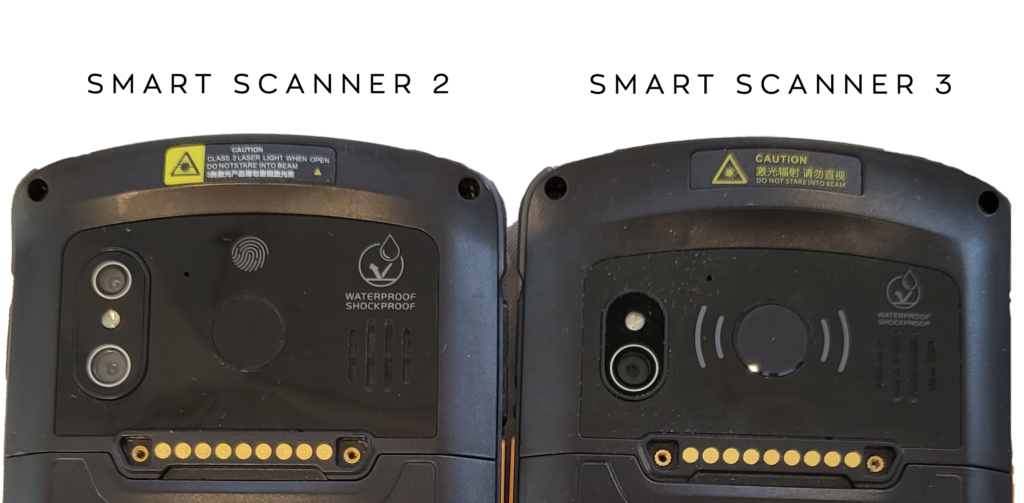
If you’re not using the Smartphone Scanner 3, you can read more about the Smartphone Scanner 2 here.
 Yes, thanks!
  Not really

0 Comments