Sales quotes are similar to sales orders, but don’t reduce your inventory. They’re useful for creating placeholder orders for customers. You can make a sales quote from scratch or convert a sales order into a quote!
Web
To create a sales quote
From the Main menu, hover over the Create button , then click Sales quote.
Fill in the customer information and any relevant details.
To add products to the quote, click on Add products or Scan to add.
Click the Save button when done.
When you’re ready to create a sale from this quote, click the Convert to order button at the top to complete the process!
A sales quote with the Convert to order button highlighted.
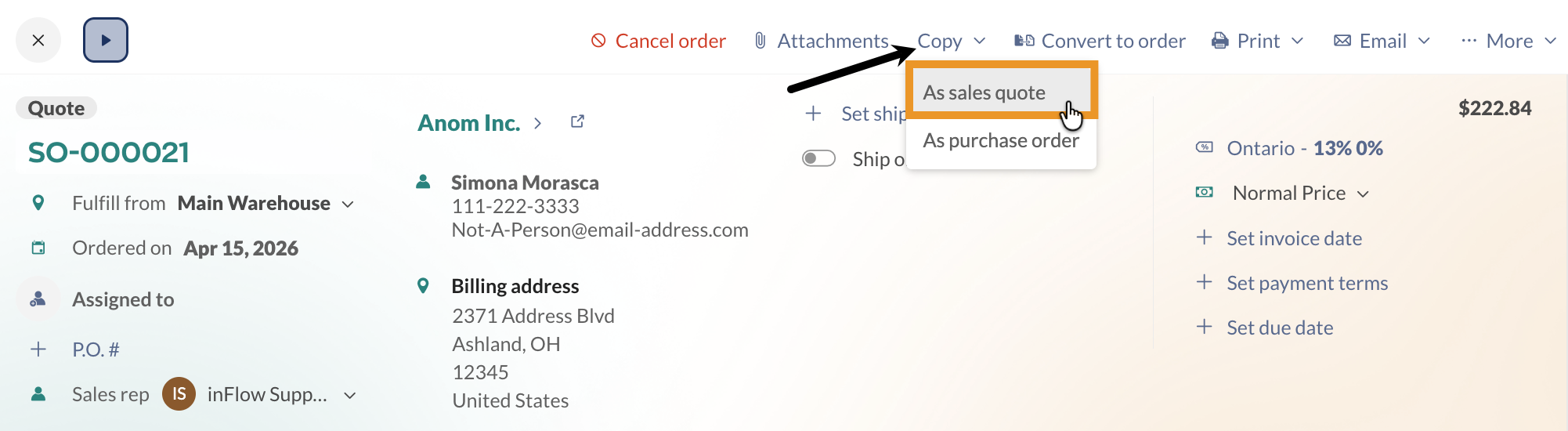
Converting a quote to an order will remove the original quote entirely. If you want to keep a copy of the quote, click the Copy button at the top, then click Copy Sales Quote. Convert the copied quote into an order and your original quote will remain.
Click the Copy button to create a duplicate of the sales quote.
Converting an existing sales order into a sales quote
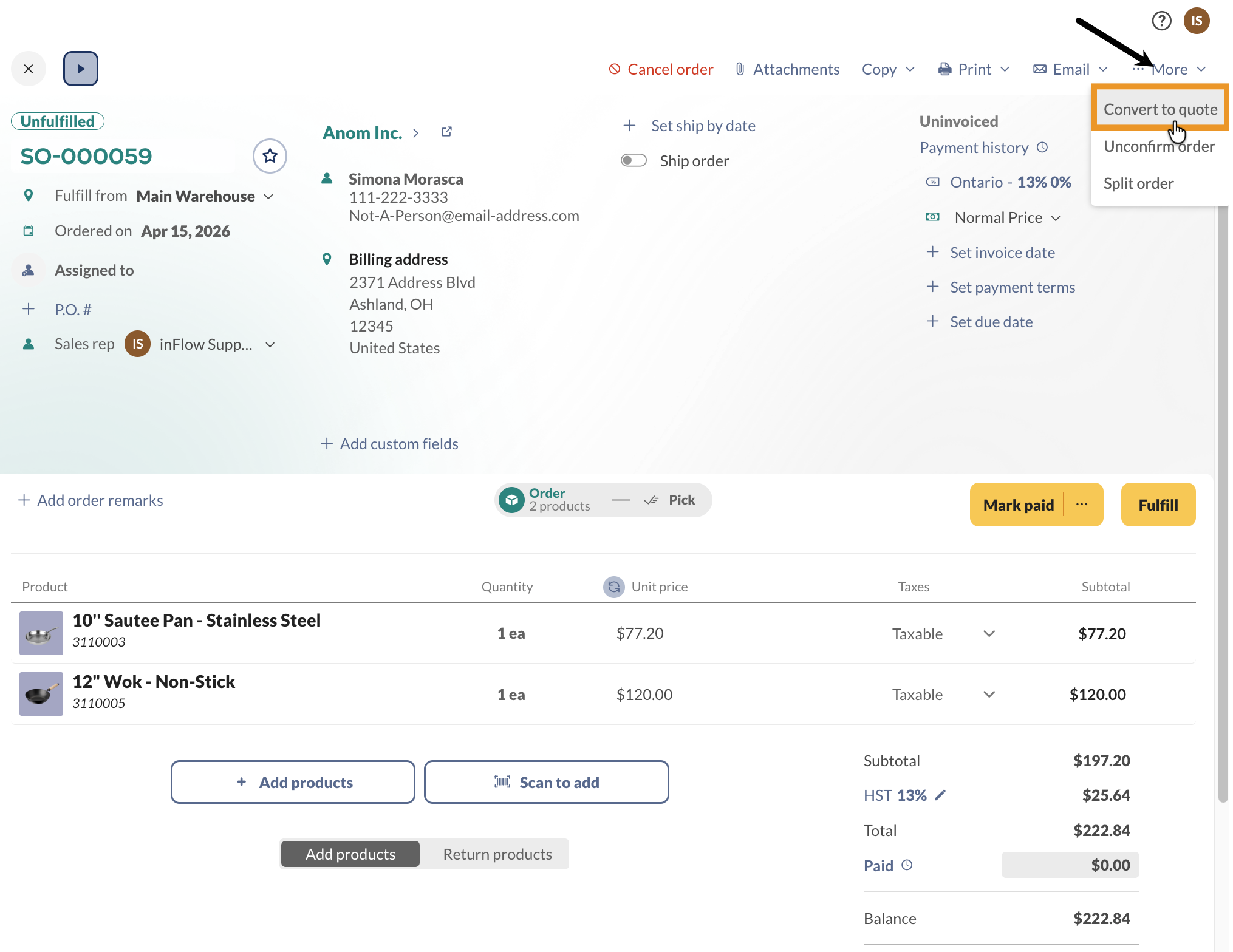
To convert a sales order to a sales quote, click the More button at the top of the order, then select Convert to Quote.
A sales order can be converted to a sales quote by selecting More, then Convert to quote.
How to find/view sales quotes
From the Main menu, hover over the Sales icon , then Sales quotes.
The quotes will be listed on screen under the Quotes tab.
You can view a list of sales quotes by hovering over the Sales button in the Main Menu and selecting Sales quotes.
Windows
To create a sales quote
Go to Main Menu > Sales > Sales Quote.
Fill in the Customer info and any appropriate details.
Select/scan the items that you are quoting this customer.
Click the Save button when you are done.
Once you’re ready to create a sale from this quote, simply click the Convert to Order button at the bottom, and you’re done!
Converting a quote to an order will remove the original quote entirely. If you want to keep a copy of the quote, click the Copy button at the top, then click Copy Sales Quote. Convert the copied quote into an order and your original quote will remain.
To convert an existing sales order into a sales quote
If you’d like to convert a sales order to a quote, click More at the top of the sales order, then select Convert Order to Quote.
How to find/view sales quotes
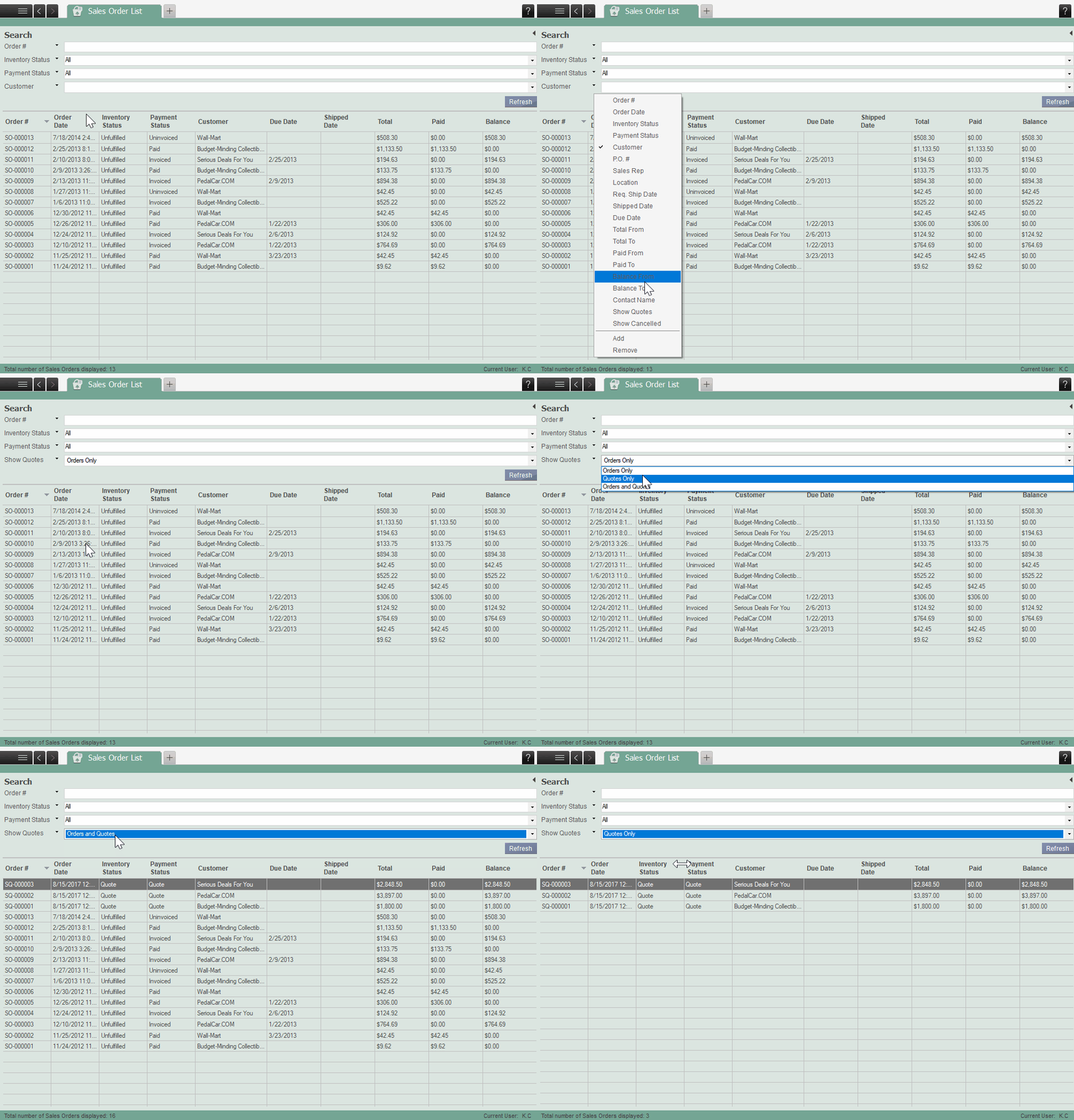
Open the Sales Order list by going to Main Menu>Sales>Sales Order List.
Add Show Quotes to your filter list by clicking on the down arrow next to any of the existing filters, then click on Show Quotes.
The Show Quotes drop-down menu will allow you to view the Sales Order list by Orders Only, Quotes only, or Orders and Quotes. Select the option you would like to view the sales quote you are looking for.
If you don’t want to change any of your filters, you can add Show Quotes to your list by clicking on the black down arrow next to any of the filter options. In the drop down menu, click the Add button. Repeat step 2 on the newest filter added to your list.
Mobile
To create a sales quote
Tap on the Main Menu button (the three horizontal lines at the top left of the screen) and select Sales Orders (or directly tap on Sales orders on the homepage).
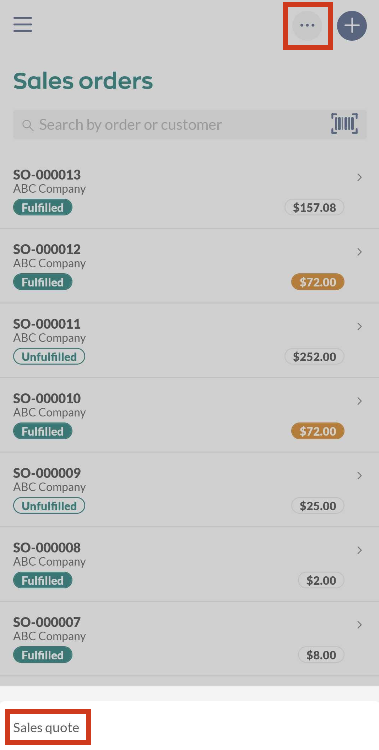
On the sales order list, tap the ellipsis (‘…’) in the top right of the screen. Tap Sales quote.
Select a new or existing customer to add to your order.
If you create a new customer, the only required field is Customer Name – you can edit their information later by tapping the Main Menu button > Customers.
Tap Add item to add products to your sales quote (or scan your product barcode instead by tapping Scan item). You can tap on the product you want to add to the quote then tap Add at the bottom of the screen.
You can search your item list by tapping the search bar at the top.
Once you’ve chosen all the items you want to add, tap Done to return to your sales quote.
Tap or swipe left to the Details tab to edit the order details, including customer information, shipping, edit inventory details (where inFlow should remove inventory from), add payment terms, remarks, etc.
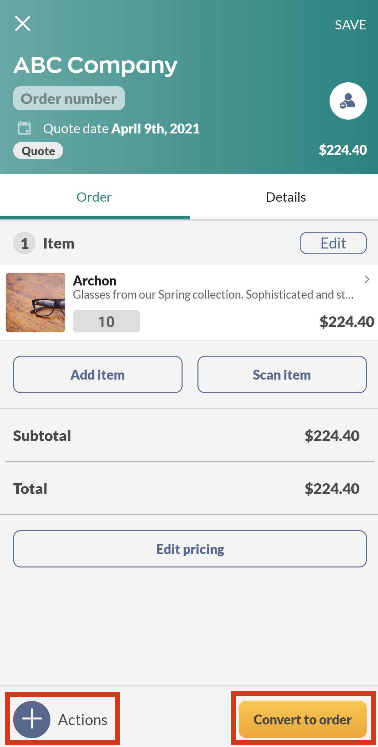
When your quote is completed, you can either email or share it by tapping on the + Actions button in the bottom left corner. Here you can also cancel your sales quote.
When you’re ready to turn the quote into a sales order, tap on Convert to order.
Converting a quote to an order will remove the original quote entirely.
To convert an existing sales order into a sales quote
Need to convert it back to a sales quote? No problem! Just tap the + Actions button at the bottom left of the order, then tap the Convert to quote button.
Was this guide helpful?
Yes, thanks!
Not really
Thank you for your input, your feedback is important to us!
 Fellow Canadians: All inFlow plans are available in Canadian dollars




 Home
Home


 , then click Sales quote.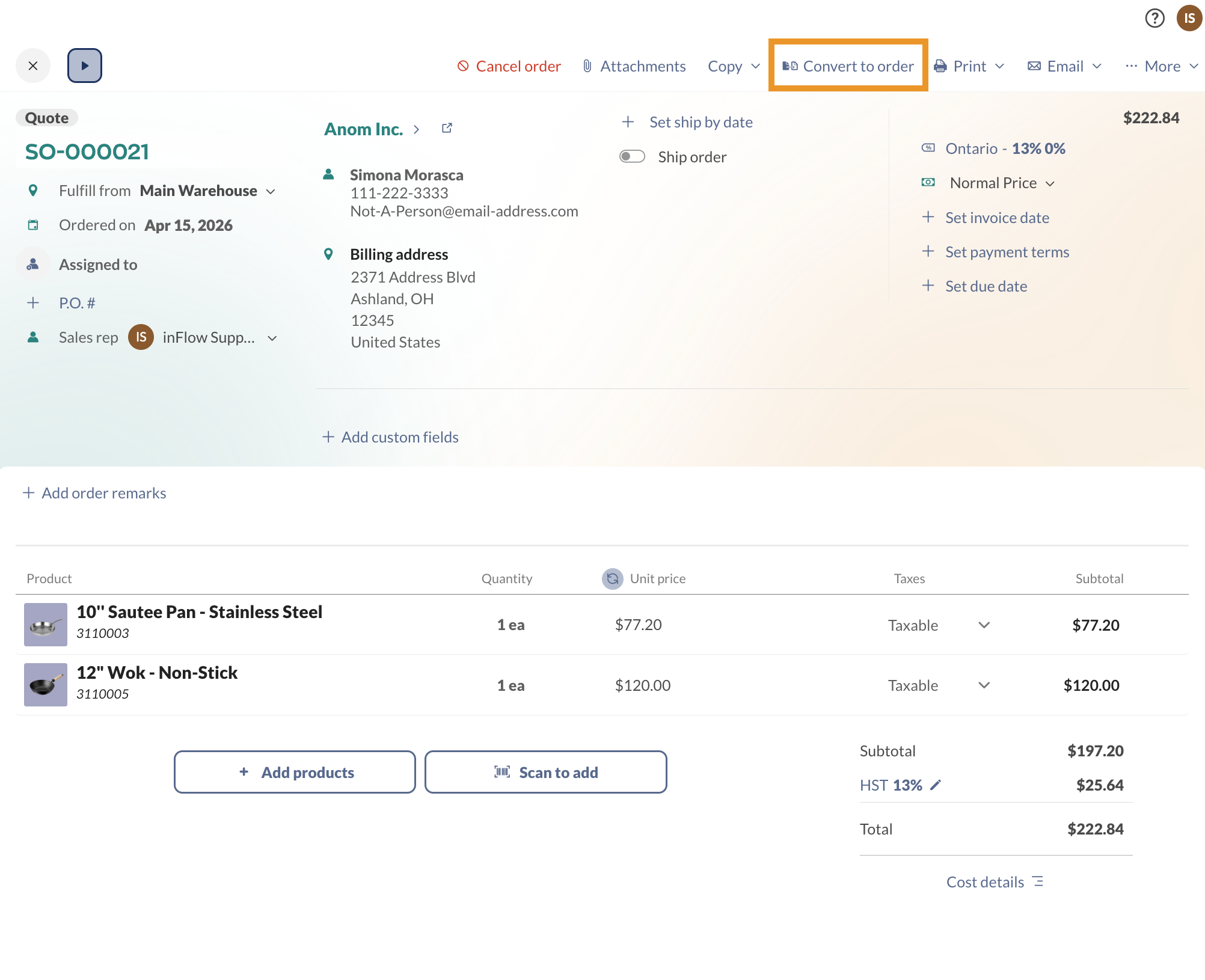
 , then Sales quotes.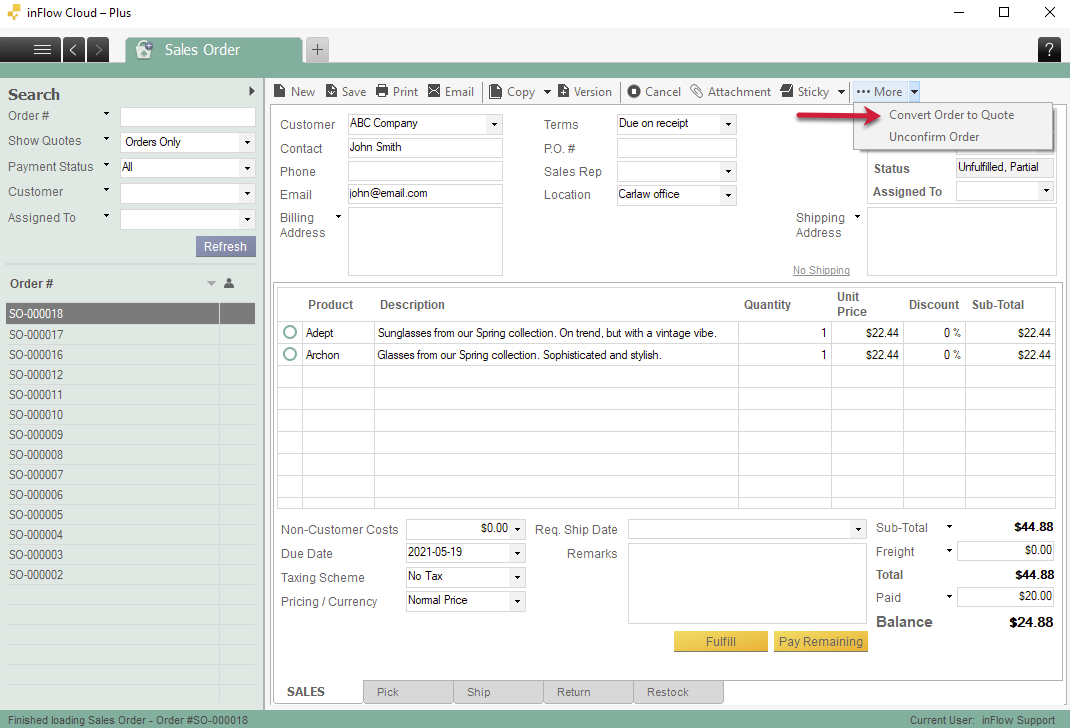
 Yes, thanks!
  Not really

0 Comments