 Fellow Canadians: All inFlow plans are available in Canadian dollars




 Home
Home


How to download and install inFlow apps
inFlow Inventory has three different apps you can use to view your inventory. To start using inFlow Inventory, sign up for an account here.
To learn more about which features are available to each client, take a look at this guide.
Using inFlow Inventory for Web
Log in to inFlow: app.inflowinventory.com
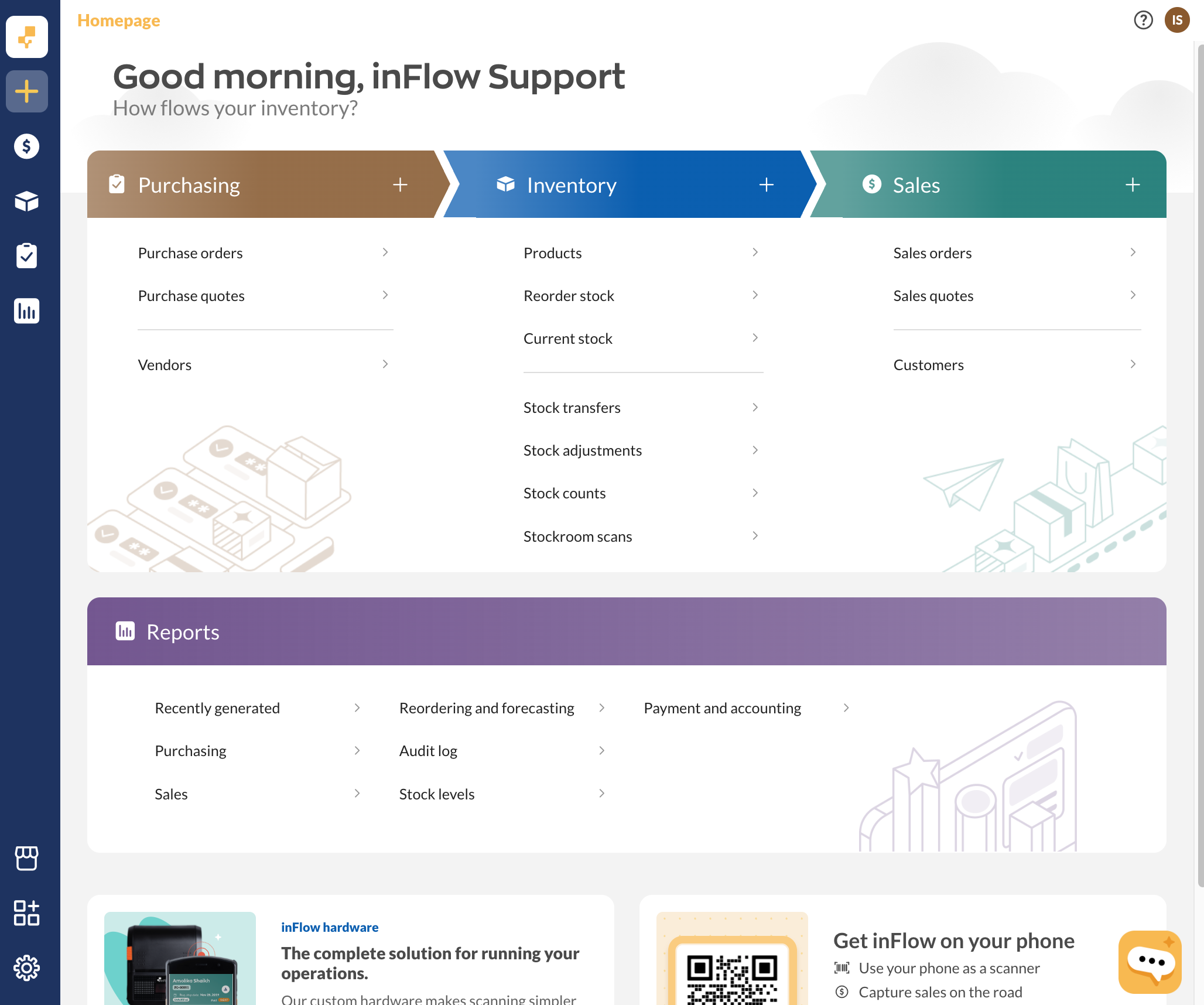
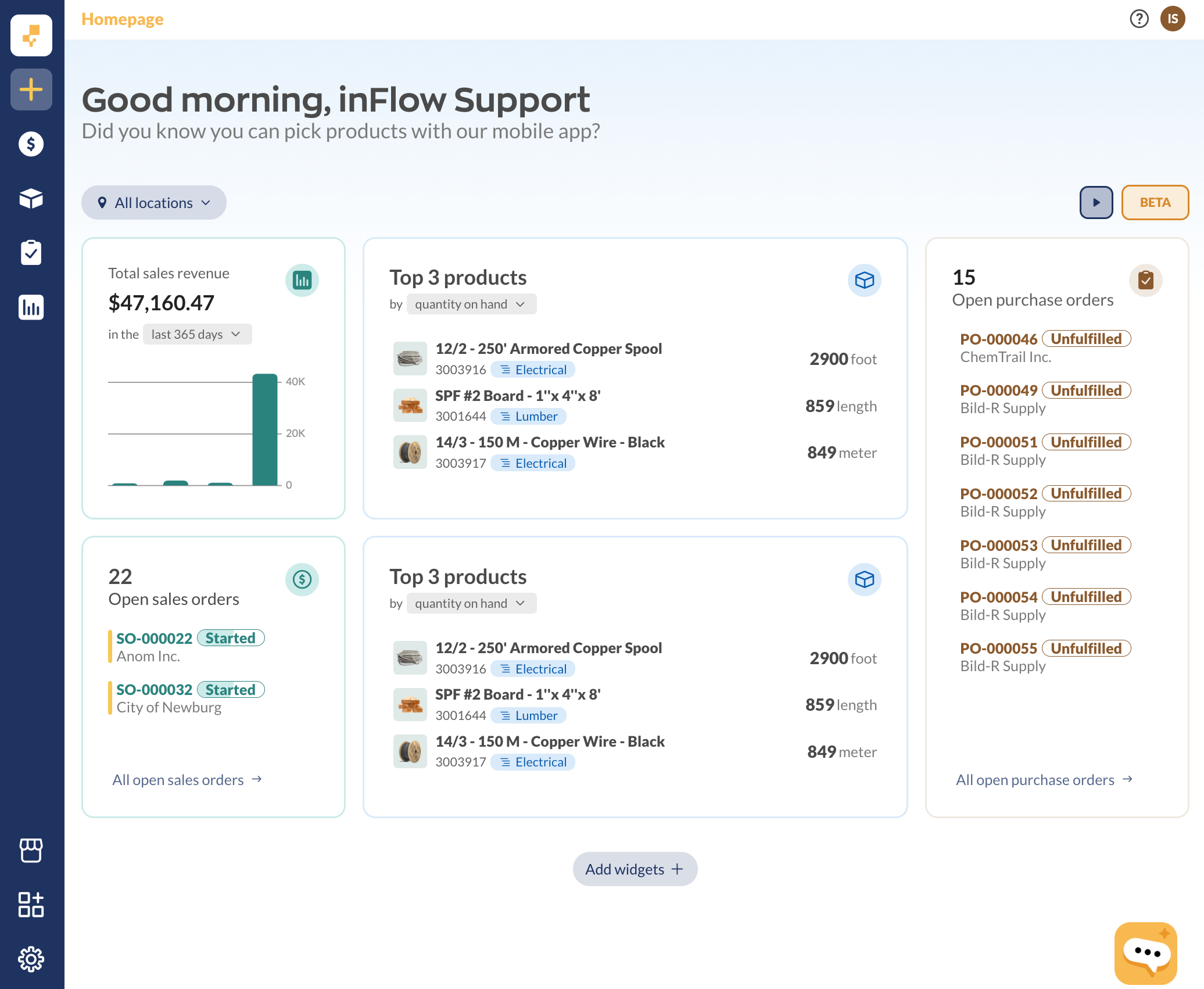
You’ll arrive on the inFlow Inventory Homepage or the Dashboard (gradually being released to all inFlow accounts in Beta). You can view your products, customers, sales, purchase orders, and more from the Main menu on the left side of the screen.
Download & use inFlow Inventory for Windows
The inFlow Inventory for Windows client must be installed before you can use it to manage your inventory.
- Download and run the inFlow Inventory for Windows installer.
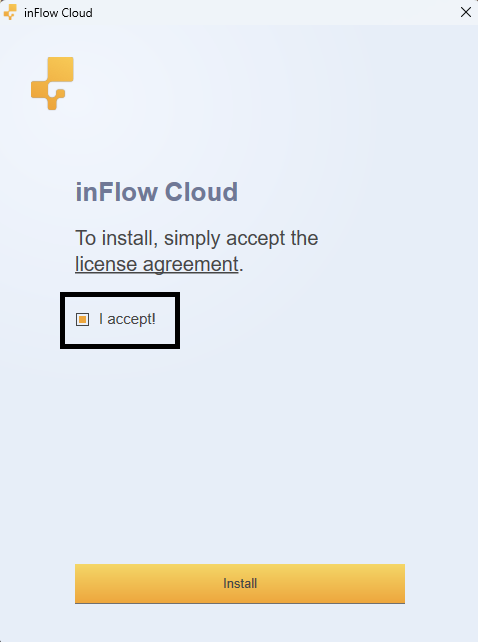
- Check the box I accept to accept the license agreement and click Install.
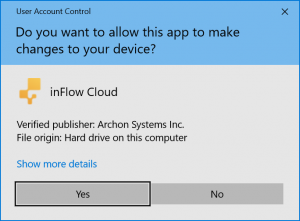
- If prompted, select Yes to allow inFlow Inventory to make changes to your device and begin the download.
Once the download is completed, log in to your inFlow Inventory account to start working with your inventory.
Download & use inFlow Inventory for Mobile
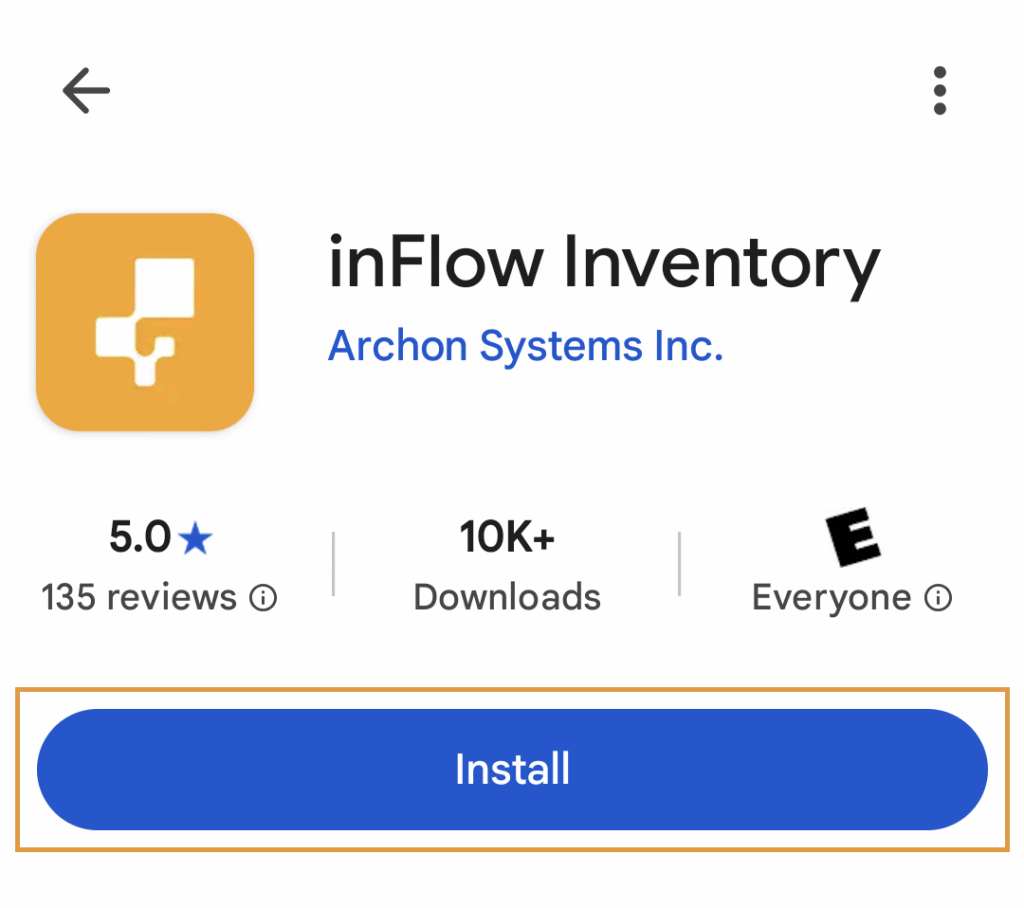
inFlow Inventory for Android
- Search for the inFlow Inventory app in the Google Play Store.
- Tap Install to download the app on your Android Device.
- Tap Open when done.
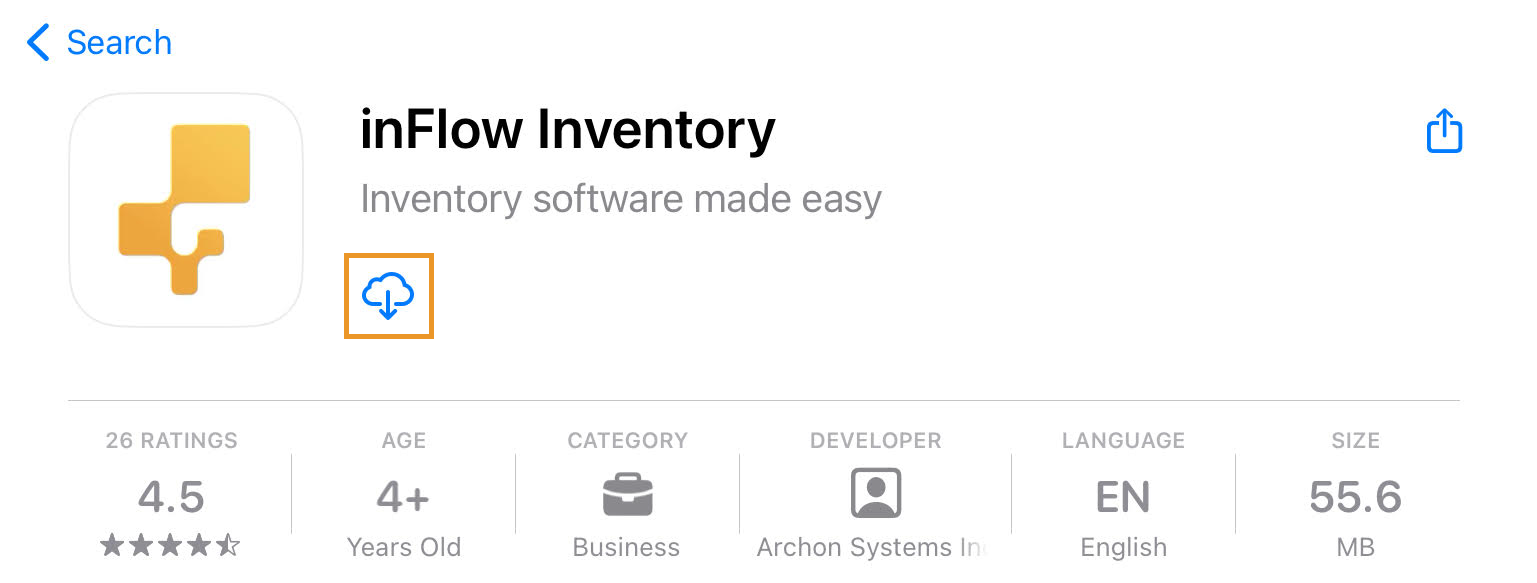
inFlow Inventory for Apple
- Search for the inFlow Inventory app in the Apple Store.
- Tap the download icon to install the app.
- Tap Open when done.
Using the inFlow Inventory Mobile app
Once your mobile app has been installed, you can open it by tapping the inFlow Inventory app icon located with your other apps.
Log in with your inFlow Inventory account email and password, and you’ll be able to view and edit your products, scan barcodes, make stock adjustments, and more.
 Yes, thanks!
  Not really

0 Comments