 Fellow Canadians: All inFlow plans are available in Canadian dollars




 Home
Home


How do I enter my product’s cost/price/markup?
In inFlow, you can set your product’s markup for all your pricing schemes and, depending on the selected costing option, edit the cost.
Web
Entering product costs
Costs in inFlow reflect what you’ve paid for a product (including shipping fees and any other tariffs, etc).
These will be updated based on your purchase orders and used to calculate profit.
To enter the cost of your item
- Open a product.
- In the Pricing & Cost section, select the Cost field.
- Click Save.
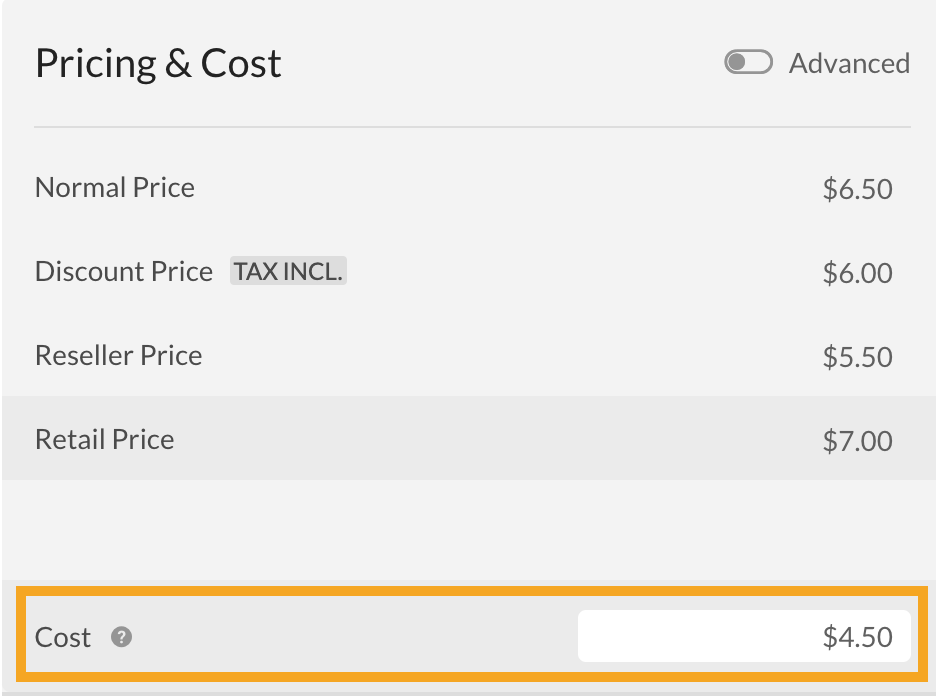
If the cost field is greyed out (you can’t edit the cost), then you’re likely using a costing option that doesn’t allow for manual adjustments. You can see more about changing your costs here.
To enter your product costs in bulk, use a product details import. Click here for steps!
Entering product prices and markup
By default, the Pricing and cost display the sales prices for your pricing schemes. The markup and sales prices are automatically linked. You can edit the markup to be based on the following:
- Fixed price: Choose this option if you want the markup locked in and the price to change relative to the cost.
- Fixed margin: Choose this option if you want the price of your product to maintain a locked profit margin that keeps it from fluctuating with your product costs.
To set product markups, toggle on Advanced.

Fixed price markup
When Advanced is toggled on, all pricing schemes default to the fixed price markup option (the dollar sign symbol is selected) With this markup option, you enter the price instead of inFlow, which calculates it based on your cost.
Enter the prices in the Sales price fields, and the markup percentage will be calculated based on the cost.
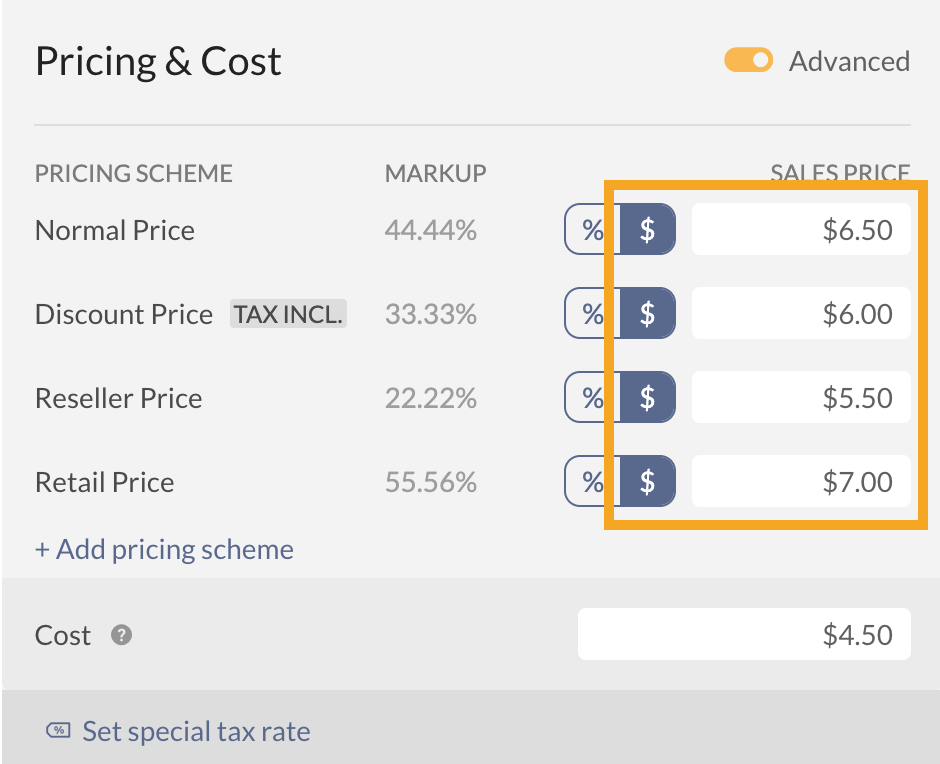
With the fixed price markup, your price remains unchanged regardless of cost fluctuations. The markup percentage will fluctuate as your cost changes, but the price will remain the same unless you manually update it. You can see more about doing pricing adjustments in bulk here.
Fixed margin markup
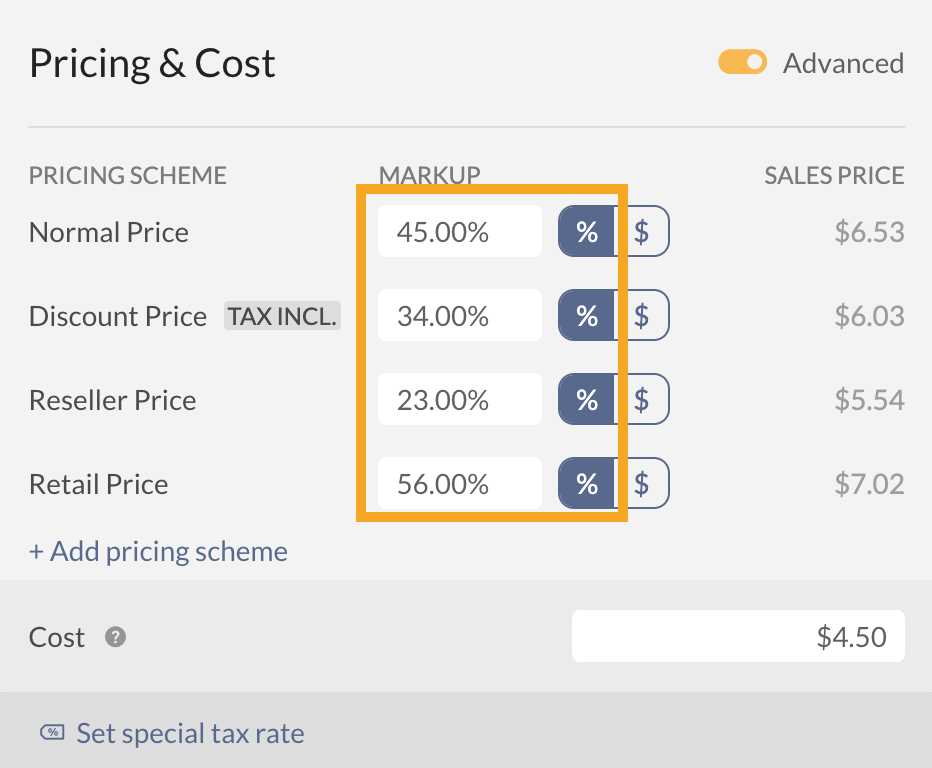
If you prefer not to use the fixed price, you can also set your markup based on a fixed margin (percentage) that adjusts with your costs.
This is especially useful for non-profit organizations if you always need to set the markup to 0, for example, and even though your costs may change, your price will remain the same as the cost due to the fixed markup.
- To set fixed markup, toggle on Advanced.
- Click the percent icon, then enter the margin on which the cost should be calculated.
Windows
Entering product costs
Costs in inFlow reflect what you’ve paid for an item (including shipping fees and any other tariffs, etc.). These will be updated based on your purchase orders and used to calculate profit.
To enter the cost of your item
- Click into the Cost field in the Cost and Price section of your product record (or Pricing & Cost if you are using Web).
- Enter the cost.
- Click Save in the top toolbar.
If the cost field is greyed out (preventing you from entering any cost), you may be using a costing option that doesn’t allow manual adjustments. You can see more about changing your costs here.
To enter your product details in bulk, use a Product Details import. Click here for steps!
Entering product prices and markup
The markup and sales prices are automatically linked. You can enter your price in the first box, and the markup will be recalculated based on the cost. Similarly, if you know your product’s markup, you can enter it in the markup box, and your sales price will be calculated based on the cost.
Fixed Price
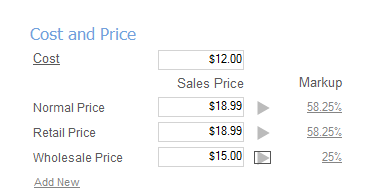
You’ll notice that after entering the cost and price, the markup will automatically be calculated like so:
With a fixed price, your price stays the same regardless of cost fluctuations. The markup percentage will fluctuate as your cost changes, but the price will remain the same unless you manually update it.
You can see more about doing pricing adjustments in bulk here.
Fixed Markup
If you’d rather not use the fixed price, you can also lock in your markup so that as your costs go up and down, your prices will follow suit! This is especially useful for non-profit organizations if you always need to set the markup to 0, for example, and even though your costs may change, your price will remain the same as the cost due to the fixed markup.
To set fixed markup, click on either the Markup percentage or the triangle between price and markup.
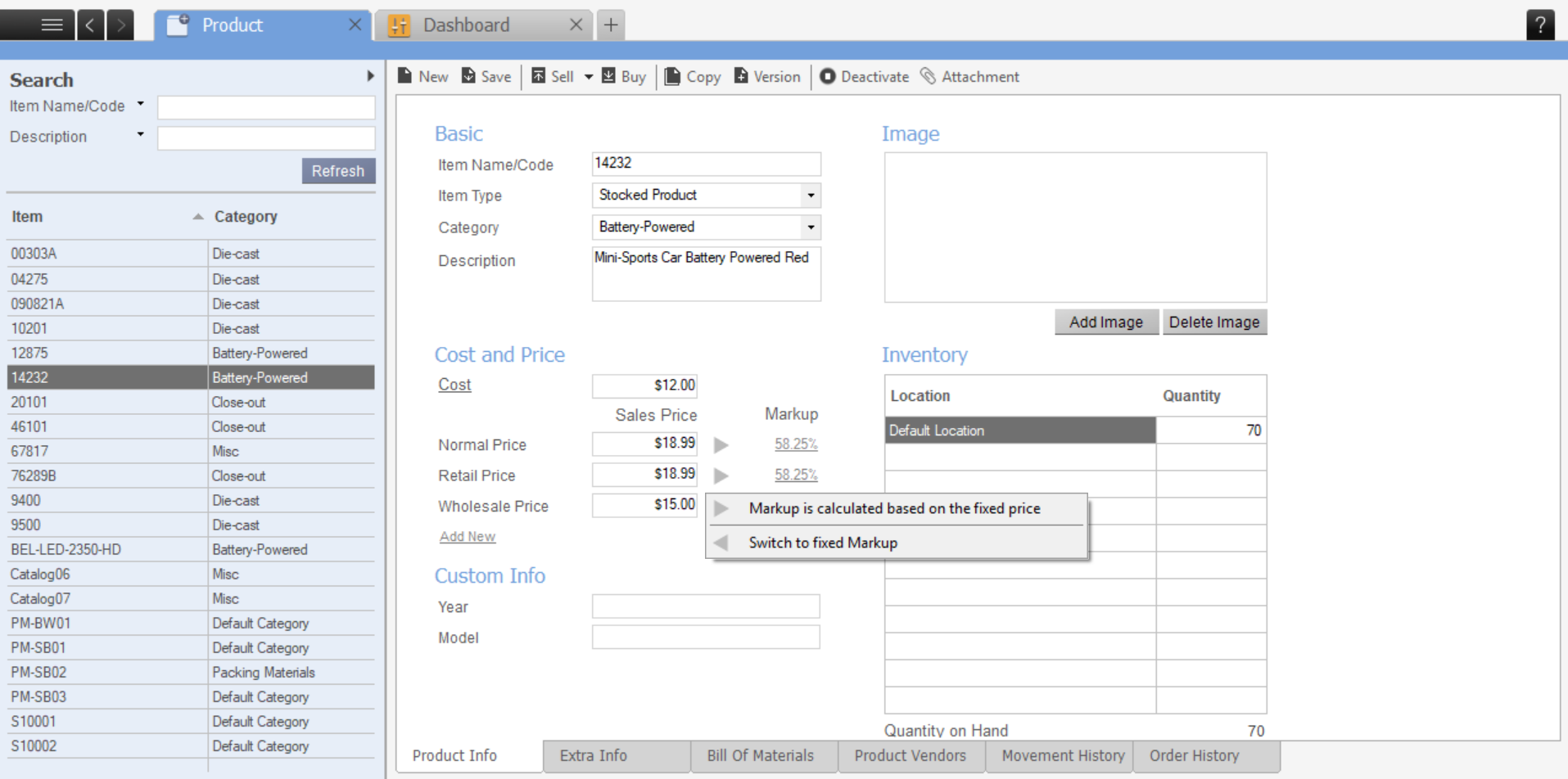
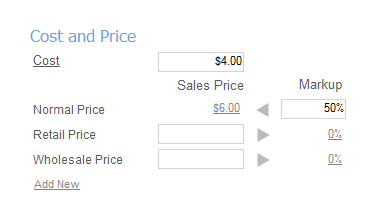
Choose Switch to Fixed markup if you want the markup to be locked in and have the price change relative to the cost.
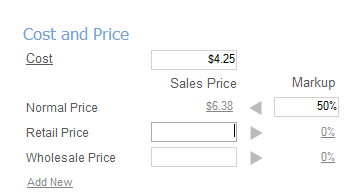
For example, if the markup is fixed at 50%, the cost is $4, and the price is $6.
If the cost fluctuates to $4.25, the price would be adjusted to $6.38.
 Yes, thanks!
  Not really

0 Comments