 Fellow Canadians: All inFlow plans are available in Canadian dollars



 Home
Home


How to use third-party hardware scanners with the inFlow Android apps
Using an Android device with a built-in barcode scanner, like a Zebra, Urovo, or Sunmi device? The inFlow Inventory and inFlow Stockroom apps for Android can now detect many built-in scanners and switch to hardware scanning for you. If the app doesn’t detect your scanner, you can turn on hardware scanning yourself. See below for full details.
Please note: This feature is available only in the inFlow Inventory and inFlow Stockroom apps for Android. inFlow doesn’t officially support third-party scanners, so hardware scanning may not work on all devices.
How inFlow detects your device’s scanner
Each time you open the app, inFlow checks your device for a built-in scanner.
- Scanner detected: The app opens in hardware scanner mode. Press your device’s scan button to scan instead of lining up the camera. Scanning works the same way it does on the inFlow Smartphone Scanner.
- No scanner detected: The app opens in camera scanning mode, and you scan barcodes with your device’s camera.
Detection can vary by device model and firmware. If your device has a built-in scanner but the app still opens the camera, you can change your scanner mode manually.
How to change your scanner mode
The Scanner Mode page is hidden from the app’s menu. You can only open it from the links in this article.
Switching modes reloads the app, and you’ll lose any unsaved changes. Save any open orders before you start.
- On your Android device, open this article in your web browser.
- Tap the link for the app you use:
- Open Scanner Mode in inFlow Inventory/Manufacturing
- Open Scanner Mode in inFlow Stockroom
- The app opens to the Scanner Mode page. Select the mode you want to use.
- Confirm the change. The app reloads and opens in the mode you selected.
The app remembers your choice on that device, even after you close and reopen it.
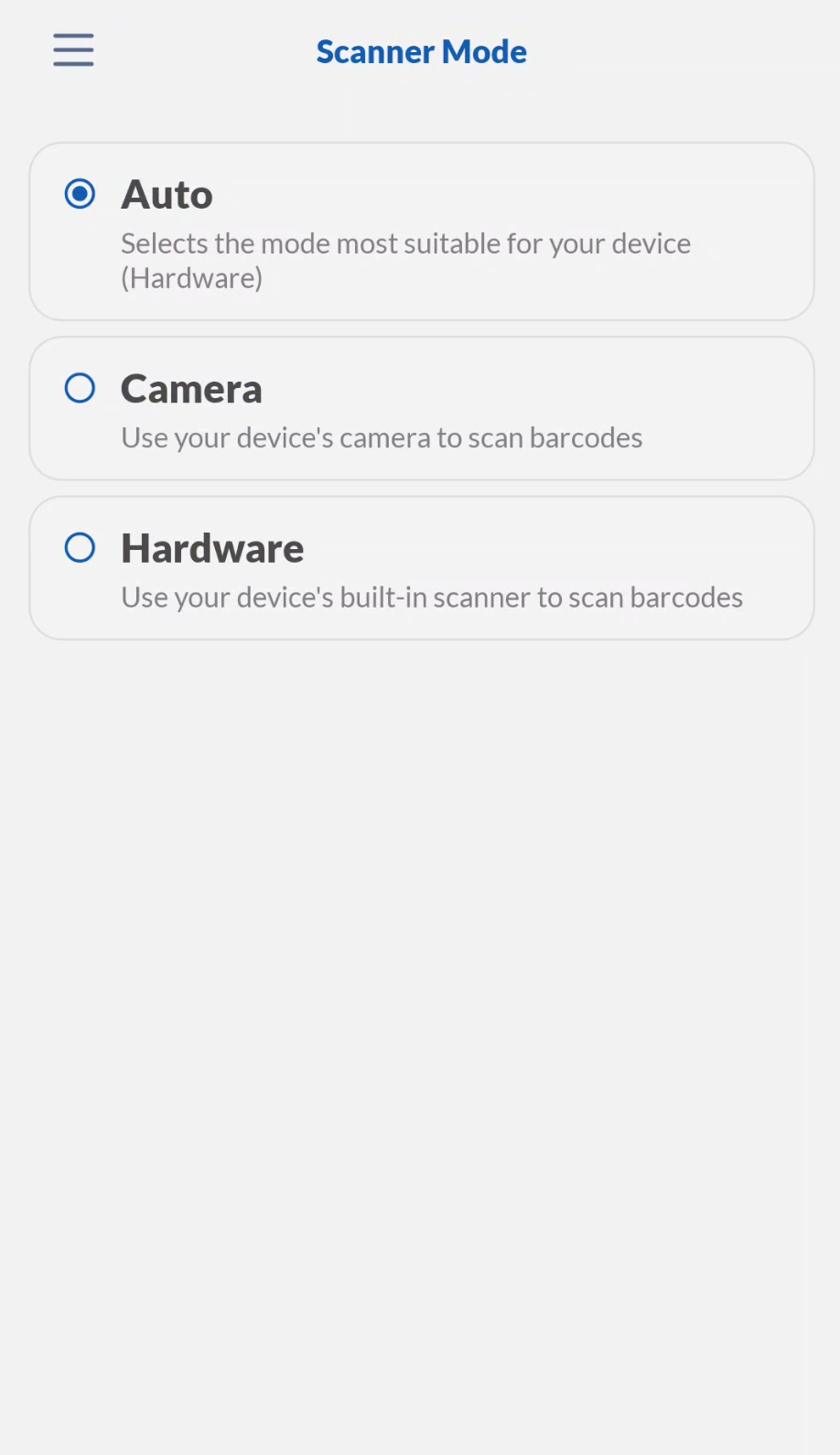
Scanner mode options
- Auto (default): The app chooses hardware or camera scanning based on whether it detects a built-in scanner.
- Camera Scanner: The app always uses the camera, even if it detects a built-in scanner.
- Hardware Scanner: The app always uses your device’s built-in scanner, even if it didn’t detect one.
Tip: Using a shared device? Set the scanner mode on each device your team uses. The setting only applies to the device you change it on.
How to switch back to automatic detection
- Open this article on your Android device.
- Tap the Scanner Mode link for your app.
- Select Auto, then confirm the change.
Troubleshooting third-party scanners
The app opens the camera even though my device has a scanner
Your device’s scanner might not match a model the app recognizes. Change your scanner mode to Hardware Scanner to turn on hardware scanning.
My scans don’t work in hardware scanner mode
Some third-party scanners may not work with the inFlow apps, even in hardware scanner mode. Switch back to Auto or Camera Scanner to keep scanning with your camera. For help with your device’s own scanner settings, contact your device’s manufacturer.
The Scanner Mode link opens a blank page
Make sure you tap the link on the Android device where the inFlow Inventory or inFlow Stockroom app is installed. The link won’t open the app from a computer or from a device without the app.
Can I use a third-party scanner on iPhone?
No. Hardware scanner mode for third-party devices is only available on Android. Check the minimum requirements for inFlow to see which devices the apps support.
For fully supported scanning hardware, take a look at the inFlow Smartphone Scanner 3 or learn more in the Which scanner should I use? guide.
 Yes, thanks!
  Not really

0 Comments