 Fellow Canadians: All inFlow plans are available in Canadian dollars




 Home
Home


How to ship products to a specific warehouse/location from vendors
In inFlow, you can set up multiple addresses for your vendors to ship to directly from a purchase order. Take a look below to learn more.
Web
Adding addresses to locations in inFlow
- In the Inventory settings, then Locations (hover over the Settings icon
 >Inventory.)
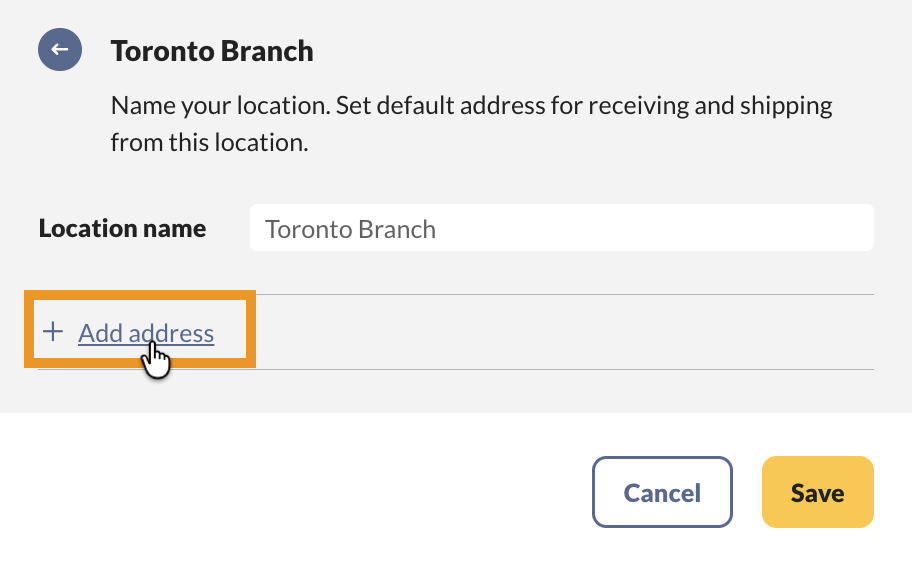
 - Select the blue arrow next to a location, then click Add address.
- Fill out the fields.
- If needed, click the back arrow to return to the location list and edit locations.
- Click Save when done.
How to set the ship-to address on purchase orders
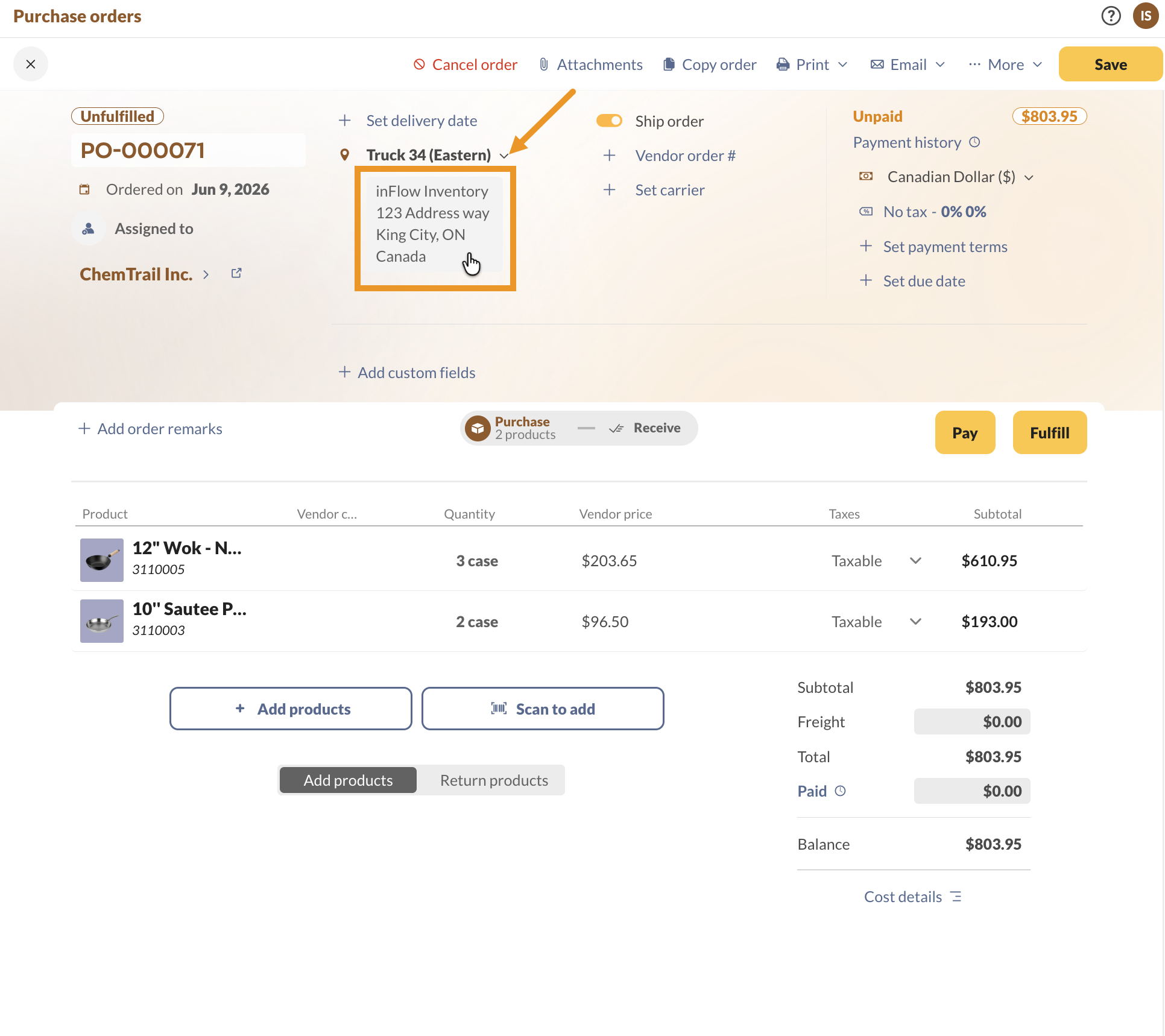
- On the purchase order, select the Ship order toggle.
- If needed, change the location on the purchase order.
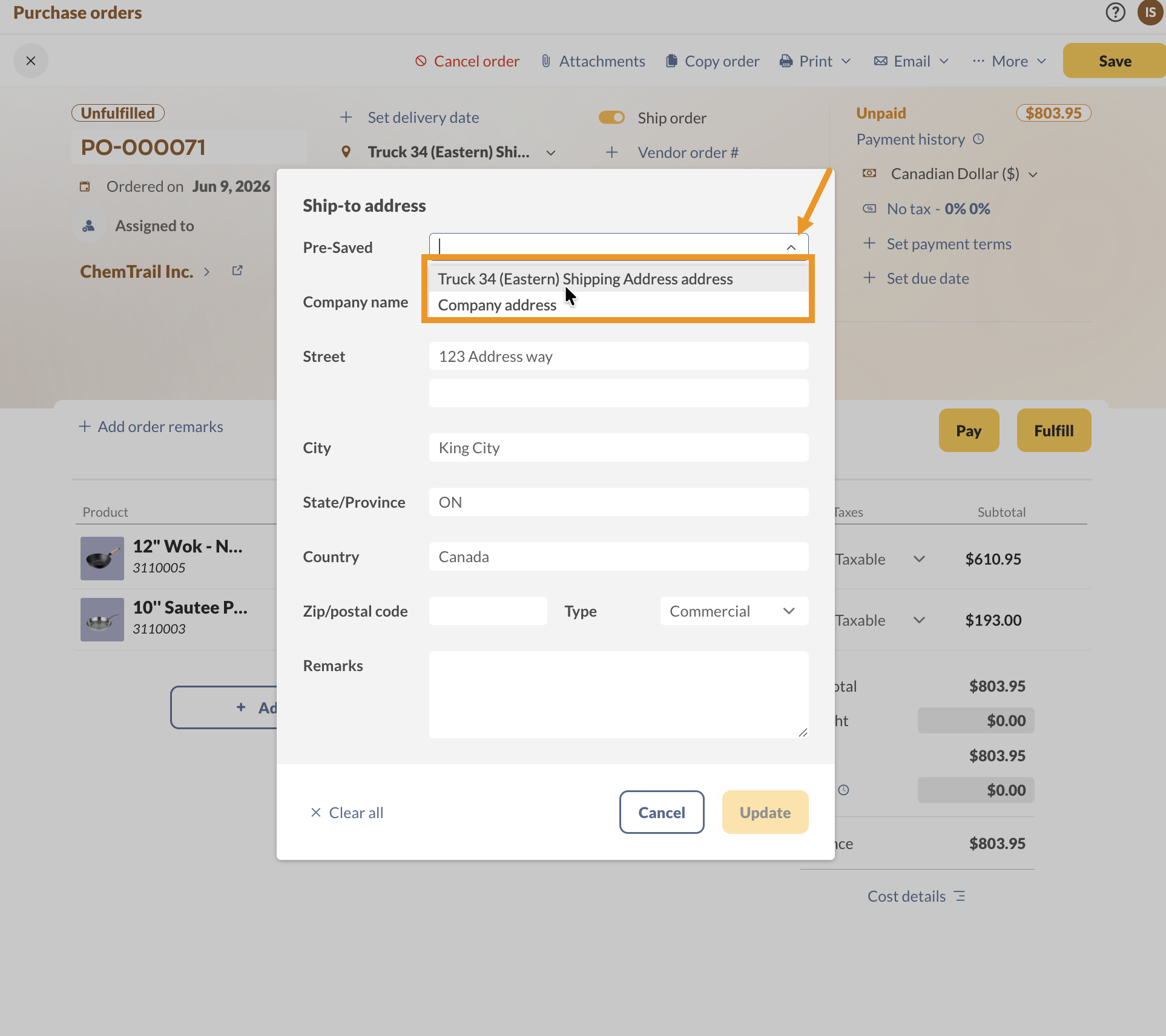
- Click on the address below the purchase order location. Select a pre-saved field or enter the address fields below.
- Click Update when done.
- Save the purchase order.
Windows
How to set up the ship-to address
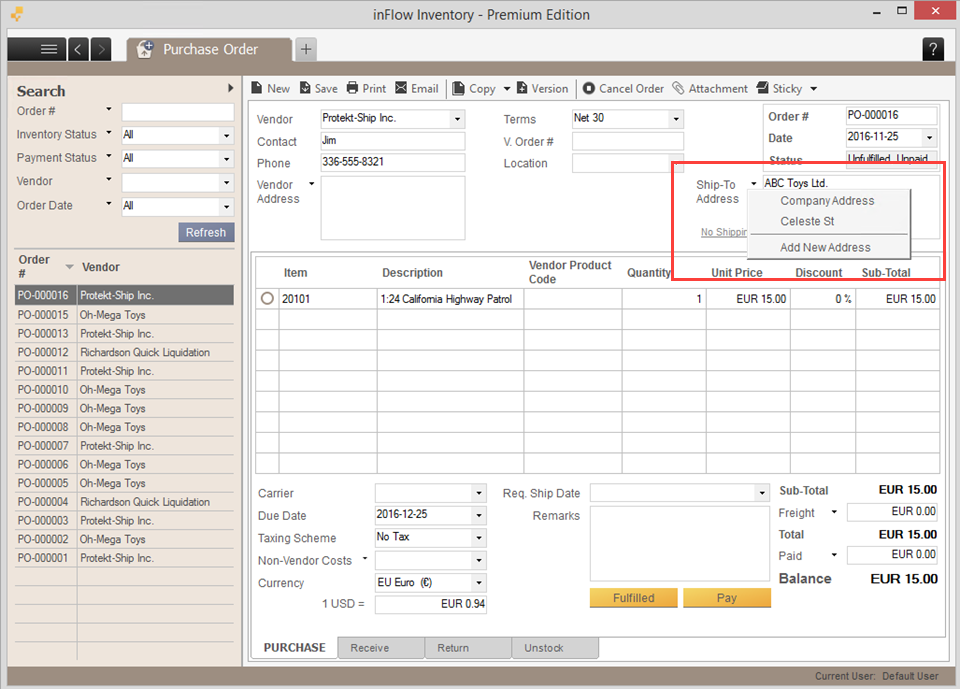
- Click the Add Shipping link in the top right-hand corner of your purchase order.
- Next, click the Ship-To Address and choose the correct location from the drop-down menu.
- If you need to add another address, simply choose the Add New Address option from the list instead.
You can also control your receiving addresses via Main Menu > Options > Settings > References > Receiving Addresses.
 Yes, thanks!
  Not really


0 Comments