 Fellow Canadians: All inFlow plans are available in Canadian dollars



 Home
Home


How to create and complete manufacture orders (Web)
Manufacture orders in inFlow help you track the raw materials, labor, and steps that go into every product you build. Use this guide to create a manufacture order (MO), pick and assemble components, track operations with timesheets, put away finished products, and complete the order. See below for full details.
What are manufacture orders?
Manufacture orders (MOs) track raw materials/components that are assembled to create a new product.
There are two elements to manufacture products in inFlow:
- Bill of materials
- Manufacture orders
A bill of materials (BOM) is a list of raw materials and instructions that are used to create a product. You can think of it as a recipe where the ingredients and steps are provided.
The manufacture order is where you track the work that needs to happen, such as:
- Product picking
- Reordering
- Manufacturing operations (Production management features)
- Putting away finished products
Before getting started
Before you assemble products, set up a few things in inFlow.
- Add all your products to inFlow. For inFlow to complete an MO, add every product you’ll work with before you start. You can create products manually or import them in bulk.
- Add costs to your products. Product costs help inFlow track manufacturing costs accurately. Learn more about how inFlow calculates costs.
- Add a bill of materials. You can add a BOM to products manually or import it in bulk.
Manufacture orders webinar
Check out the webinar below for a detailed guide on inFlow’s manufacturing features.

How to create a manufacture order
- From the Main Menu, hover over the Create button
 , then Manufacture order.
 - Search for or select the product you want to build, then click Next.
- Confirm the location for the MO, or select the blue arrow to choose a different location.
- In the quantity column, enter the number of how many you want to build. Then click Create.
How to create a blank manufacture order
- From the Main Menu, hover over the Create button , then Manufacture order.
- Select Start from a blank order. inFlow opens a new MO and sets the location to your personal default location.
- Select Add finished product to add the product you’ll build.
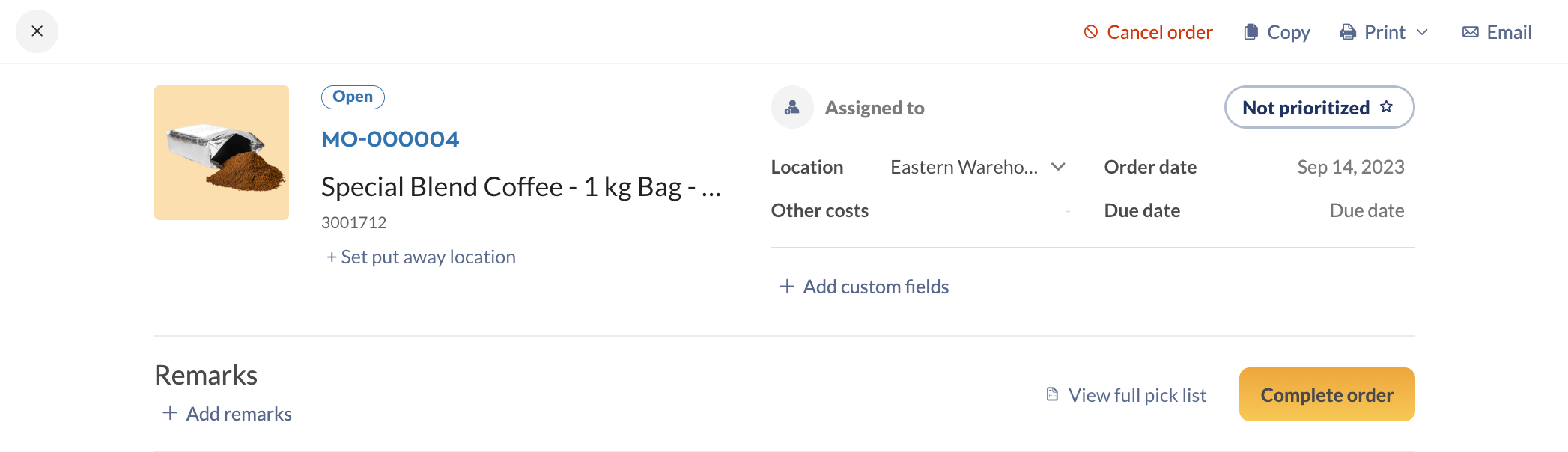
The MO header shows the product you’re building, along with:
- Assigned to
- Location (inFlow picks and puts away products here unless you choose otherwise)
- Order date
- Other costs
- Due date
- Finish date (appears after you complete the MO)
- Add custom fields
- The priority button
For best performance, we recommend building one finished product per MO.
Pick and assemble and Put away tabs
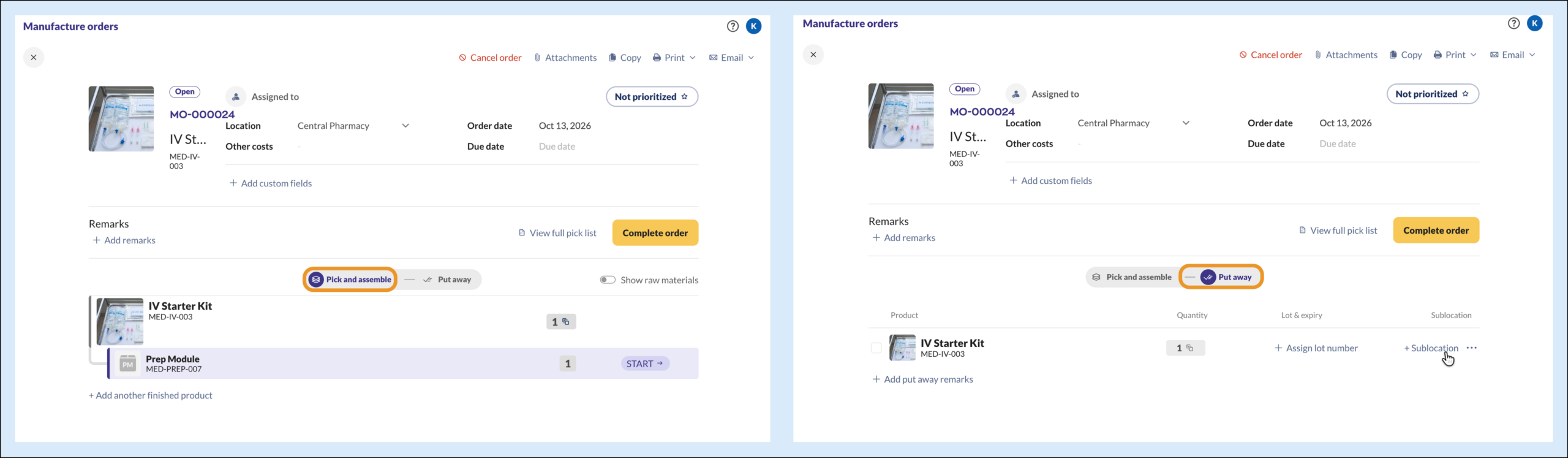
Every MO has two tabs in the middle of the order:
- Pick and assemble: pick raw materials, assemble subassemblies, and work through operations.
- Put away: choose where your finished products go.
The MO opens on the Pick and assemble tab. Click either tab name to switch between them.
Start manufacturing
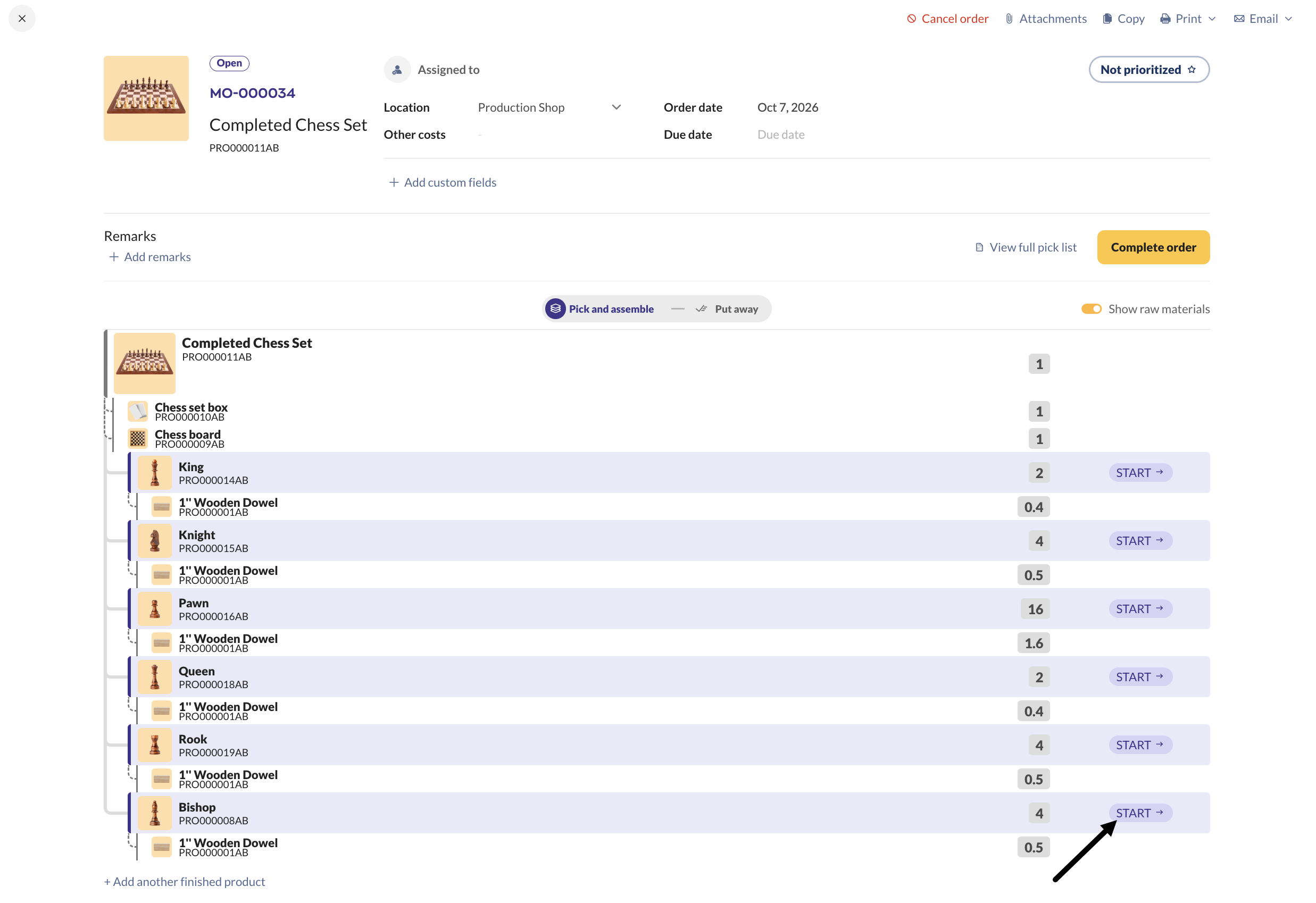
On the Pick and assemble tab, the Overview table groups raw materials and subassemblies in a hierarchy, so you can see what to build first. Turn on Show raw materials to see every component and raw material needed to build the product.
We suggest you start at the lowest level and work your way up. Lower-level subassemblies are usually needed for the higher-level assemblies.
Click Start next to an assembly to begin. If you’ve already started it, you’ll see Continue instead.
How to pick and assemble
Pick raw materials one assembly at a time, or pick everything at once from the full pick list.
Pick per assembly
- Click Start or Continue on an assembly line.
- The Raw materials panel shows the materials for that assembly.
- Check the box next to each raw material as you pick it. Or click Scan to pick with a barcode scanner.
- To pick from a specific sublocation, click + Sublocation on the row and choose one.
- To leave notes for your team, click Add pick remarks.
- When picking is complete, click Assemble. Then follow the steps in How to track operations and timesheets below.
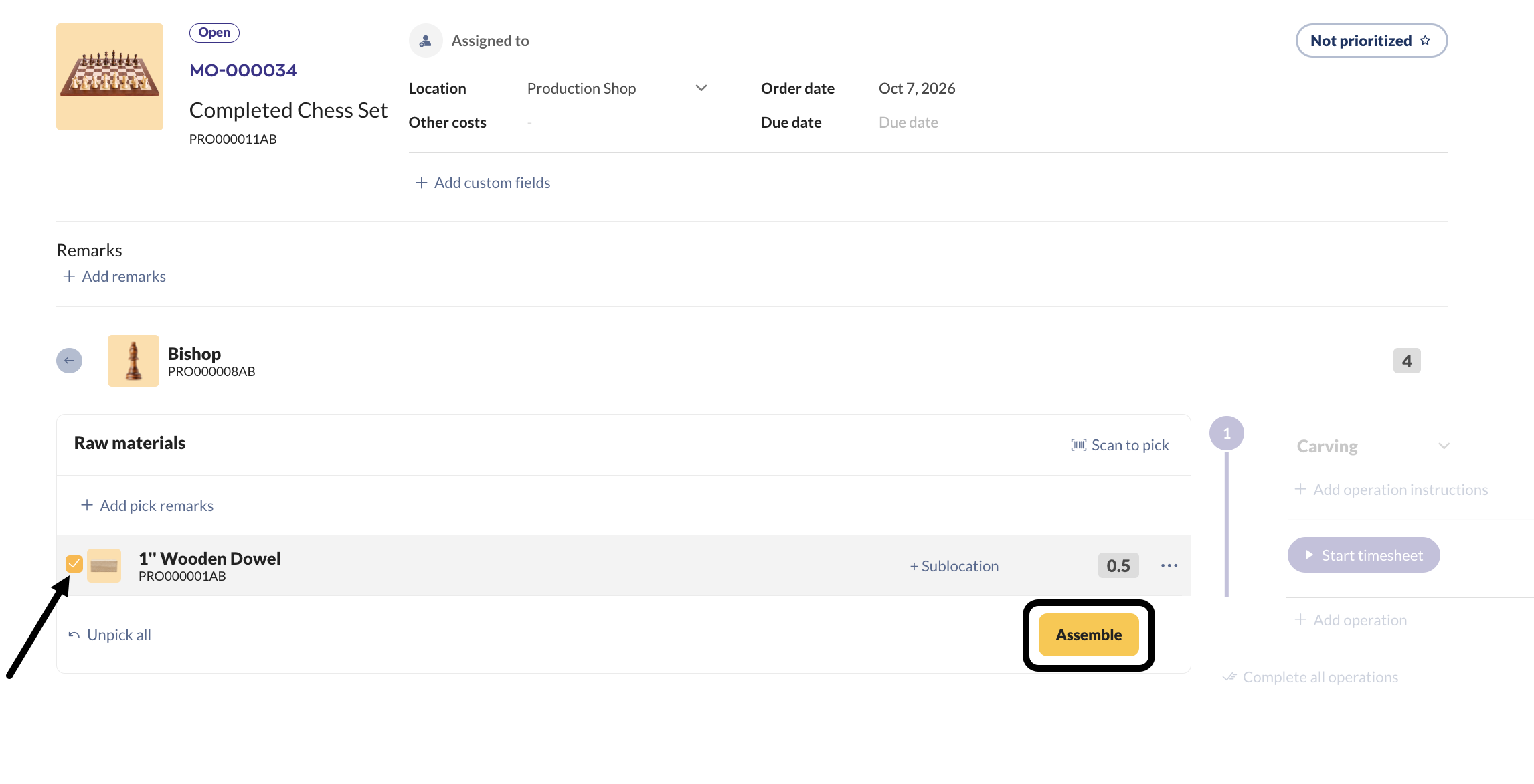
Picked the wrong items? Click Unpick all to clear every check mark in the panel and start over.
To return to the Overview table, click the back arrow next to the assembly name.
Full pick list
If you prefer to pick all raw materials at once, regardless of subassembly, use the full pick list.
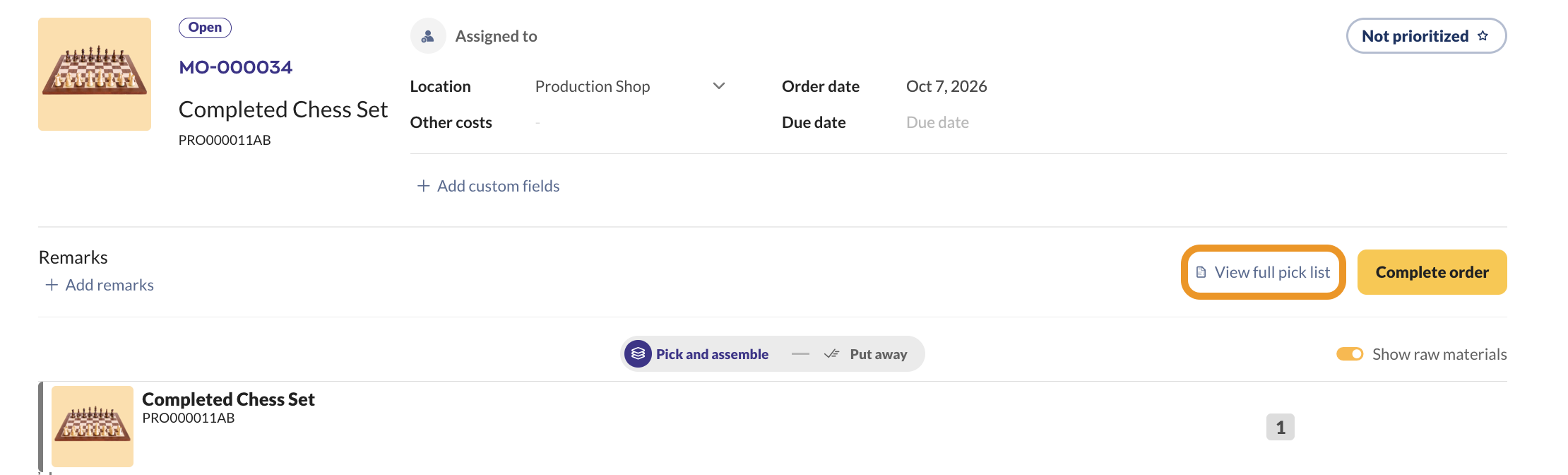
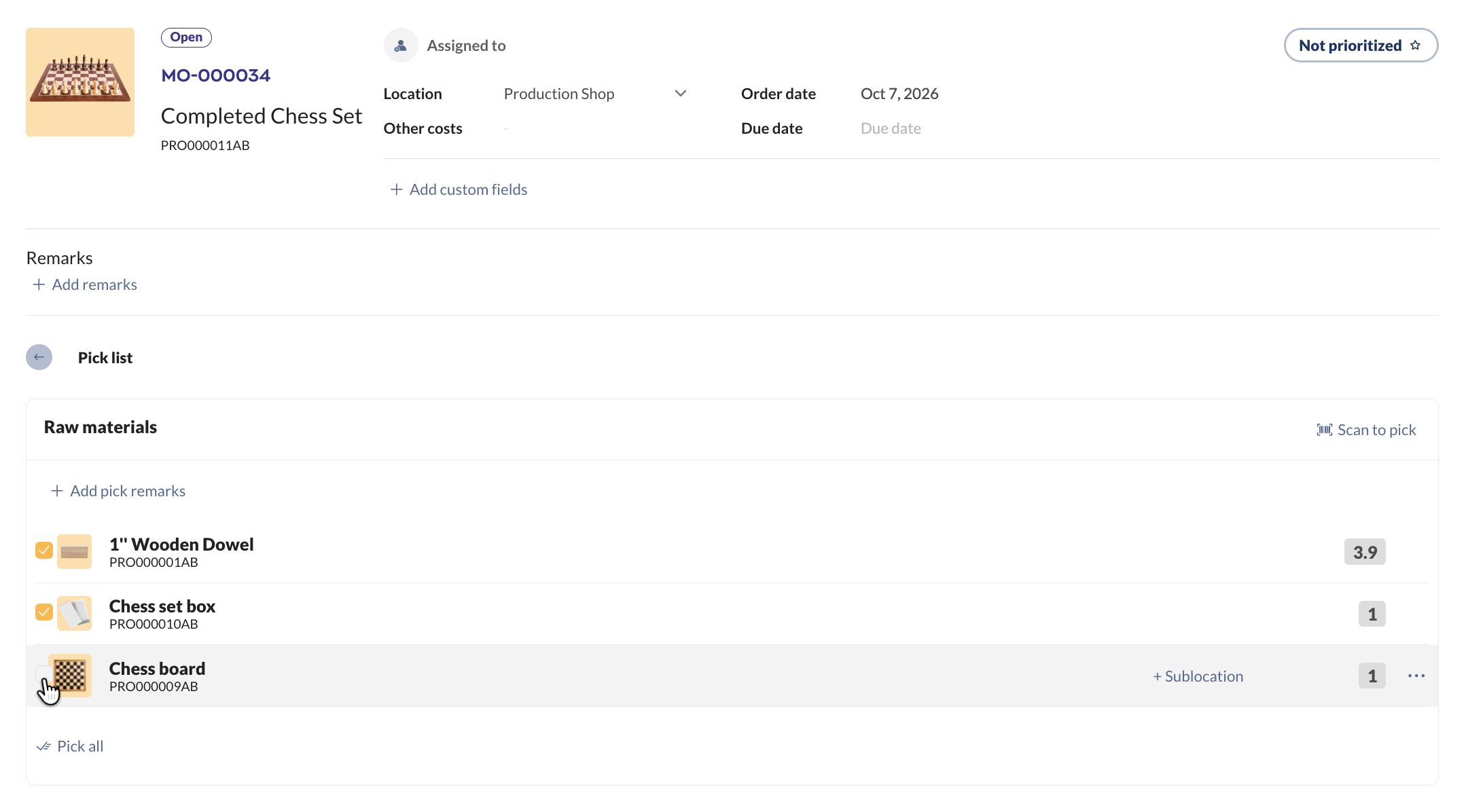
- Click View full pick list above the tabs. The Pick list opens and shows every raw material with the location to pick it from.
- Check the box next to each raw material you’ve picked, or click Scan to pick with a barcode scanner.
- To pick from a specific sublocation, click + Sublocation on the row. To leave notes, click Add pick remarks.
- When picking is complete, click Save.
- Click the back arrow next to Pick list to return to the Overview table.
When every raw material is picked, All picked appears next to View full pick list.
How to track operations and timesheets
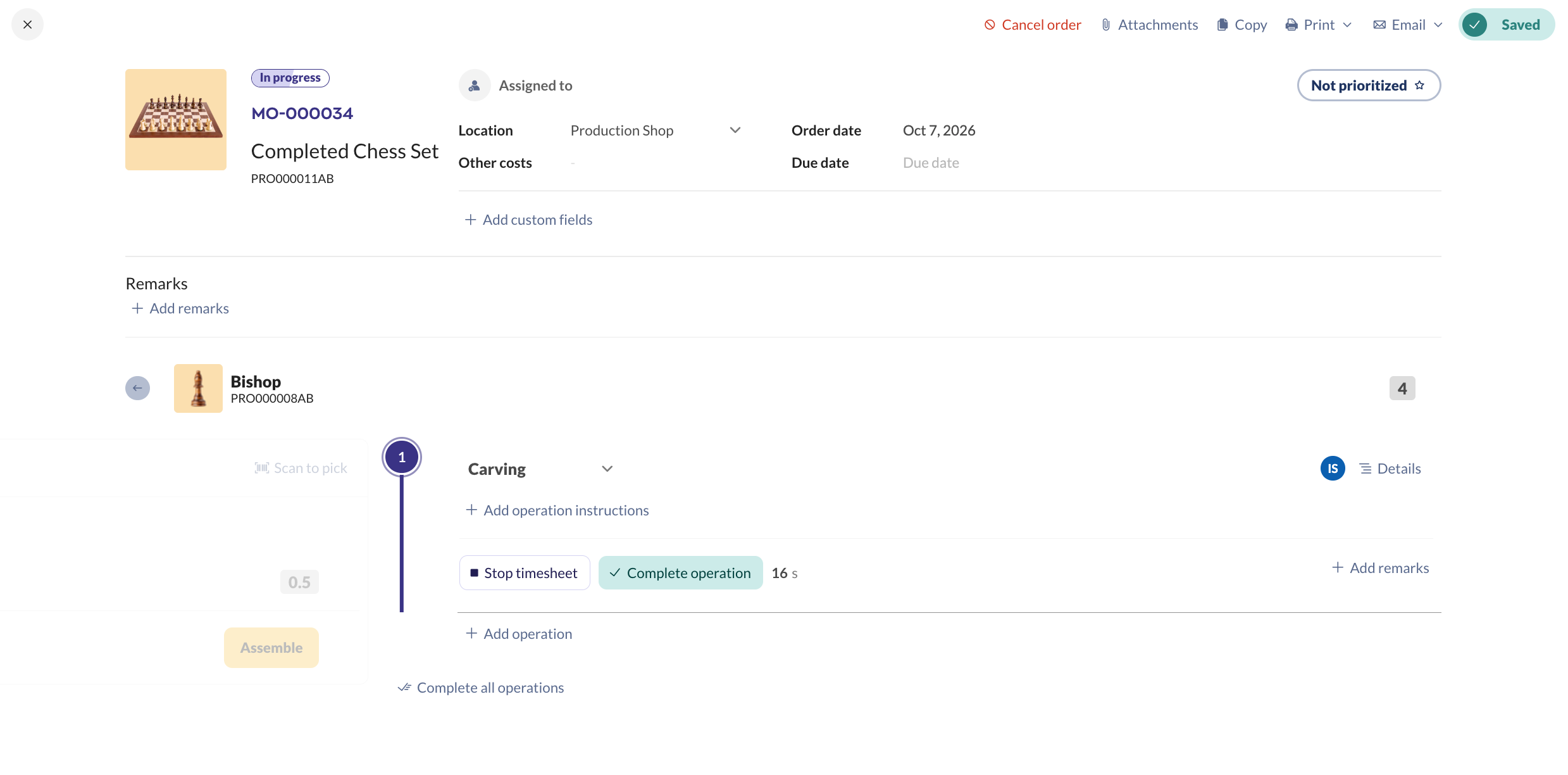
Operations are the steps your team follows to assemble the finished product, like Assembly, Blend, or Carving.
Each operation shows its instructions, and your team can record their time with a timesheet. You add operations to the product’s bill of materials before you create the MO.
- After you pick the raw materials, click Assemble. The numbered operations for that assembly become active beside the Raw materials panel.
- Click Start timesheet to start recording your work. Click Stop timesheet to pause, and Start new timesheet to pick the work back up.
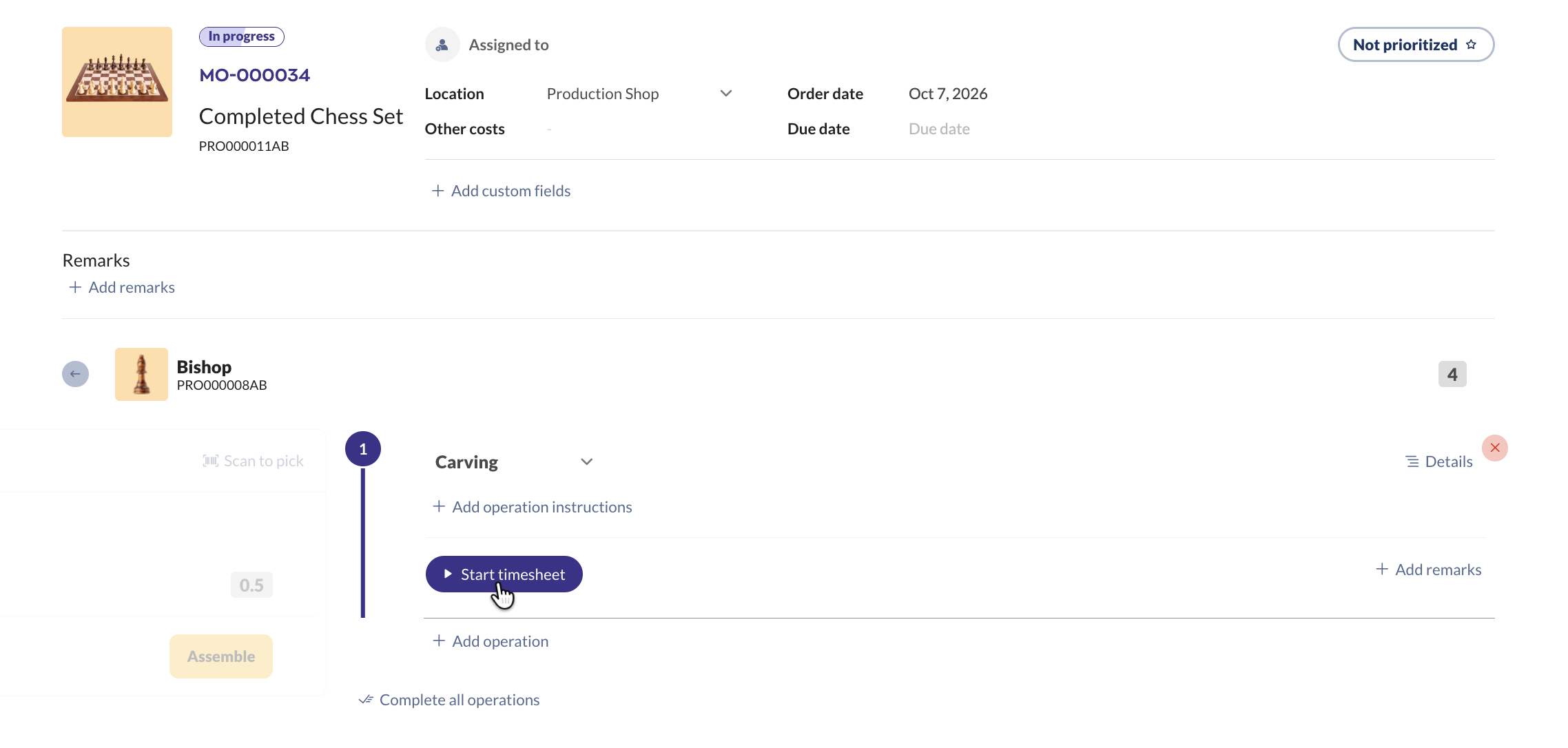
- Click Complete operation when the step is done, or Complete all operations to finish every remaining operation at once.
- When you’re done, click Back to overview at the bottom of the page.
Need to reopen an operation, add or edit timesheets, or see labor costs? See Production management for full details on operations, timesheets, Current operations, and labor cost settings.
Subassemblies
If you pre-build components that go into another assembly, inFlow treats them as raw materials (stocked subassemblies). Stocked subassemblies have a blue icon on the product image.
When a subassembly is in stock, the MO doesn’t show the raw materials needed to build it.
Out-of-stock subassemblies
If a subassembly is out of stock, you can handle it in two ways:
- Reorder it and assemble it on a separate MO.
- Build it from components on the current MO.
Reorder on a separate MO
- In the Overview table, click the inventory status (Not enough).
- The reorder settings window opens. If the product doesn’t have reorder settings yet, click the yellow warning at the top of the window to reorder it with a manufacture order.
- Click Reorder, then open the new MO to start assembly.
Build from components
To keep all assemblies on a single MO:
- Hover over the subassembly and click the ellipsis (…).
- Click Build from components.
- Select Use current order.
The MO now shows the subassembly and the raw materials needed to build it.
How to put away finished products
The Put away tab is where you choose where your finished products go. You can set the location, the sublocation, and the lot or serial numbers. Stock levels don’t change until you complete the MO.
- Open the MO and click the Put away tab.
- Each finished product appears as a row with its quantity. inFlow fills in the MO’s location and the product’s default sublocation. If the product doesn’t have a default sublocation, click + Sublocation to choose one.
- Check the box next to a row to put it away. Unchecked rows still need to be put away.
- Click Save. inFlow saves your put away details with the order and applies them when you complete it.
If you uncheck a row, inFlow removes that put away line and resets the row to its default location and sublocation. Any edits you made to the row are cleared.
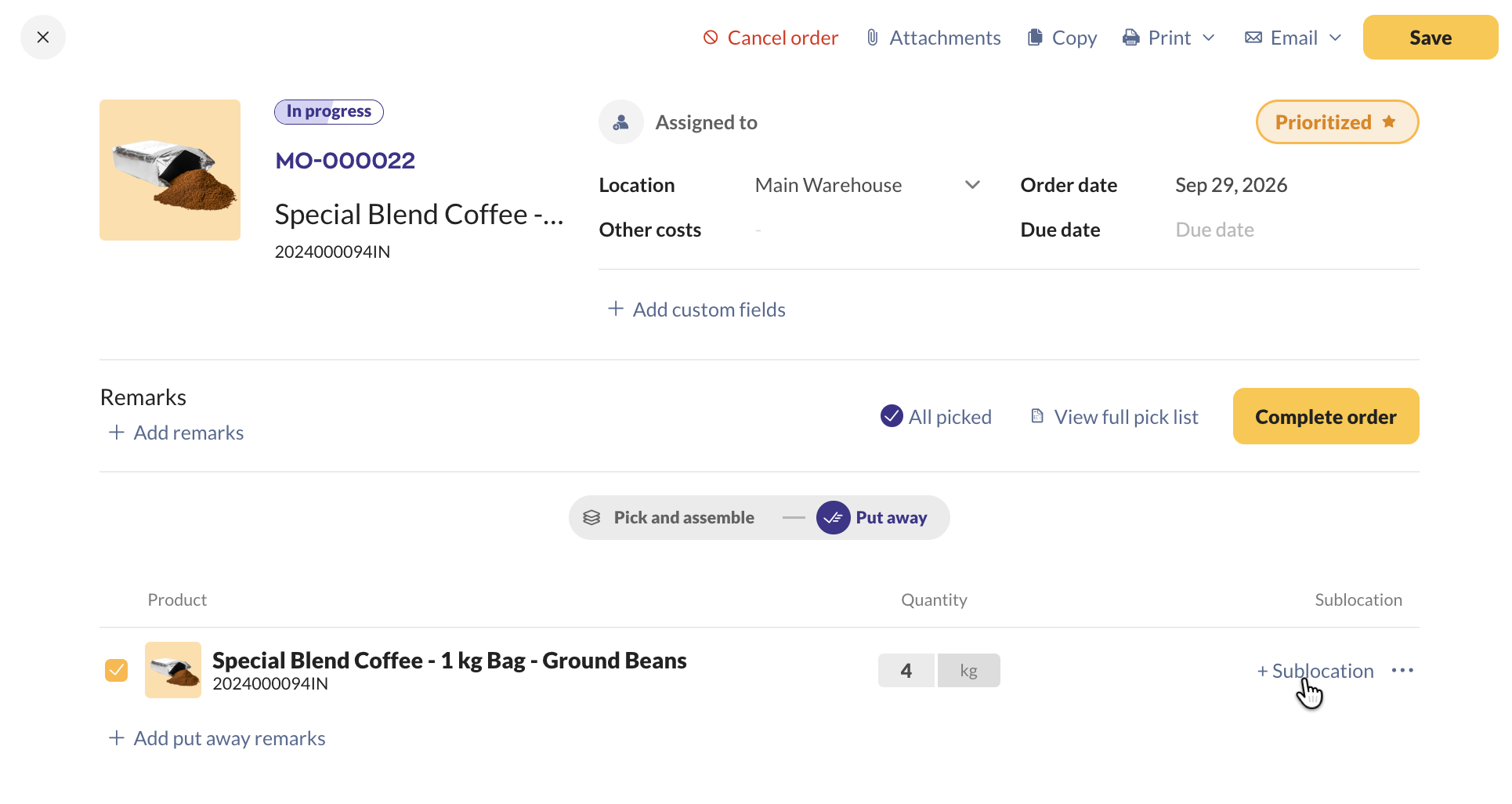
Change the put away location or sublocation
- Hover over the row and click the ellipsis (…).
- Select Edit location.
- Choose a new Location from the drop-down menu. Changing the location clears the sublocation.
- Choose a Sublocation, or type a new name to create one.
- Click Save.
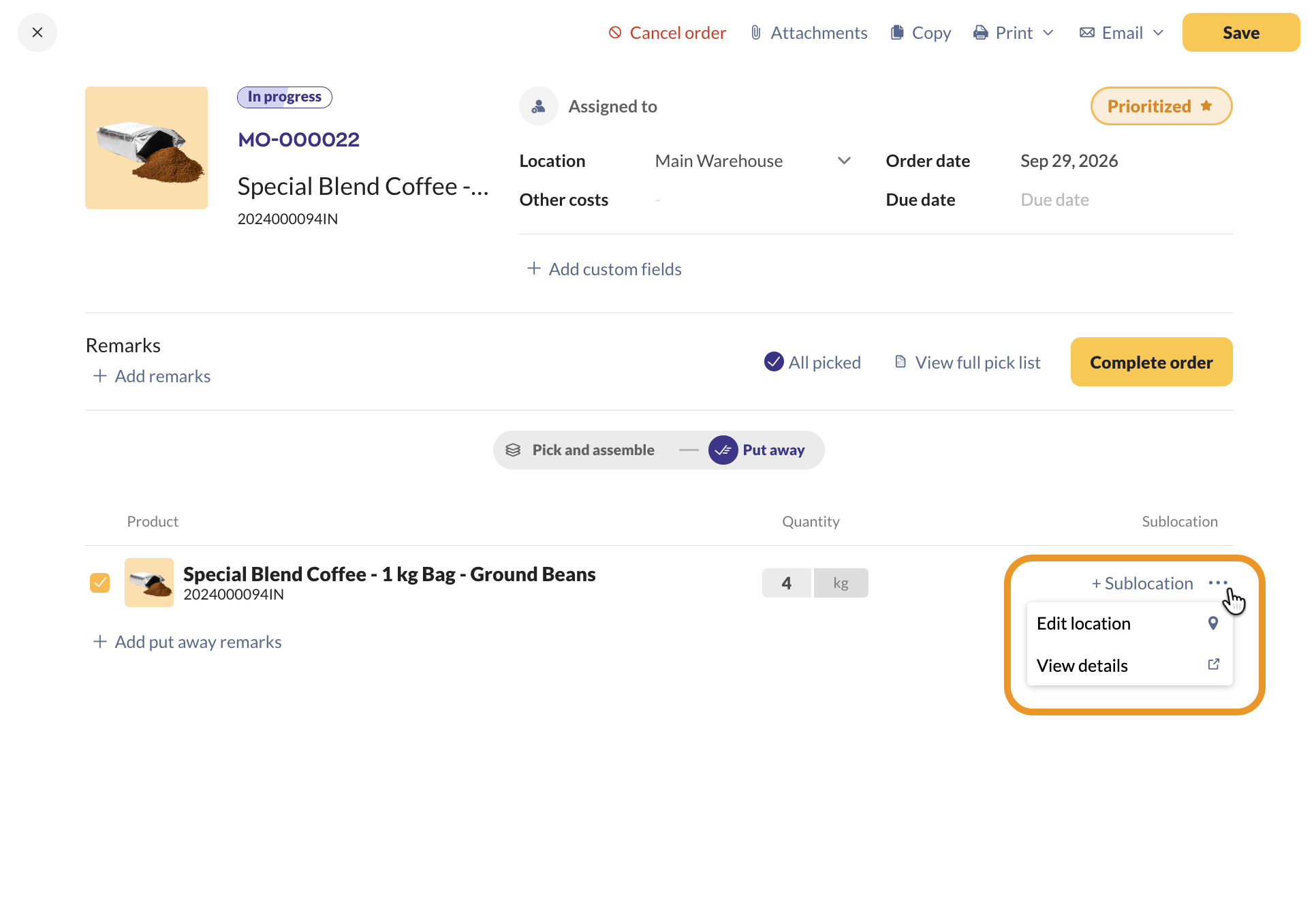
To change only the sublocation, click the sublocation on the row and pick a new one.
To open the finished product’s record in a new tab, click the ellipsis (…) and select View details.
Put away some finished products now and the rest later
You can split a quantity across locations or sublocations, or put away part of it now.
- Click the quantity on the row.
- Enter how many units to put away on this row, then confirm.
- inFlow puts that amount on this row and moves the rest to a new unchecked row below it.
- To send the rest somewhere else, check or edit the new row and change its location or sublocation.
Enter 0 to remove a row’s put away line. You can’t split quantities for serialized products. Select their serial numbers instead (see below).
Put away lot-tracked finished products
If you track lot numbers, lot-tracked rows show a Lot & expiry column.
- Click Assign lot number on the row, or check the row’s box.
- Select an existing lot, or create a new one with its expiry details.
- Click Assign and put away.
To change a lot, click it, then choose Put away a different lot.
Put away serialized finished products
When you check a serialized row, the serial number window opens. Select or enter the serial numbers you’re putting away, then confirm. The row’s quantity matches the number of serials you choose. If the product also tracks lots, you’ll assign the lot first, then the serial numbers.
Scan to put away
After you pick all raw materials (and complete all operations, if you use Production management), you can put away finished products with a barcode scanner.
- On the Put away tab, click Scan to put away.
- Scan your finished products. Each scan adds to the matching row, and inFlow highlights the row it updated.
inFlow rejects scans for products that aren’t on the MO, products that are already fully put away, and serial numbers that are already put away. GS1 barcodes with lot or serial numbers also work.
Add put away remarks
Click Add put away remarks at the bottom of the Put away tab to leave notes for your team. Put away remarks print on the Put away document.
How to complete a manufacture order
When manufacturing is done, click Complete order. The MO status changes from In progress to Completed, and inFlow:
- Picks any raw materials that aren’t picked yet.
- Completes any open operations (Production management).
- Puts away any finished products you haven’t put away, using the MO’s location and each product’s default sublocation.
- Adds the Finish date to the MO header and updates inventory levels and costs using that date.
Want the finished products in a specific location or sublocation? Set it on the Put away tab before you click Complete order. inFlow doesn’t ask for locations when you complete the order.
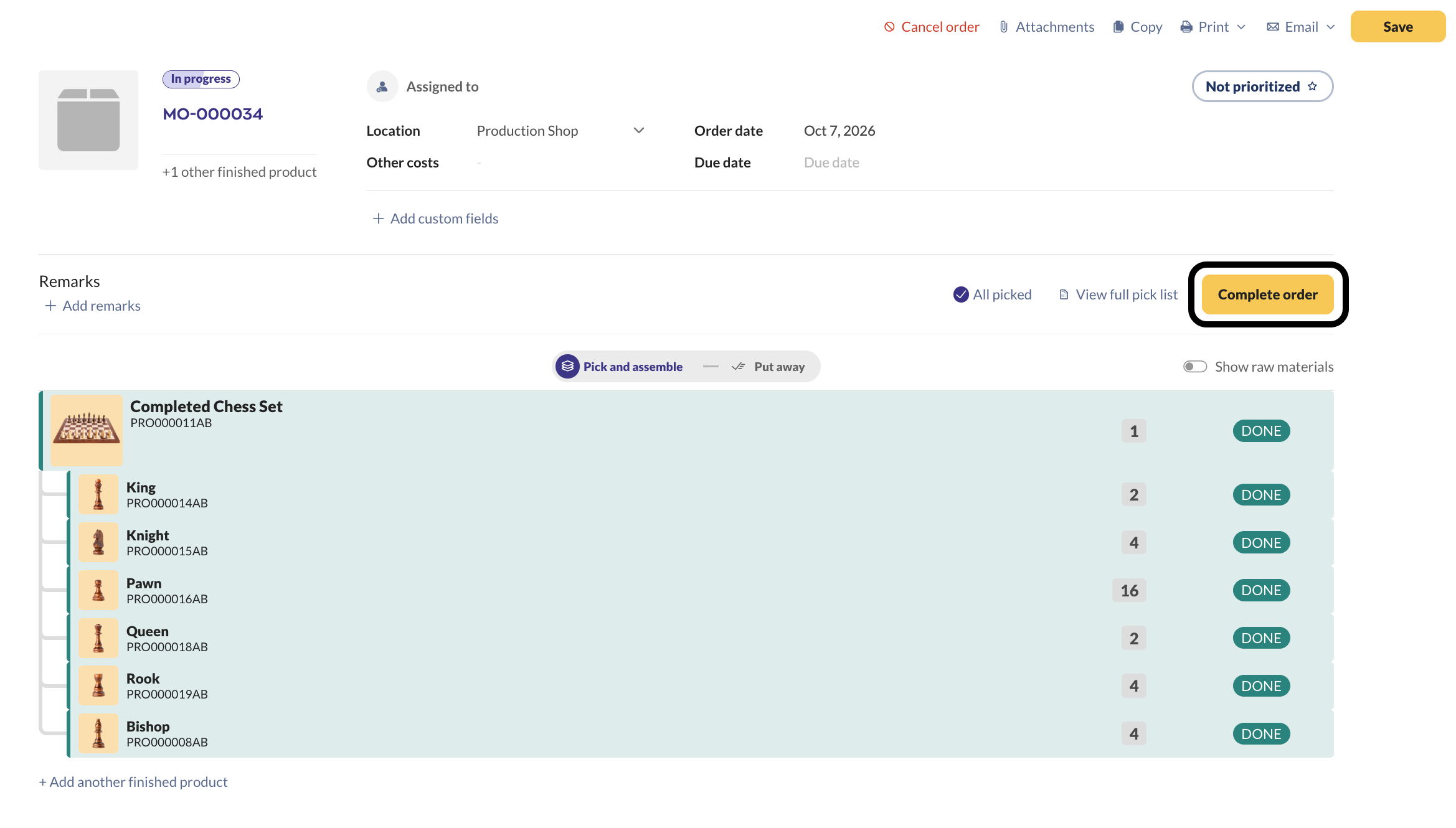
If lots or serial numbers are missing: inFlow asks if you’d like to create them automatically. Confirm to generate them and complete the order, or go back and assign them yourself on the Put away tab.
If you can’t complete the order: the put away quantity must match the finished product quantity exactly, including serial numbers. Check the Put away tab for rows with a quantity of 0 or quantities that don’t add up. inFlow also blocks completion if you don’t have enough stock of a raw material.
Uncomplete a manufacture order
Need to make changes after you complete an MO? Click Uncomplete order, which replaces the Complete order button on completed MOs. inFlow sets the MO back to In progress, clears the Finish date, and reverses the cost calculation. Your picked items, operations, and put away lines stay the same. For more changes, see Customizing manufacture orders.
Manufacturing with serialized products
If your assembly process uses serialized products, see working with serial numbers on manufacture orders.
Manufacture order statuses
Order statuses
The status badge in the MO header shows where the order is:
- Open: you’ve created the MO, but work hasn’t started.
- In progress: you’ve started picking, assembling, or putting away.
- Completed: you’ve clicked Complete order, and inFlow updated your inventory and costs.
- Canceled: you’ve canceled the order.
Assembly statuses
In the Overview table, each assembly shows a status:
- Blocked: a top-level assembly doesn’t have enough raw materials in stock.
- Start: the assembly is ready to build. Its raw materials are in stock, and any lower-level subassemblies are done.
- Continue: the assembly is in progress. You’ve picked some raw materials or started assembly, but it isn’t done yet.
- Assemble: all raw materials are picked, and you’re ready to build.
- Done: all raw materials are picked, and all operations and subassemblies are complete.
Raw material inventory statuses
Turn on Show raw materials to see these badges next to raw materials in the Overview table:
- Not enough: the raw material isn’t in stock. Click Not enough to reorder it.
- Low stock: the raw material is on several orders, and you don’t have enough stock to fill them all. Click Low stock to reorder it.
- Waiting: the raw material isn’t in stock, but it’s on an incoming purchase order, stock transfer, or manufacture order.
MO options
Use the buttons at the top of the MO to manage the order.
Cancel a manufacture order
To stop assembly, click Cancel order in the top-right corner. inFlow reverts the quantities for all raw materials on the MO.
Canceling doesn’t delete the MO. You can still find it in the manufacture order list.
Attachments
Click Attachments to add files to the MO, like drawings, spec sheets, or photos. Learn more about adding attachments.
Copy
To duplicate an MO, click Copy. inFlow copies all the details from the original order, including the location and quantities. The new MO starts as Open, and nothing on it is picked.
Click Print, then choose a document from the drop-down menu: Manufacture order, Pick list, Put away, or Labels. Learn more about printing documents.
To send a copy of the MO, click Email in the top-right corner.
- inFlow fills in the Reply-to field with your email address.
- Enter the recipient’s email address in the To field, and add Cc or Bcc recipients if needed.
- The subject line includes the order number. Edit it if you’d like.
- Add any details in the Message field.
- Click Preview document to check the document.
- Click Send.
Assign to a team member
Click Assigned to to add a team member to the MO. inFlow emails the team member to let them know. Learn more about assigning orders.
Remarks
MOs have a few places to leave notes, so each note sits where your team needs it:
- Add remarks under Remarks: notes about the order as a whole.
- Add pick remarks: notes about picking an assembly’s raw materials.
- Add remarks on an operation: notes about a specific operation.
- Add put away remarks: notes about putting away finished products.
Custom fields
Click Add custom fields to track more information on the MO. You can name up to 10 type-in fields. Learn more about custom fields.
Team member access rights
MO user access
Admins set manufacturing access rights in the Manufacturing section of each team member’s access rights. Turn a toggle off to remove access to that feature. Where you see View only and Full access, choose one.
| Access right | Options | What it controls |
|---|---|---|
| Mobile manufacturing | On or off | Can pick, put away, and complete operations in the inFlow mobile app. |
| Manufacture order | View only or Full access | View only opens MOs in read-only mode. Full access lets the team member create, edit, and complete MOs. |
| Prioritization | On or off | Can prioritize manufacture orders. |
The Manufacturing section also includes Estimated labor hours, Actual labor hours, and Current operations for Production management. See access rights for production management for details.
Learn how to set team member access rights.
Location-restricted access rights
MOs work with location-restricted access rights:
- A team member with access to all locations can view and open MOs in every location.
- A team member with restricted location access can only view MOs in the locations they have access to.
The Restrict access by location add-on is available on higher-tier plans. Contact the inFlow team if you have questions about this feature.
Manufacture order list
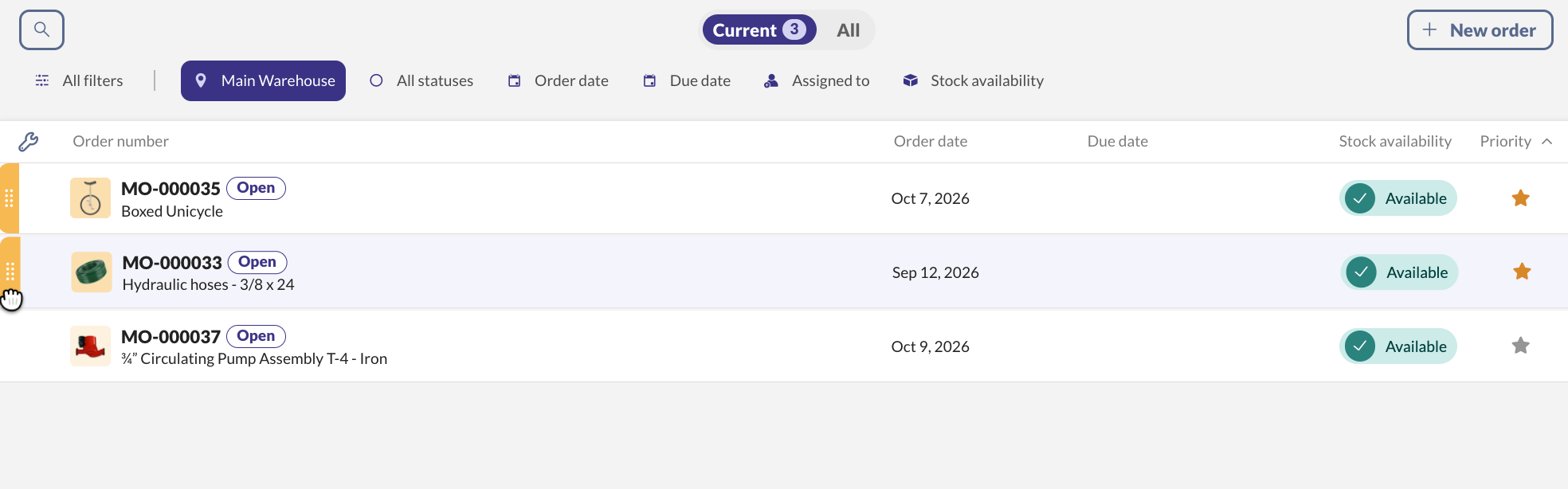
The manufacture order list shows all your ongoing and completed MOs.
At the top of the list, switch between two views:
- Current: all Open and In progress MOs. The number next to Current shows how many there are.
- All: Open, In progress, Completed, and Canceled MOs.
To create an MO from the list, click New order.
To find specific MOs, use the search and filters:
- Click the search icon to search by order number or product.
- Use the filters below the views: location, All statuses, Order date, Due date, Assigned to, and Stock availability.
- To change which filters show, click All filters. When you add a filter, it opens so you can use it right away.
- To clear your filters, click All filters, then select Reset filters.
To sort the list, click a column heading: Order number, Order date, Due date, Stock availability, or Priority.
When you open an MO, the list moves to a side panel. Use the All drop-down and Filters at the top of the panel to switch views and filter.
Manufacture order prioritization
Prioritize an MO so inFlow reserves stock for it first. Click the star in the Priority column of the MO list, or click Not prioritized in the MO header. The star turns orange.
- Prioritized MOs appear at the top of the Current list.
- Prioritized MOs get stock before other MOs.
- Drag prioritized orders by the handle on the left of the row to sort them.
If you sort the list by another column, prioritized MOs may not stay at the top. You can still spot them by the orange bar next to them. To put priority orders back at the top, click the Priority column heading.
Stock availability and manufacture order prioritization
In the Current list, the Stock availability column shows whether you have the inventory to complete each MO: Available or Not enough stock.
inFlow reserves stock for prioritized MOs first, from the top of the priority list to the bottom. When you rearrange the priority list, inFlow recalculates stock for each MO based on its new position.
inFlow sorts MOs without a priority by:
- Due date
- Order date (oldest to newest)
 Yes, thanks!
  Not really

0 Comments