 Fellow Canadians: All inFlow plans are available in Canadian dollars




 Home
Home


How do I issue/apply customer credit as a payment method?
If a customer who previously bought a product from you wishes to return it, you can offer a credit instead of a refund. This allows them to apply the credited amount toward a future purchase if they choose.
Web
Returning & issuing credits on existing orders
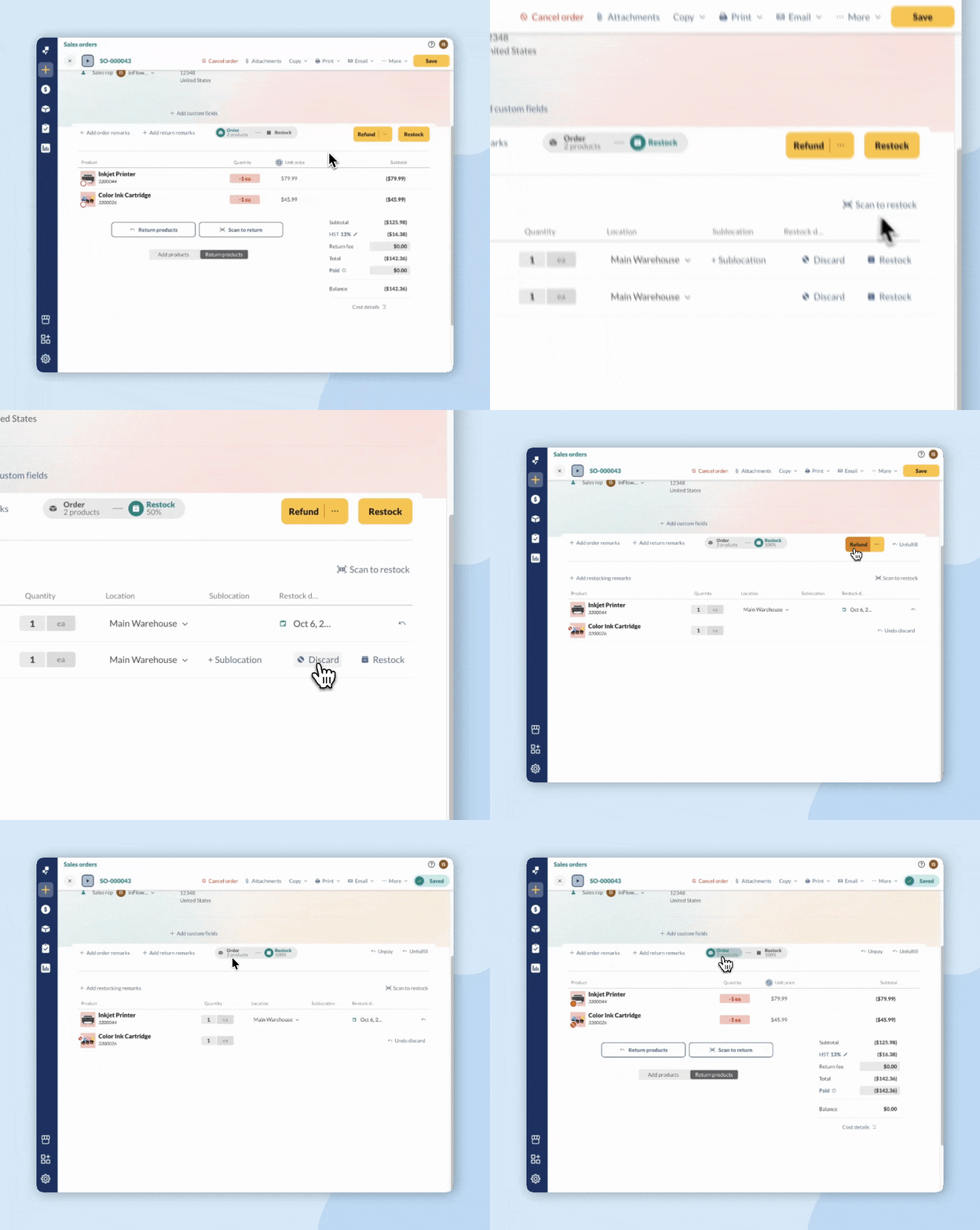
- In the product table, hover over the product and select the blue arrow to return to it.
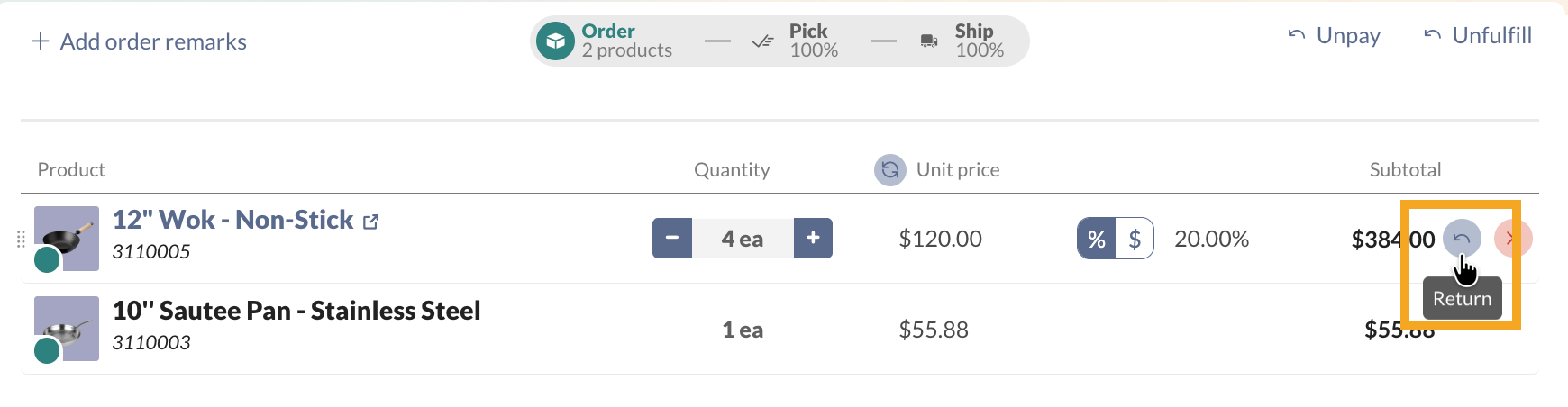
- The returned product will be added below with the same unit price and quantity that is on the order. Edit the quantity the customer is returning.
- Click on the ellipsis next to Refund, then click on Issue credit.
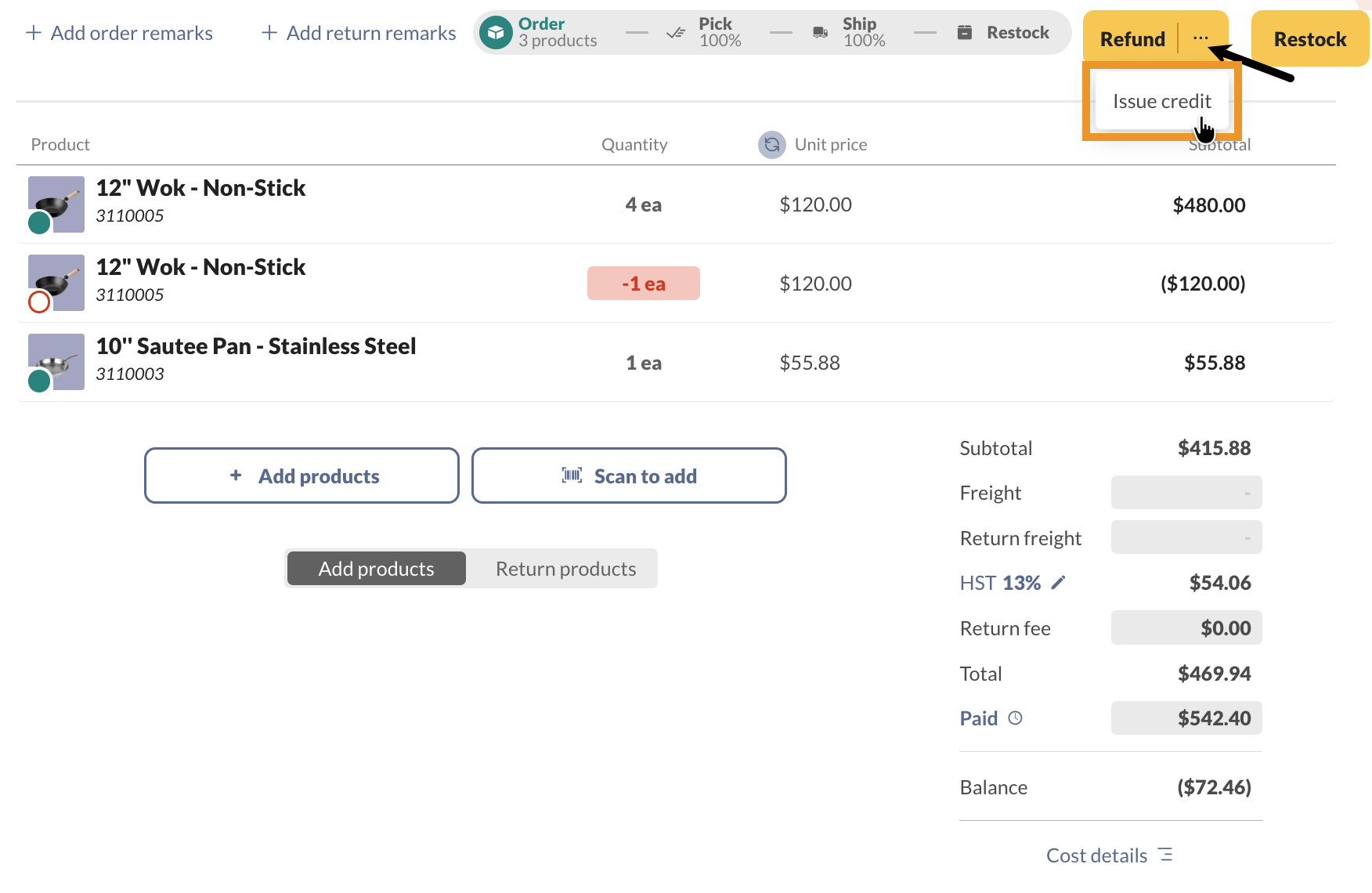
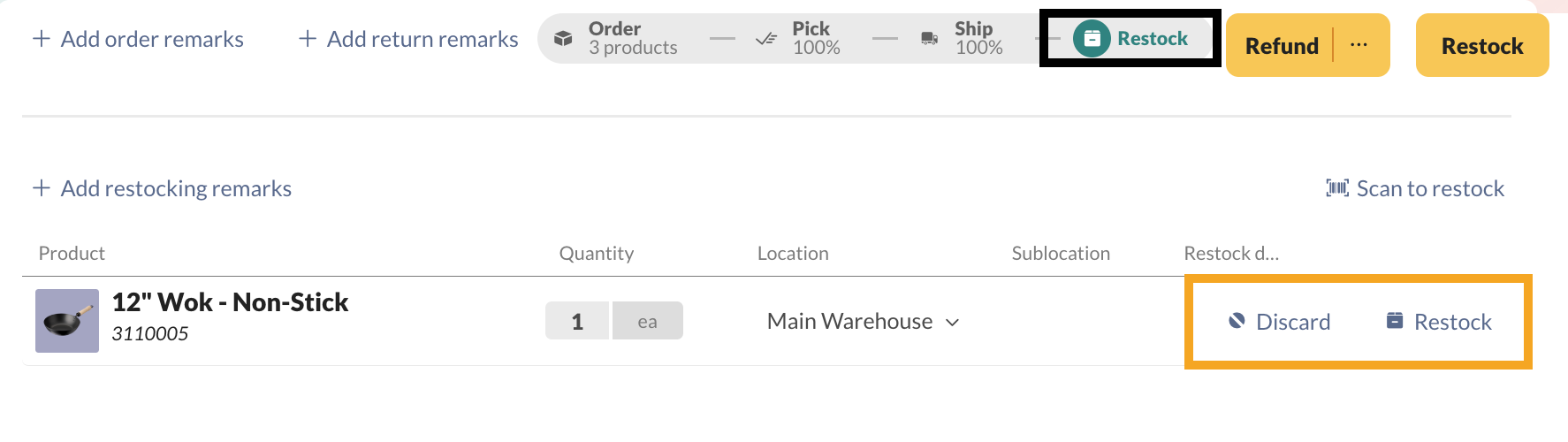
- From here, you can select the Restock tab to add the product back into your inventory or discard it.
- Save the order when done.
Returning & products on blank sales orders
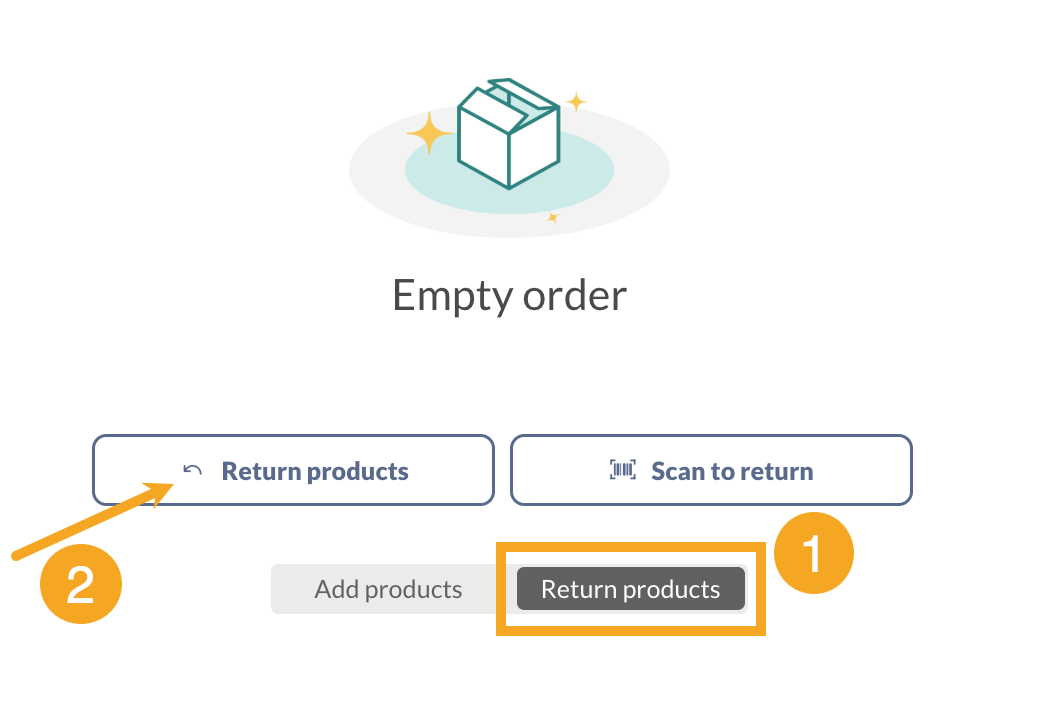
- Click Return products, then select the Return products button to choose the products your customer is returning.
- Edit the quantity of the item your customer is returning.
- Click the Restock tab, then click the Restock button to add the returned products to your inventory. On this tab, you can also select the Discard button if the product(s) are no longer usable.
- Click the ellipsis next to Refund, then select Issue credit.
- Save the order when done.
Windows
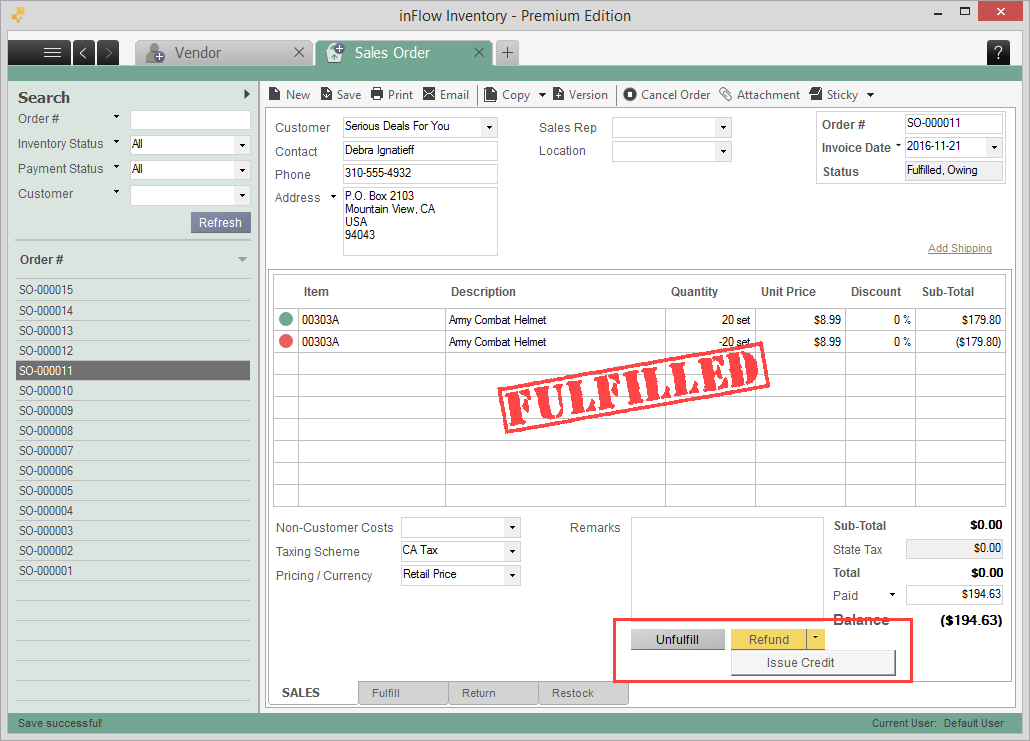
In a paid sales order screen, click the Return tab at the bottom, then select the items being returned. Go back to the SALES tab and you’ll see the option to Refund. If you don’t see this option, then it’s likely that your sales order has not been paid and so inFlow has just deducted it the amount from the balance your customer owes you. You won’t be able to issue credit for an unpaid sales order.
Click the arrow button beside it and click Issue Credit to store the amount in the Balance screen as credit for this specific customer.
Later on when they purchase from you again, inFlow Inventory will detect that there’s credit in their account. If you want to see how much credit is in the account, go to the Main Menu > Customer > Customer List and look up the customer record.
Credit takes precedence over other forms of payment, so you’ll see that the usual Pay button is no longer there but is replaced by the Apply Credit button instead:
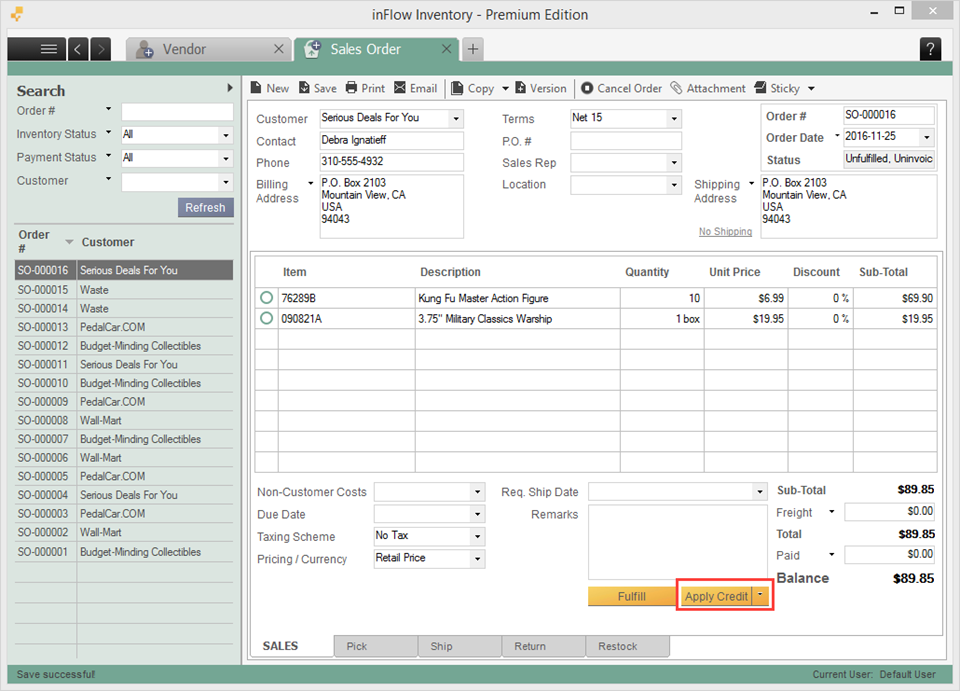
Click the Apply Credit button to use the credit stored previously.
If you don’t want to apply credit for this order and just want to apply a normal payment, click the Paid button (just above the Balance) and enter the payment there.
 Yes, thanks!
  Not really

0 Comments