 Fellow Canadians: All inFlow plans are available in Canadian dollars




 Home
Home


How to deactivate multiple products
Looking to clean up products that are no longer stocked? Changing vendors and needing to archive a whole brand? With inFlow, you can use imports to deactivate many items at once.
Web
Export from inFlow
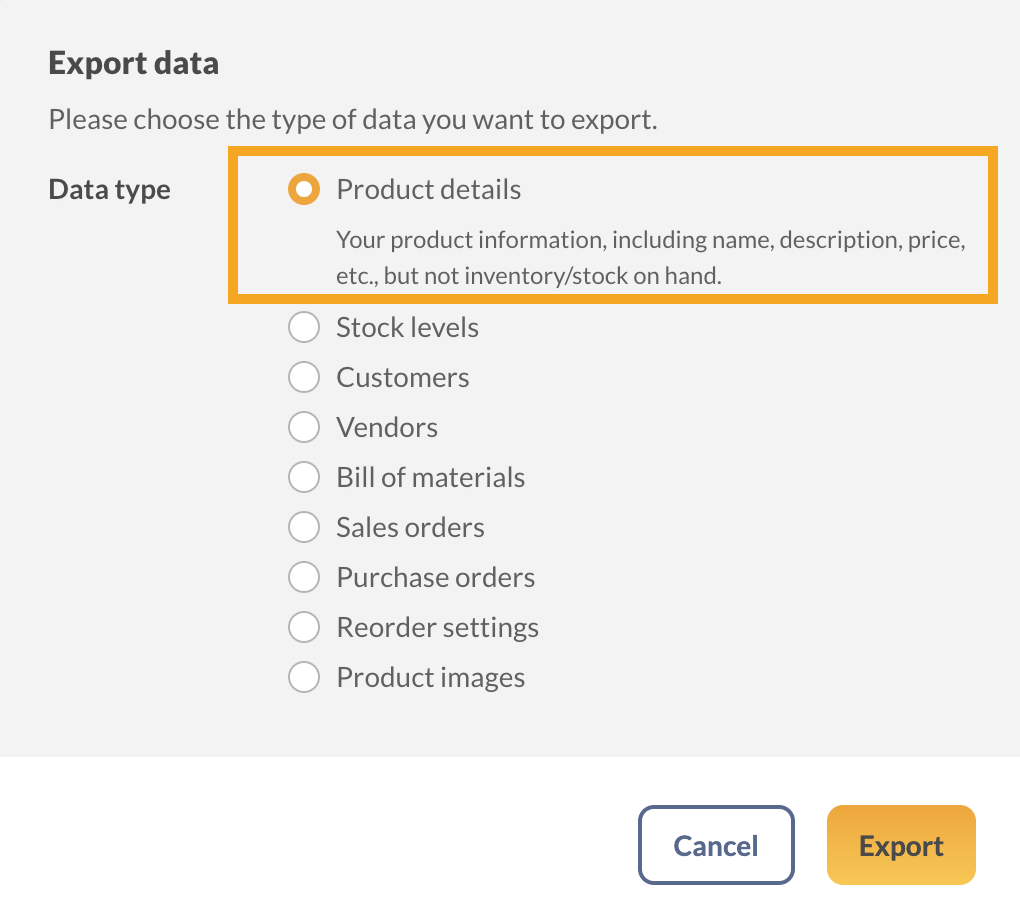
- Go to Main Menu > Export data.
- Select Product Details from the Data type section. This file will contain information you can find on the product info page, such as Price, Cost, Unit of Measure, Barcode, etc.
- When your CSV is ready, a window will pop up asking where you want to save it. Then click Save.
Edit the CSV
- Open the CSV that was exported from inFlow Inventory.
- Scroll to the last column called IsActive.
- Enter FALSE in the product rows you want to deactivate.
- Save the CSV file.
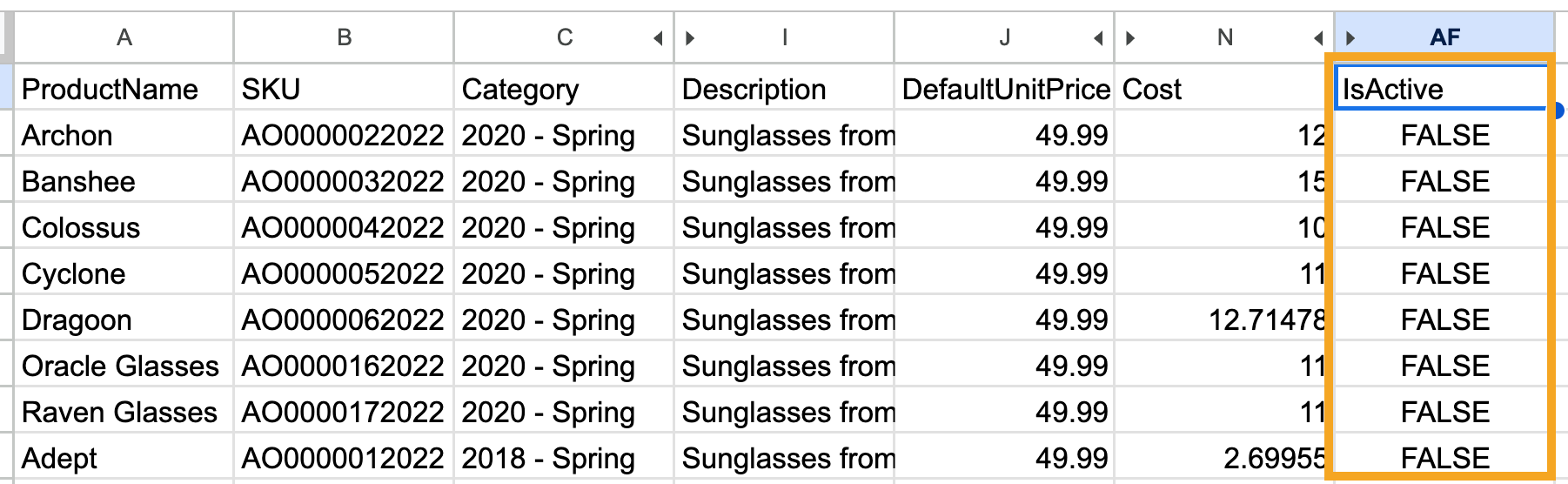
Enter TRUE to activate multiple products at once.
Import the CSV into inFlow
- Go to Main Menu > Import data.
- In the Data type drop-down menu, select Product details.
- Below, select the CSV file from your computer. Click Next.
- A preview of your product details will appear. If you can’t see any fields below, select Edit Data Mapping.
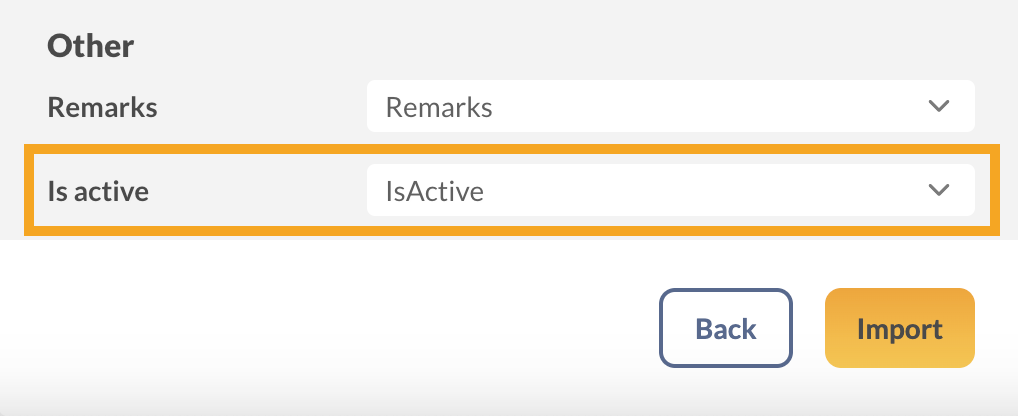
- Match the IsActive inFlow field to the IsActive field in the drop-down menu.
- Click Import.
From here, the import will run in the background. You’ll be emailed when the import is complete. When it’s done, you will see a message mentioning how many lines have been updated. Each line item represents each line on the product details CSV.
That’s it! Now that these products are deactivated, they won’t appear in searches in inFlow. If you ever need to find them again, follow the steps here.
Windows
Exporting a selection of data
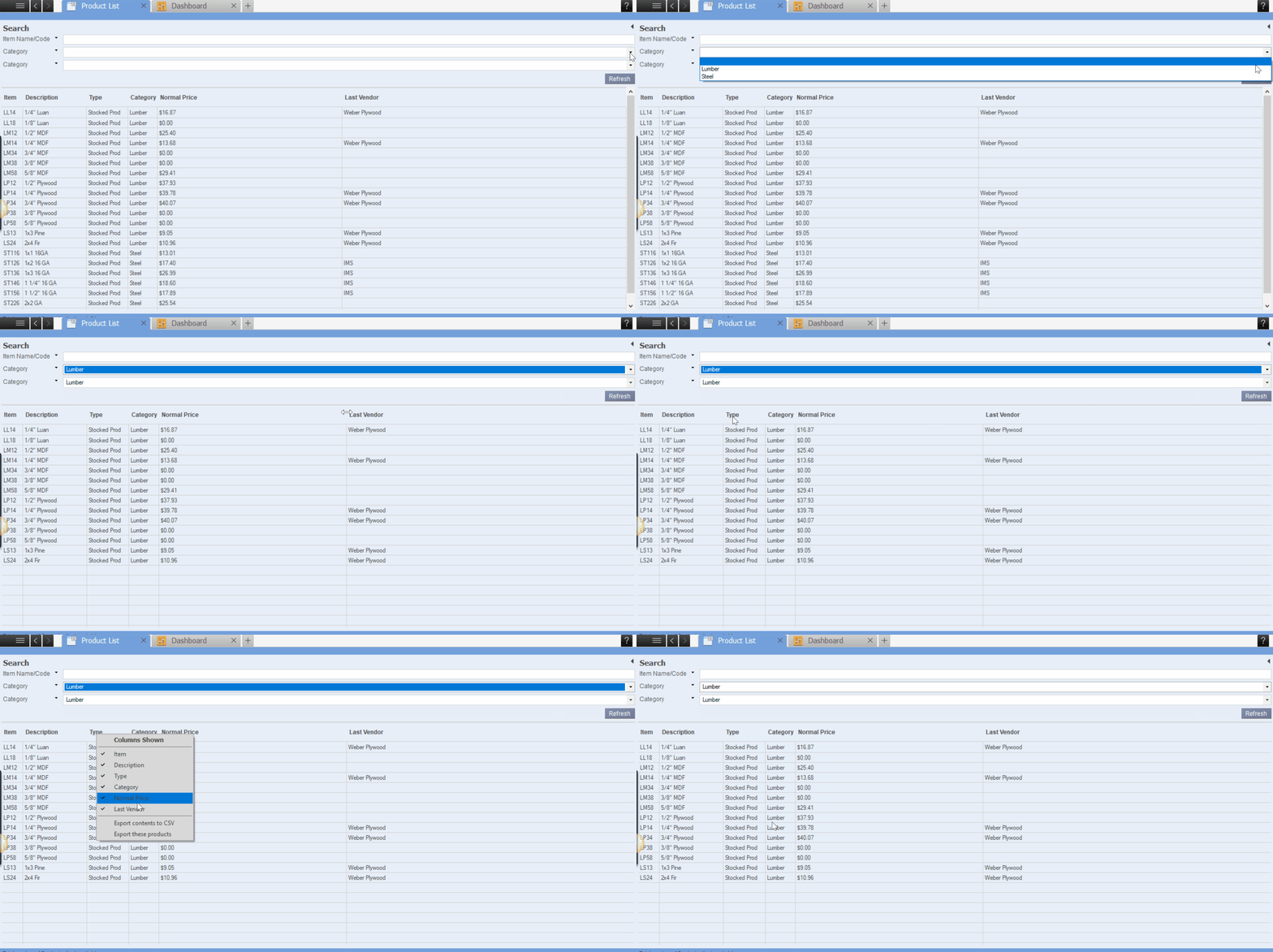
- Go into the Main Menu > Inventory > Product List to pull up a list of all your products
- Use the Search Filters in the top right corner to narrow down your List to the Products you want to deactivate
- Right-click on the header of the table.
- Choose Export contents to CSV
To deactivate the section of data:
Now that you’ve exported the selection you need as a CSV file, it’s time to make the changes in Excel. Editing multiple lines at once lets you re-import the edited file and update all the products in question in a single action.
Edit the CSV
- Open up the .csv file you created above.
- Choose the first blank column on the right-hand side, and in the first row, write “IsActive.”
- For each product you want to deactivate, add “FALSE” to the ‘IsActive’ column.
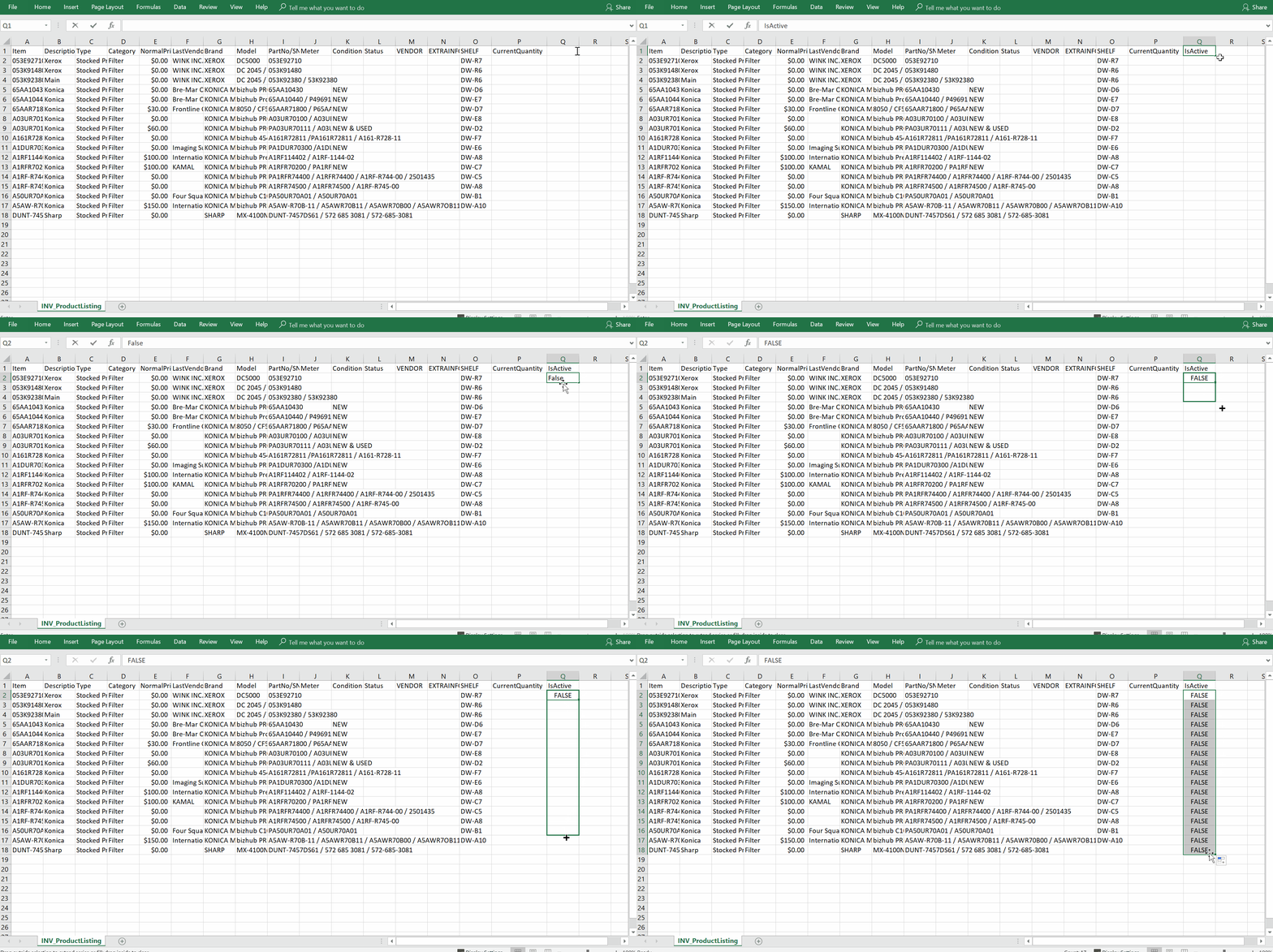
- Click Save As > select file type “CSV – Comma Delimited” at the bottom of the window.
Import the CSV into inFlow
- Click Main Menu > General > Import Data.
- Select Product Details as the data type from the menu
- Click the Browse button and choose the file you created above.
- On this screen, match the inFlow field name on the left to the corresponding column in your file by selecting it from the drop-down list (see screenshot below).
- Match up the IsActive import field to your newly made column in Excel.
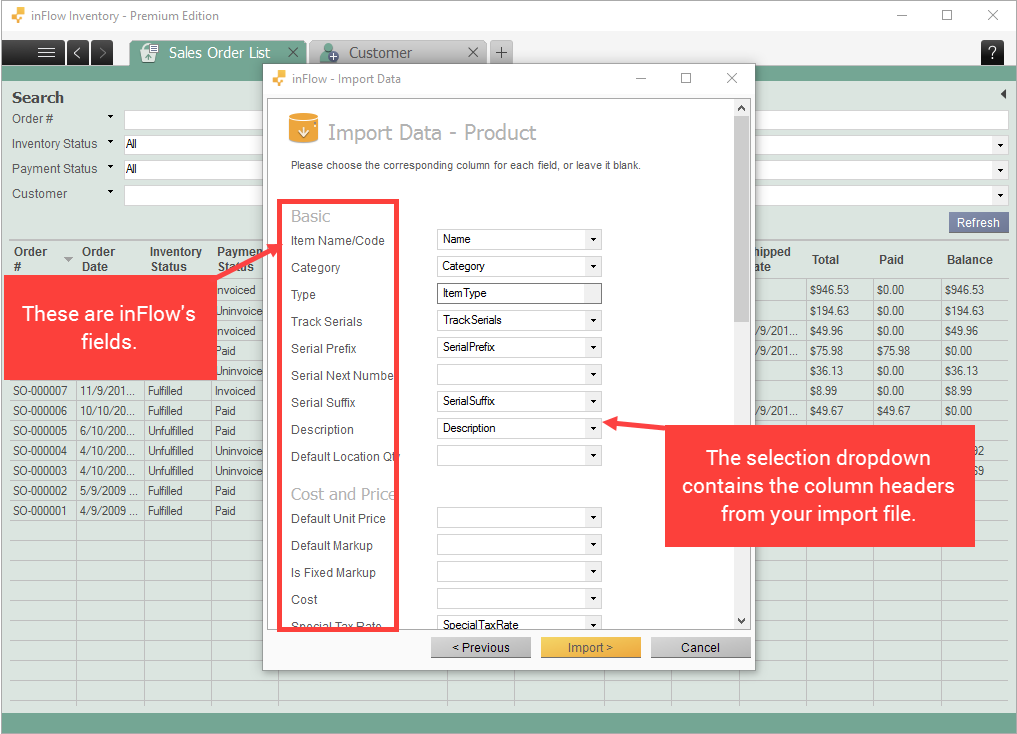
inFlow will import the data from the CSV file and update the products that have changed. Once the import is done, you’ll be emailed the results.
That’s it! Now that these products are deactivated, they won’t appear in searches in inFlow. If you ever need to find them again, follow the steps here.
 Yes, thanks!
  Not really

0 Comments