 Fellow Canadians: All inFlow plans are available in Canadian dollars




 Home
Home


How to create a bill of materials (Web)
A bill of materials is a list of raw materials and components that are used to manufacture a product. You can also track costs and manufacturing instructions. Take a look below to learn more.

Please note: Bill of materials is only available with an inFlow Manufacturing plan.
Bill of materials
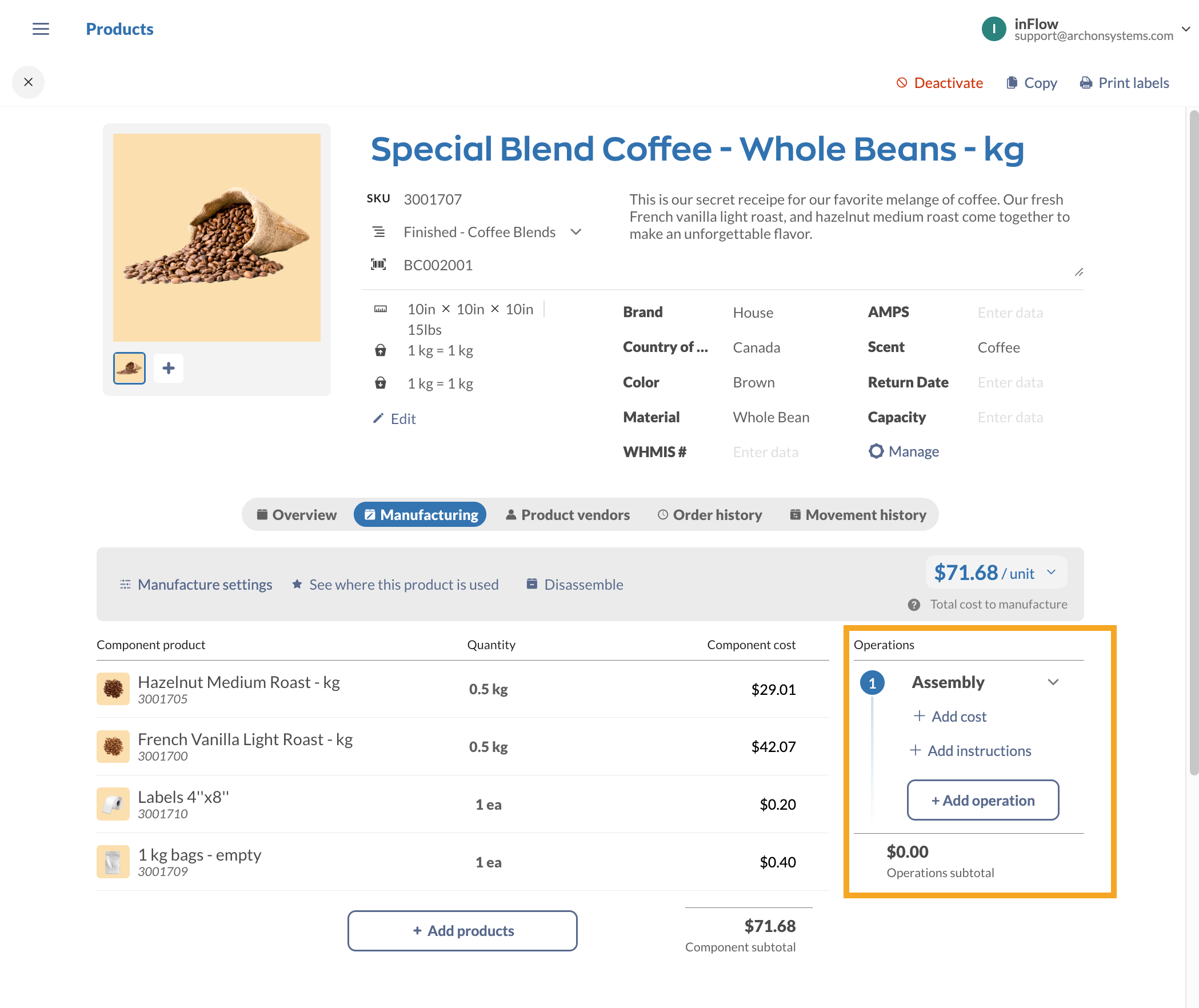
The product record Manufacturing tab is where you can organize raw materials/components for a bill of materials. You can track the following:
- Components products
- Component product costs
- Operations (Production management feature)
- Disassembly
Using inFlow for Windows? Take a look at this guide.
Creating a bill of materials
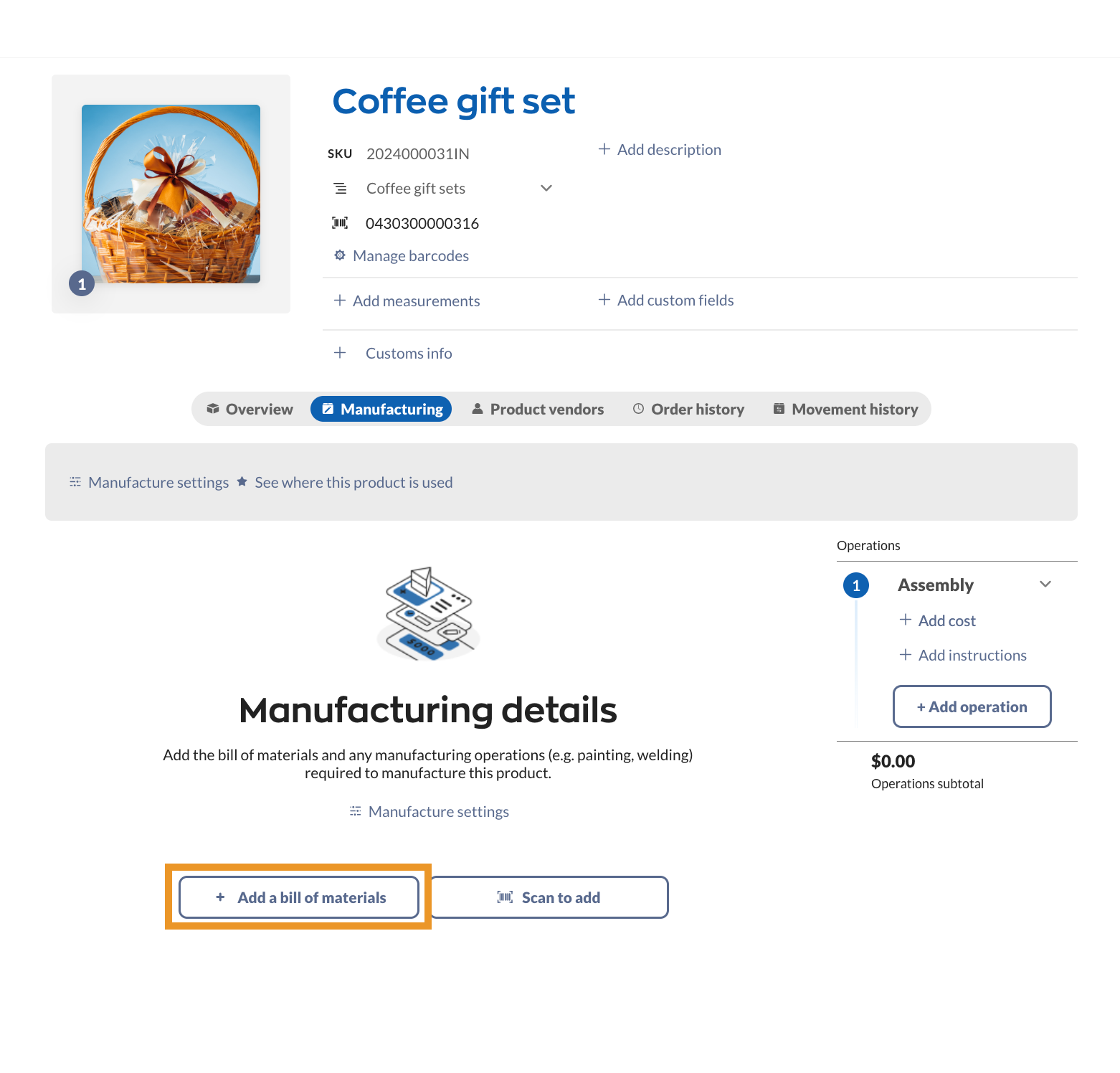
- Open a product, and select the Manufacturing tab.
- Click Add a bill of materials.
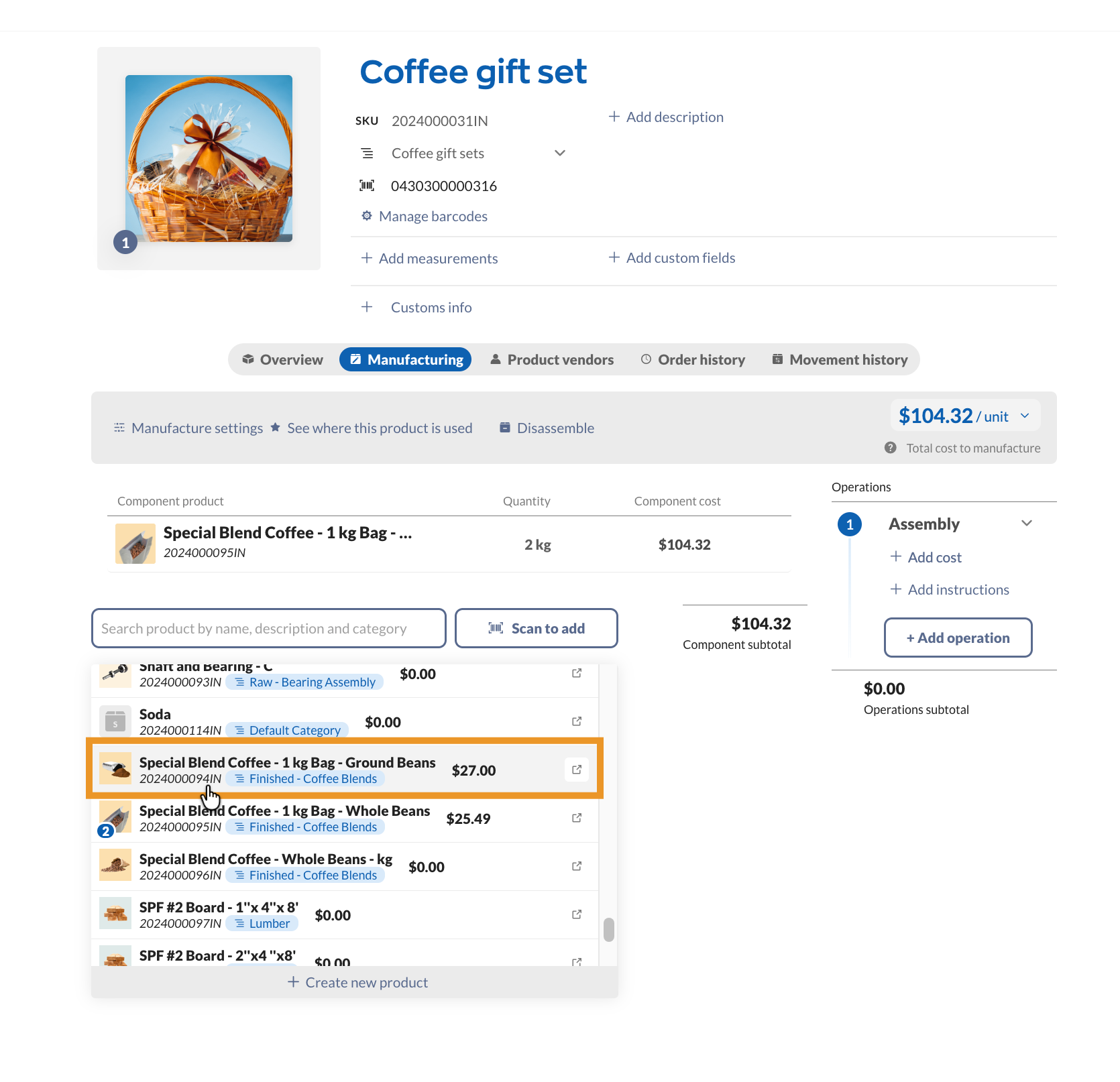
- Select the products from the product list. You can scan or click on the same product multiple times to increase the quantity of the component product. Click outside of the product list to close it.
- Click Save when done.
How can I add a bill of materials for multiple products?
If you have many products with a bill of materials, you can add them to inFlow in bulk with a CSV import. This article provides a full guide.
Customizing the bill of materials list
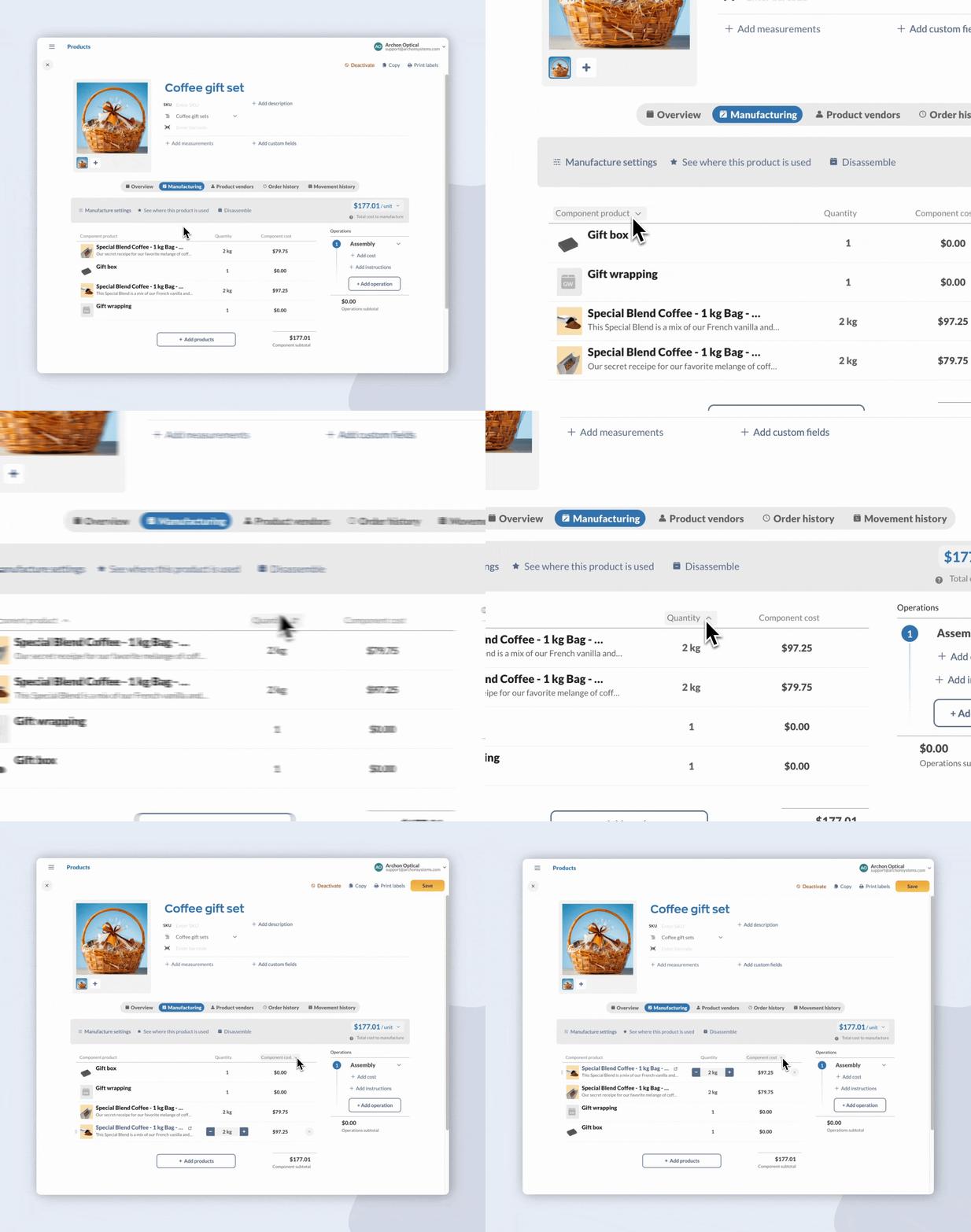
Sorting products
To sort the products in the table, click the header that matches the filter you want to apply.
Rearranging products
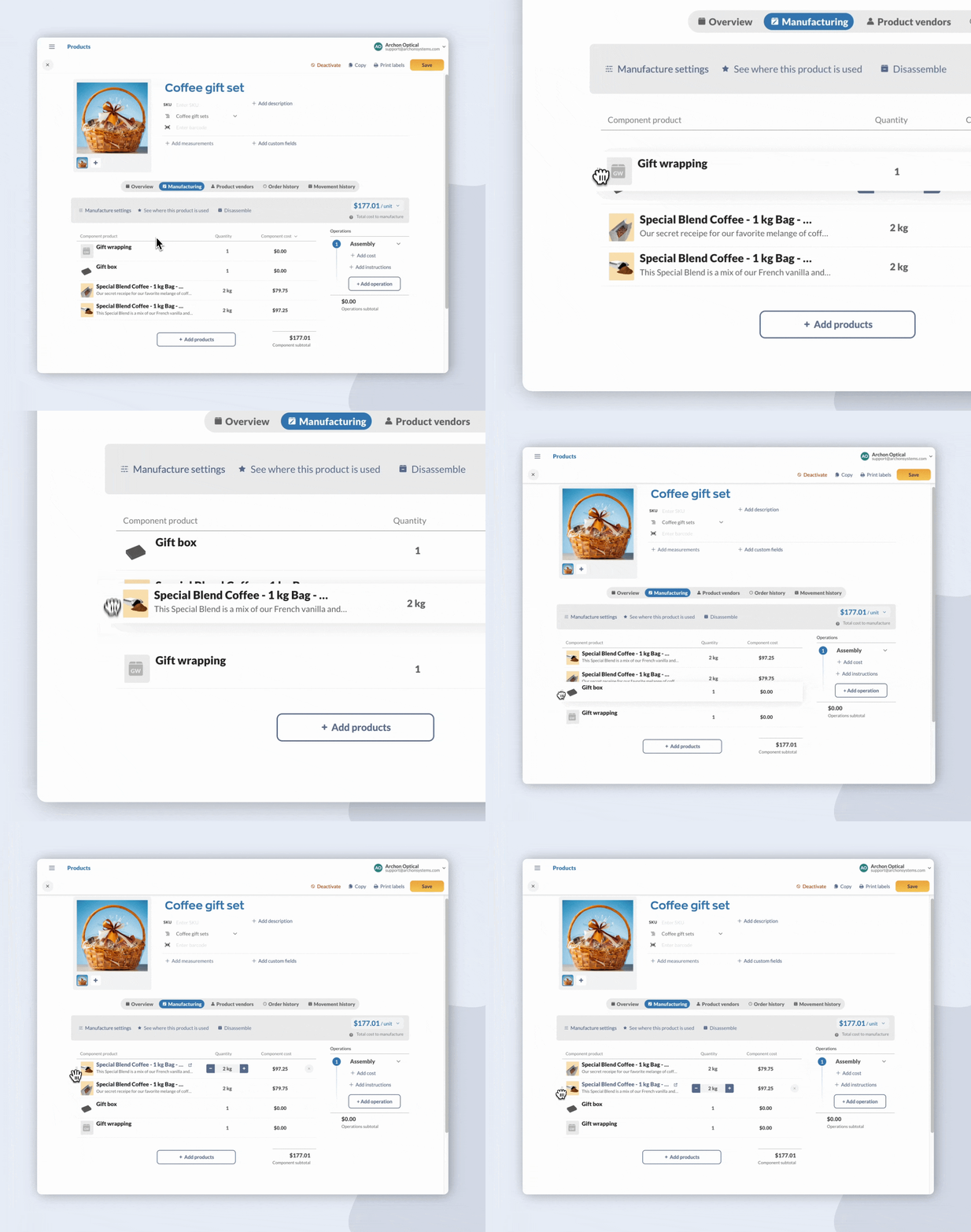
Rearrange the products on the list by clicking and dragging the grab handles to the left of the product.
Viewing product records
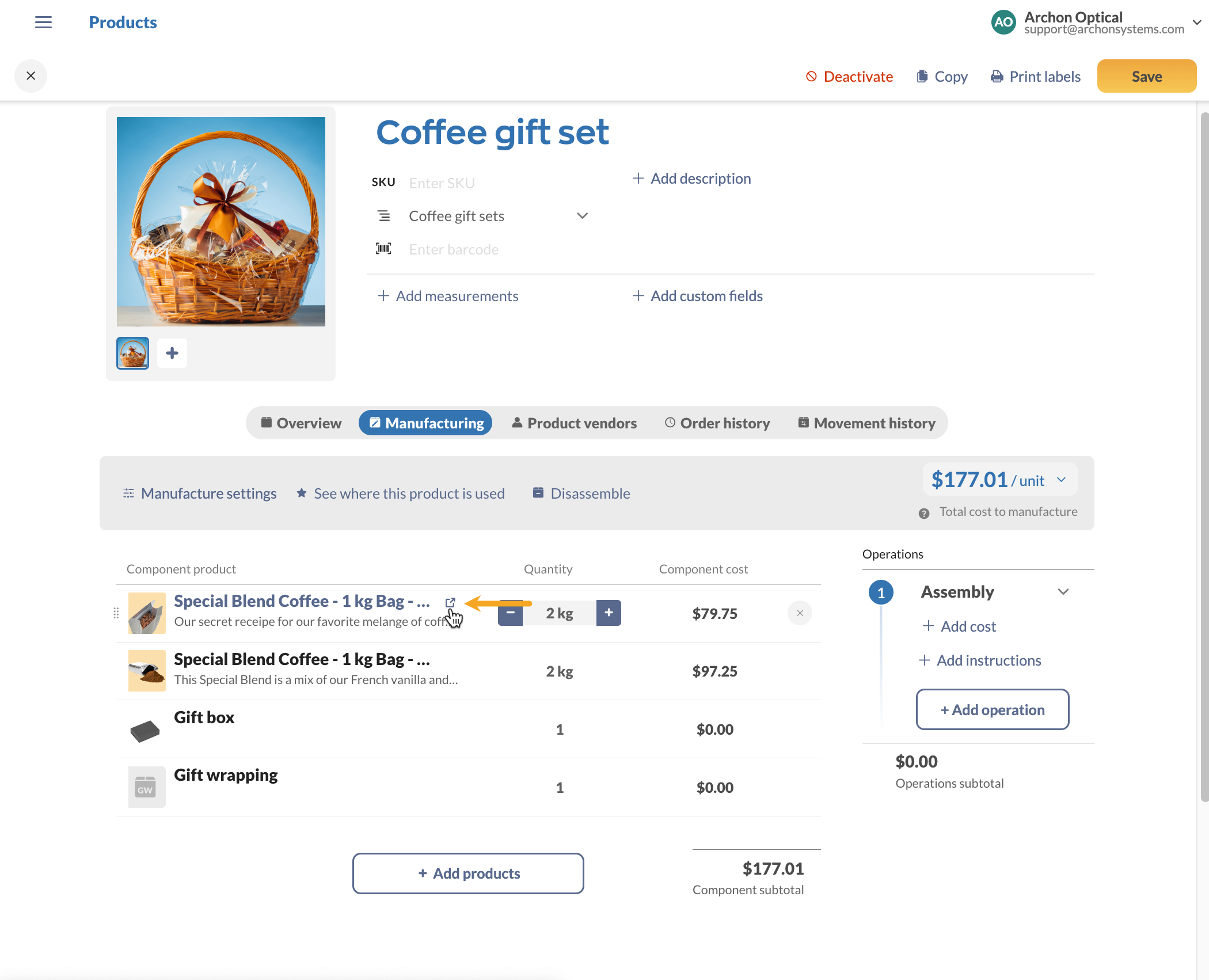
If you want to look at a product that is on the bill of materials list, hover over it and click the link to open the product record in a new tab.
Removing products from a bill of materials
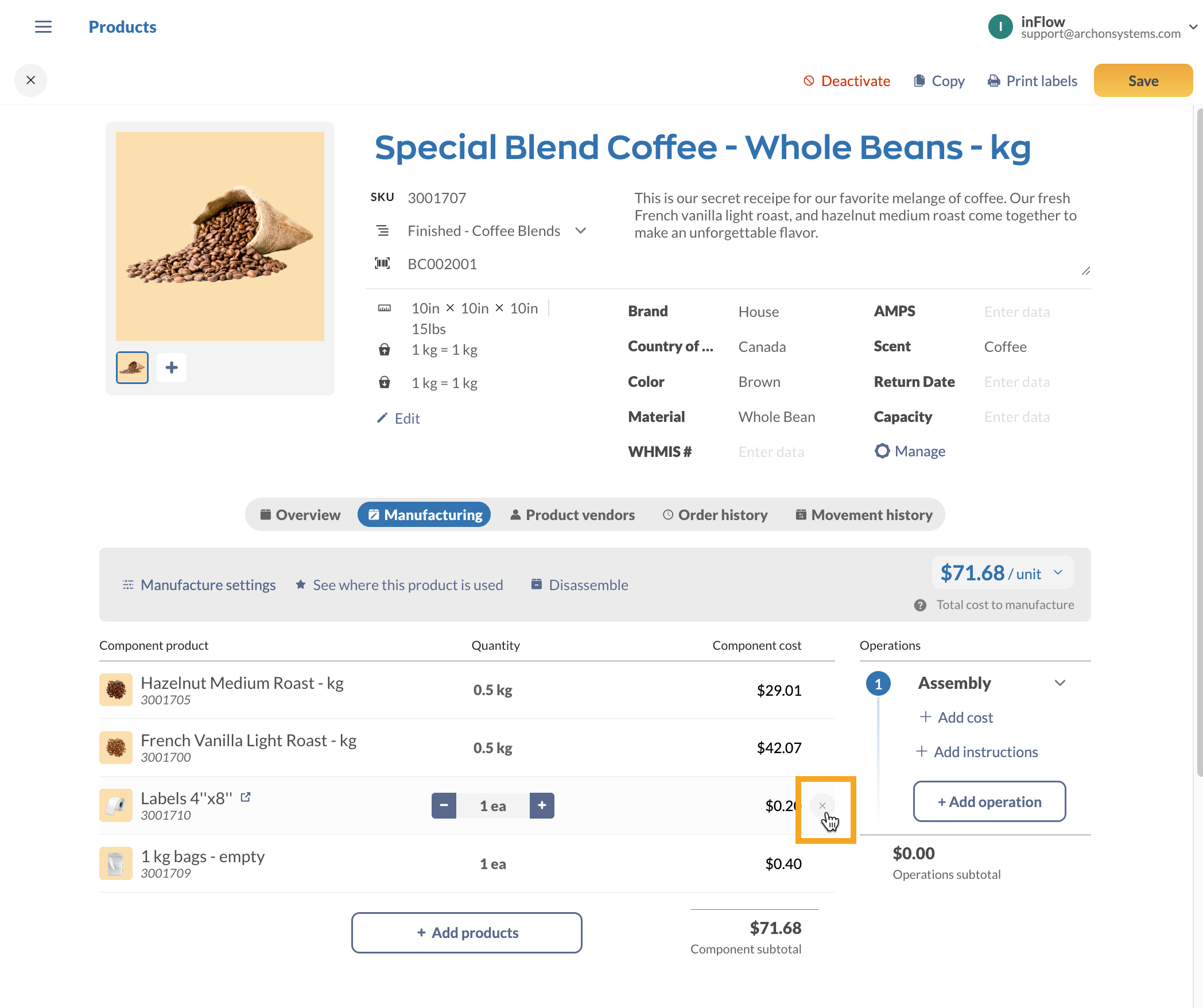
- Hover over the component product in the bill of materials list, and select the X to the right of the product to remove it.
- When done, click Save.
Total cost to manufacture
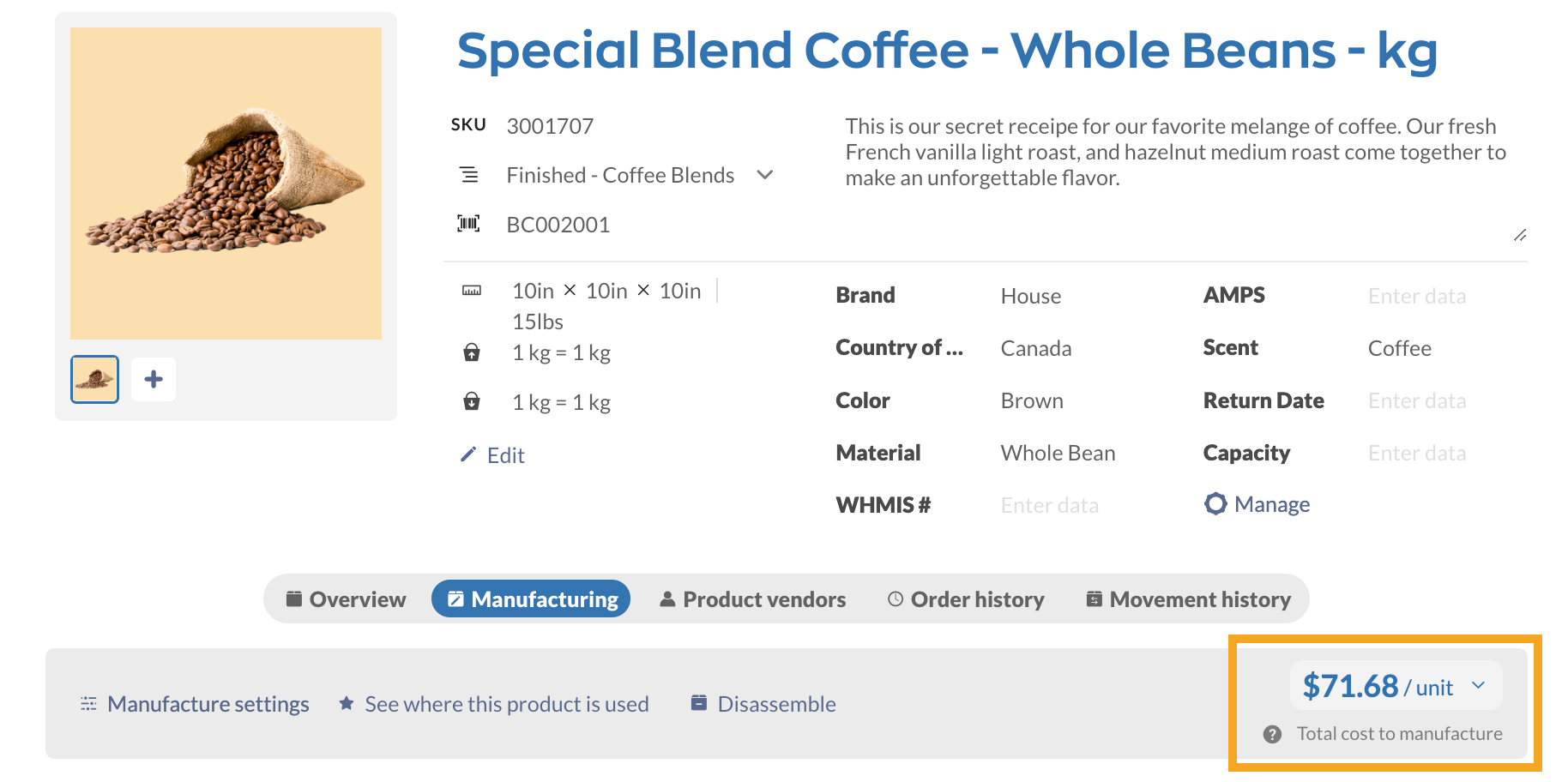
Cost tracking is vital to keeping your company on budget in manufacturing. The Manufacturing tab shows the total cost to manufacture for all products in inFlow with a bill of materials.
The Total cost to manufacture is an estimate of how much it costs to make one standard unit.
This estimate is based on component and operating costs from purchase orders and manufacturing cost fields throughout inFlow.
Cost formula
Cost to manufacture/unit = materials cost + operations cost
Total cost to manufacture breakdown
When you hover over the Cost to manufacture, you’ll see the Materials cost, Operations cost, and the total cost to manufacture.
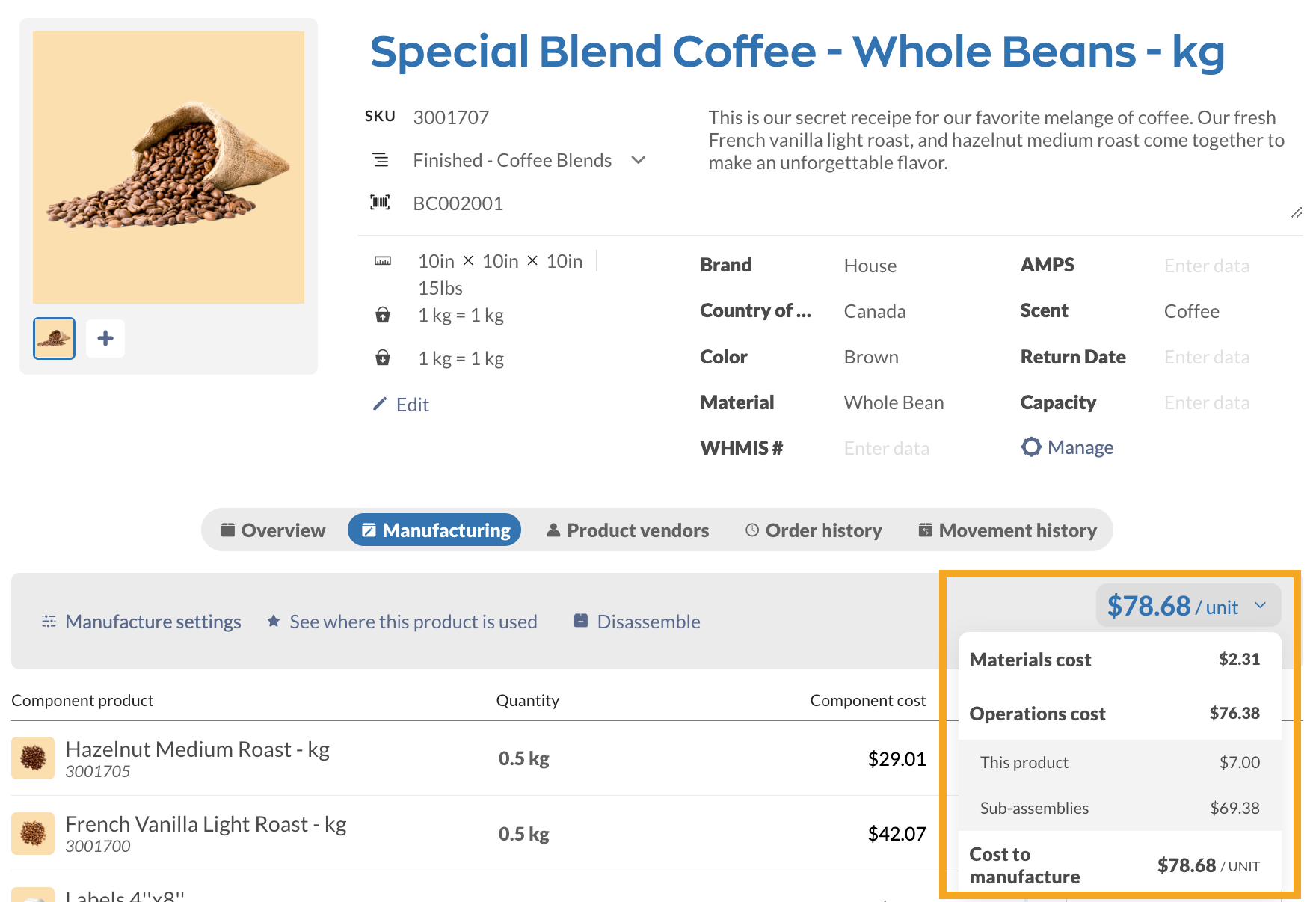
See the chart below for a better understanding of the Materials cost and Operations cost.
| Cost type | Explanation |
| Material cost | Cost of raw materials/components (excluding operating costs and labor). |
| Operations cost | The total cost of all of the operations to manufacture one unit. Included are the operating costs of subassemblies required to manufacture one standard unit. Per-unit costs and labor costs are part of the operational costs. |
Manufacturing operations
Operations are where you can provide instructions and track related costs for each stage of the manufacturing process.
Operations are a key part of production management. Check out this guide to learn more about this feature.
Bill of materials feature video
Manufacturing options
The Manufacturing menu includes helpful tools to help you stay organized. See below to learn more.
Manufacture settings (Bundles/Kits)
If your company sells individual products as part of a kit or bundle, you can select Auto-assemble from the Manufacture settings to track bundle products. To learn more, take a look at this guide.
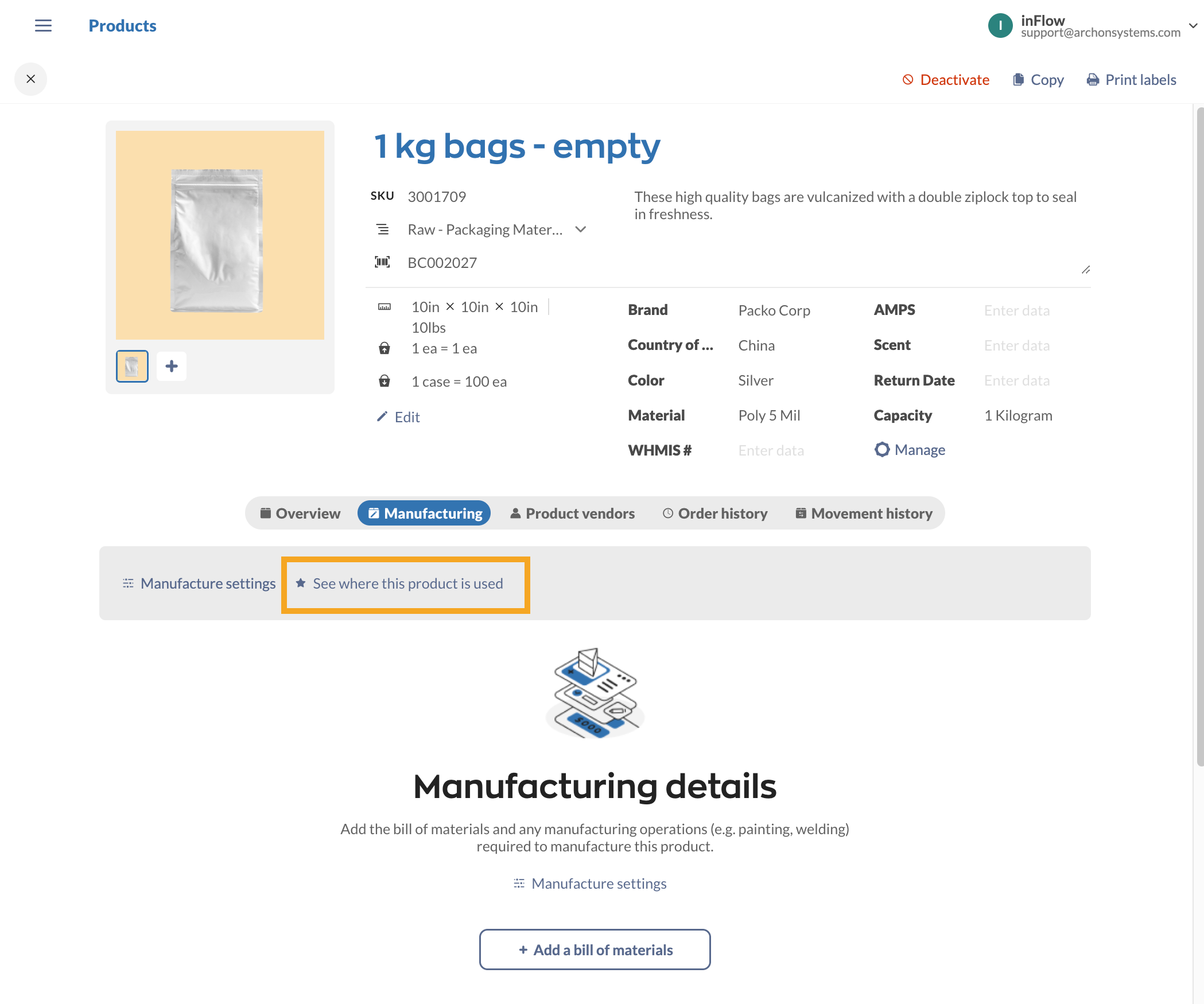
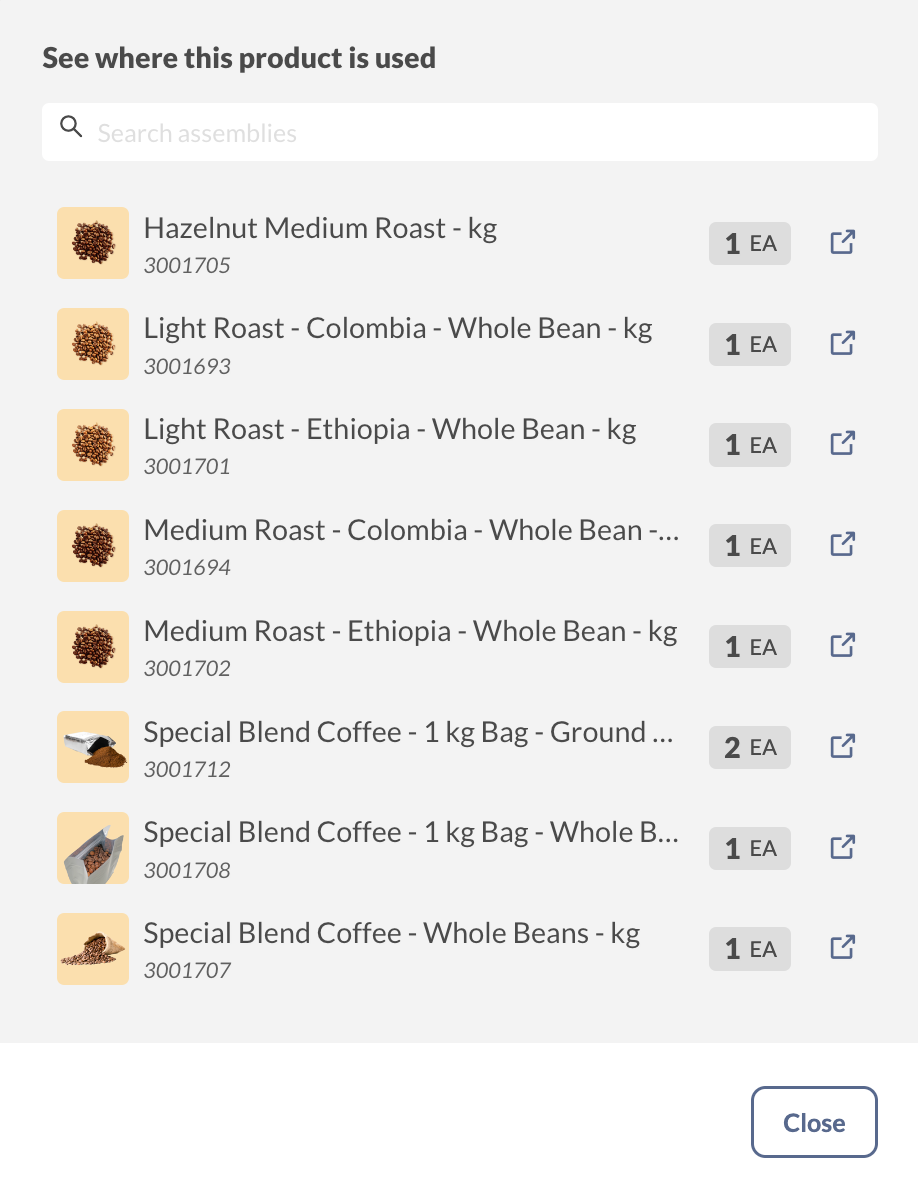
See where this product is used
Select See where this product is used to view which bill of materials a product is a part of. This will show a list of finished products and the quantities used.
Disassembly
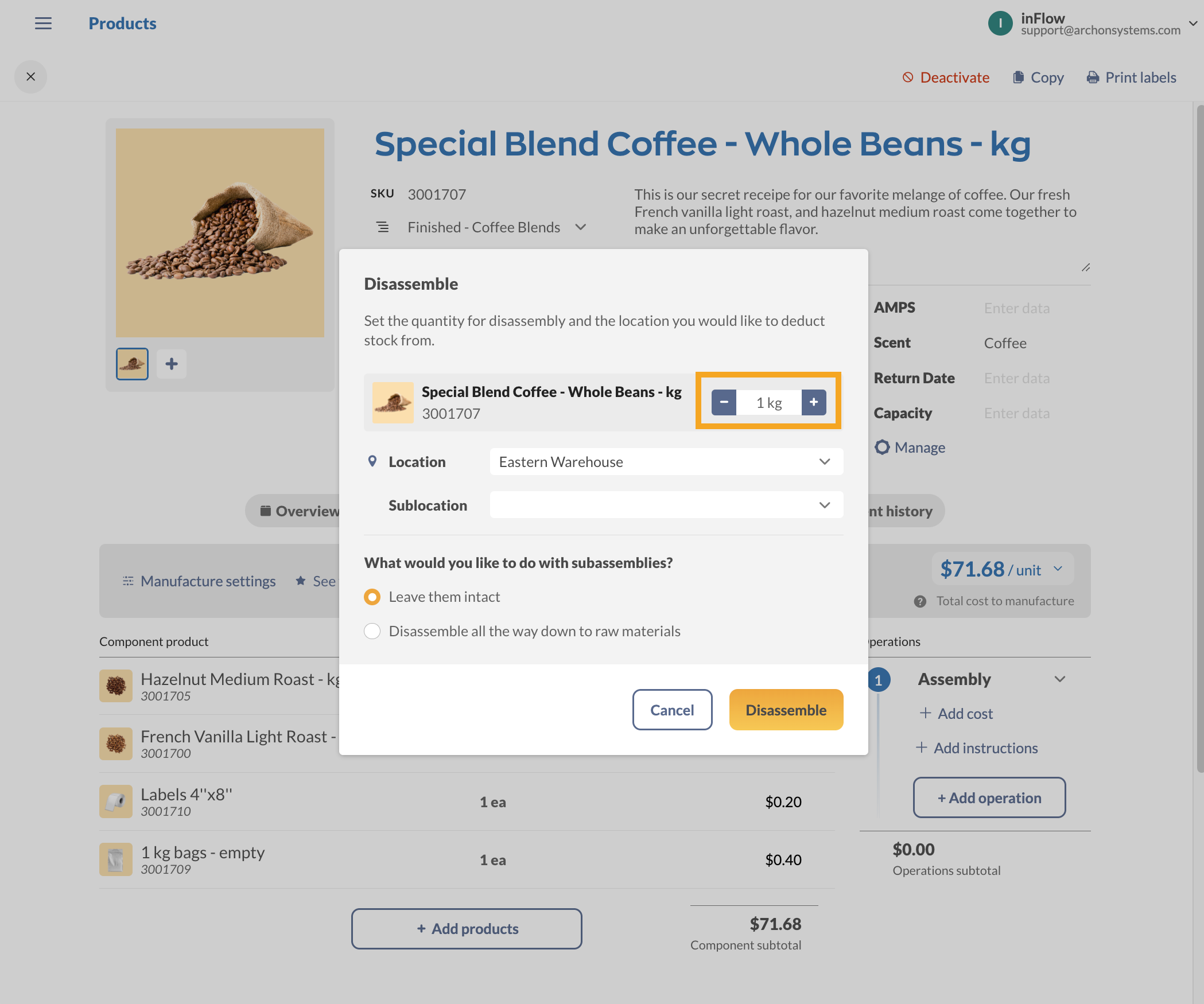
To split a finished product back into its original components, select Disassemble on the Manufacturing tab.
- Select the quantity you want to disassemble.
- Select the location and optional sublocation
- Click Disassemble.
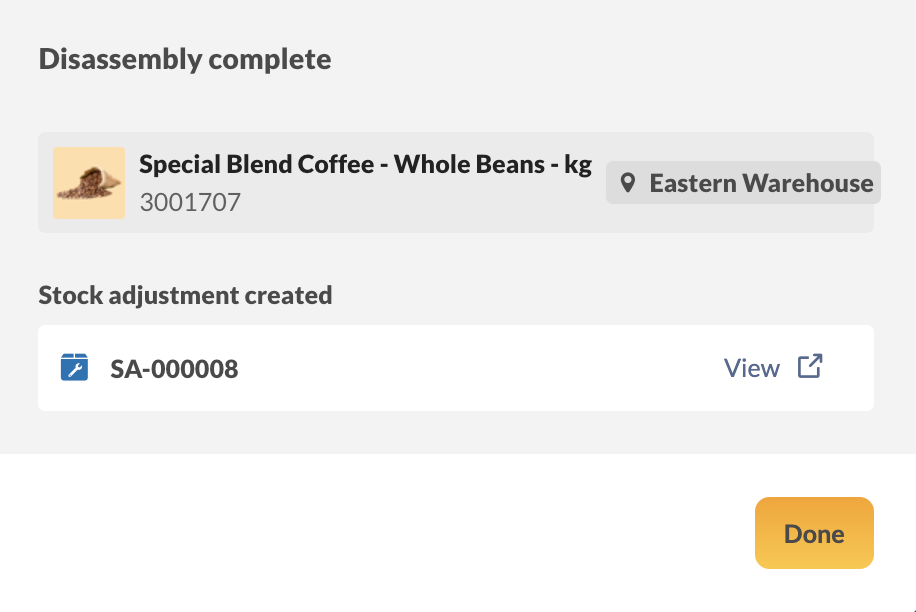
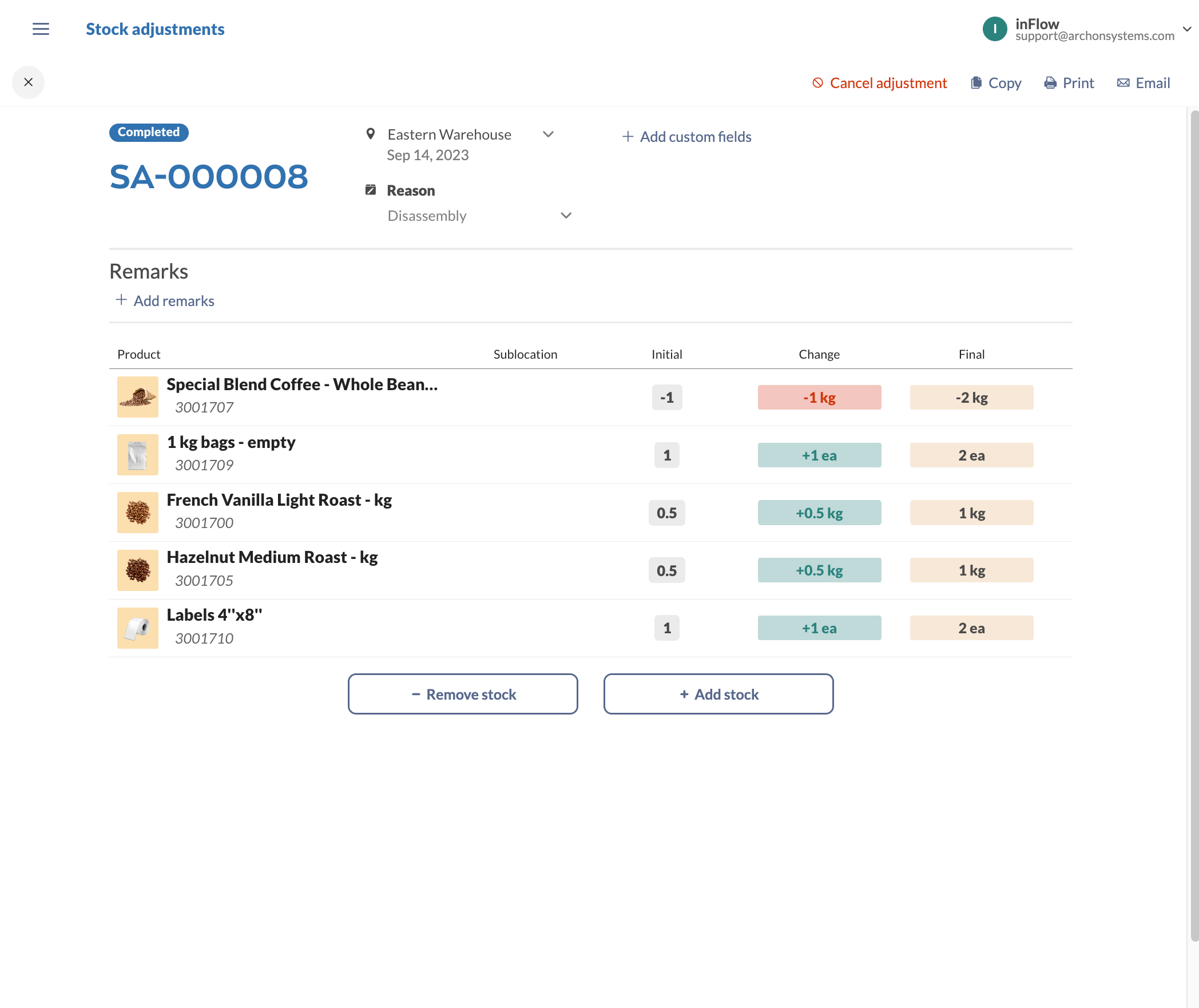
- The window will update to show a new stock adjustment. This will reduce the quantity of the finished product and add quantities based on the bill of materials components.
- You can select View next to the order to look at the stock adjustment in a new tab.
- When finished, click Done.
Bundles/Kits
If your company sells individual products as part of a kit or bundle, you can use the Auto-Assemble feature for inFlow to track your kits/bundles. To learn more, take a look at this guide.
 Yes, thanks!
  Not really

0 Comments