 Fellow Canadians: All inFlow plans are available in Canadian dollars




 Home
Home


How to choose/change product types
Product types in inFlow determine whether your products track inventory levels. Once you pick a product type, you can’t change it, so it’s good to know what each type does. Check out the info below to learn about the different options and what to do if you’ve chosen the wrong one.
Web
Product type options in inFlow
Product types in inFlow determine whether your products have stock levels that need to be tracked (stocked products) or if they are fees/labor charges (services). This setting is required and is permanent for each item upon saving for the first time. There are three types:
- Stocked product: These are physical products that show exact quantities in each location and can be tracked in full.
- Enable serial tracking: These will also show exact quantities, but are specifically for products with a unique code per unit.
- Enable lot tracking: These products track exact quantities, along with the lot/batch code and, optionally, an expiry date.
- Non-stocked product: These are products you would like to track but do not need to see quantities for (packing materials, boxes/cartons, paper, etc.).
- Service: These products are services and do not have quantities or locations attached to them.
Selecting a product type for a new product
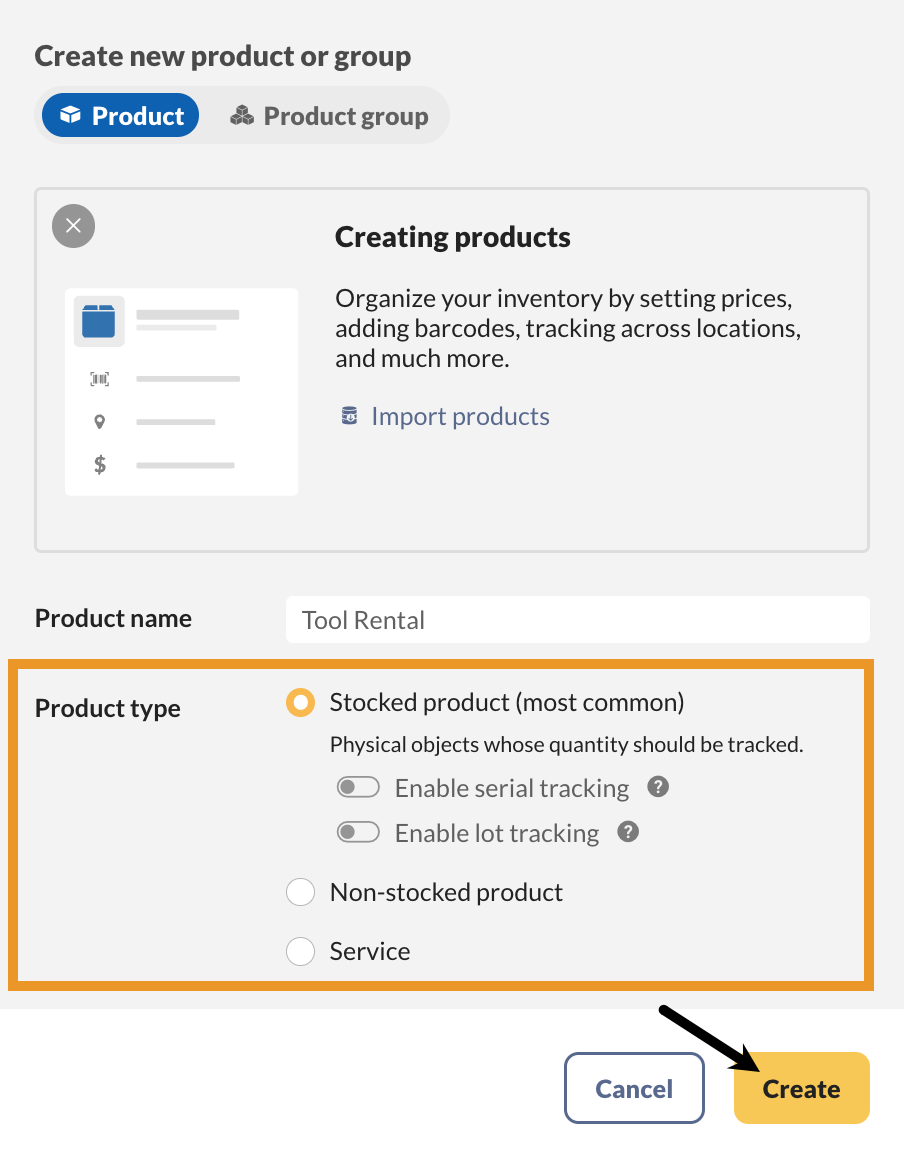
- From the Main Menu, select the Create button (the plus icon), then Product.
- Enter the product name, and select one of the options in the Product type list.
- Click Create.
Changing product types
As mentioned above, after saving, the product type is locked and cannot be changed for that product. If you need to change it, inFlow will create a new product and re-create the record for you, but all previous orders and movement history will not carry over, as it’s a different product.
How to change the product type
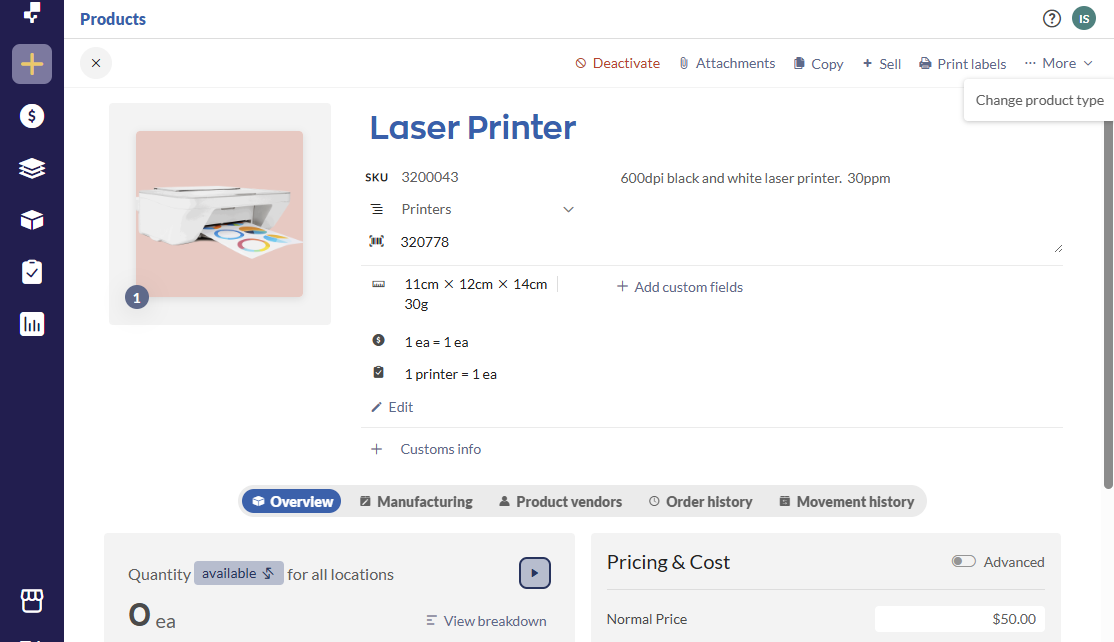
- Click the … More button at the top of the product record, then click Change product type.
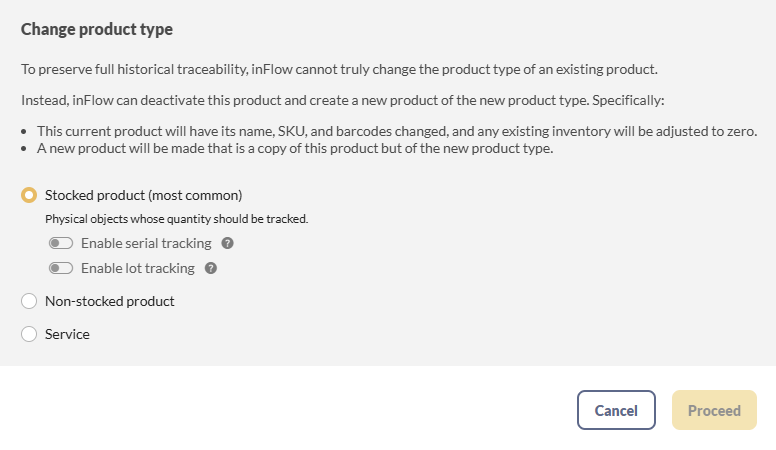
- Note the warning in the prompt. inFlow cannot change the product type, but can help you re-create it as a new product quickly while keeping the same name, SKU, and barcode. All previous quantities, order history, and movement history will stay with the deactivated product.
- Choose the new product type and click Proceed.
There isn’t any way for the previous order and movement history to be transferred to the re-created product.
Windows
Product type options in inFlow
Product type settings are permanent for each item when you save for the first time, so it’s important to know what you’d like to set your products as. There are four types:
- Stocked product: These will show exact quantities in each location and can be tracked in full.
- Serialized product: These will also show exact quantities but are specifically for products with serial numbers.
- Non-stocked product: These are products you would like to track but do not need to track quantities for (packing materials, boxes/cartons, paper, etc.).
- Service: These products are services and do not have quantities or locations attached to them.
Selecting a product type for a new product
- Open the product record.
- Click the drop-down next to Type and select the correct product type.
- Click Save.
Changing product types
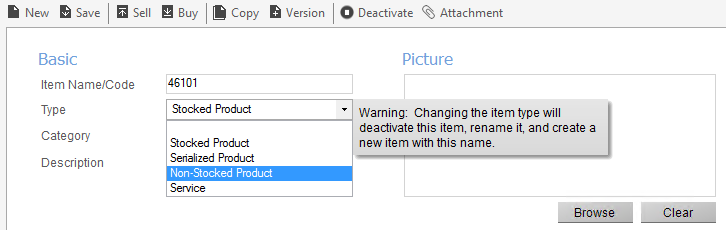
As mentioned above, after saving, the product type is locked and cannot be changed. If you do try to change the type, this would automatically deactivate the old item, rename it, and then recreate a new product with the same name (with no previous order/movement history). You’ll see a warning when you try to change it, as below.
How to manually change the product type
- Rename your product to something else (if you’d like to reuse the product name on the new record). Otherwise, if it’s going to have a different name, move on to the next step.
- Click the Deactivate button in the toolbar at the top of the product record.
- Create a new product by clicking New, and then type in the product name and select the correct type before clicking Save.
 Yes, thanks!
  Not really


0 Comments