 Fellow Canadians: All inFlow plans are available in Canadian dollars




 Home
Home


How to add product images/pictures
Boost your team’s efficiency by uploading product images for immediate visual identification. This eliminates the need to search through descriptions, allowing you to make quicker and more informed decisions.
Web
How to add images to products
- Open the product record.
- Select the product image section, then select or drag and drop the product images.
- Choose the picture you want to use and then click Open.
- Repeat steps 2 and 3 to add multiple images to the product record.
- Click Done when finished.
- Save the product record.
Enlarging images & setting a default
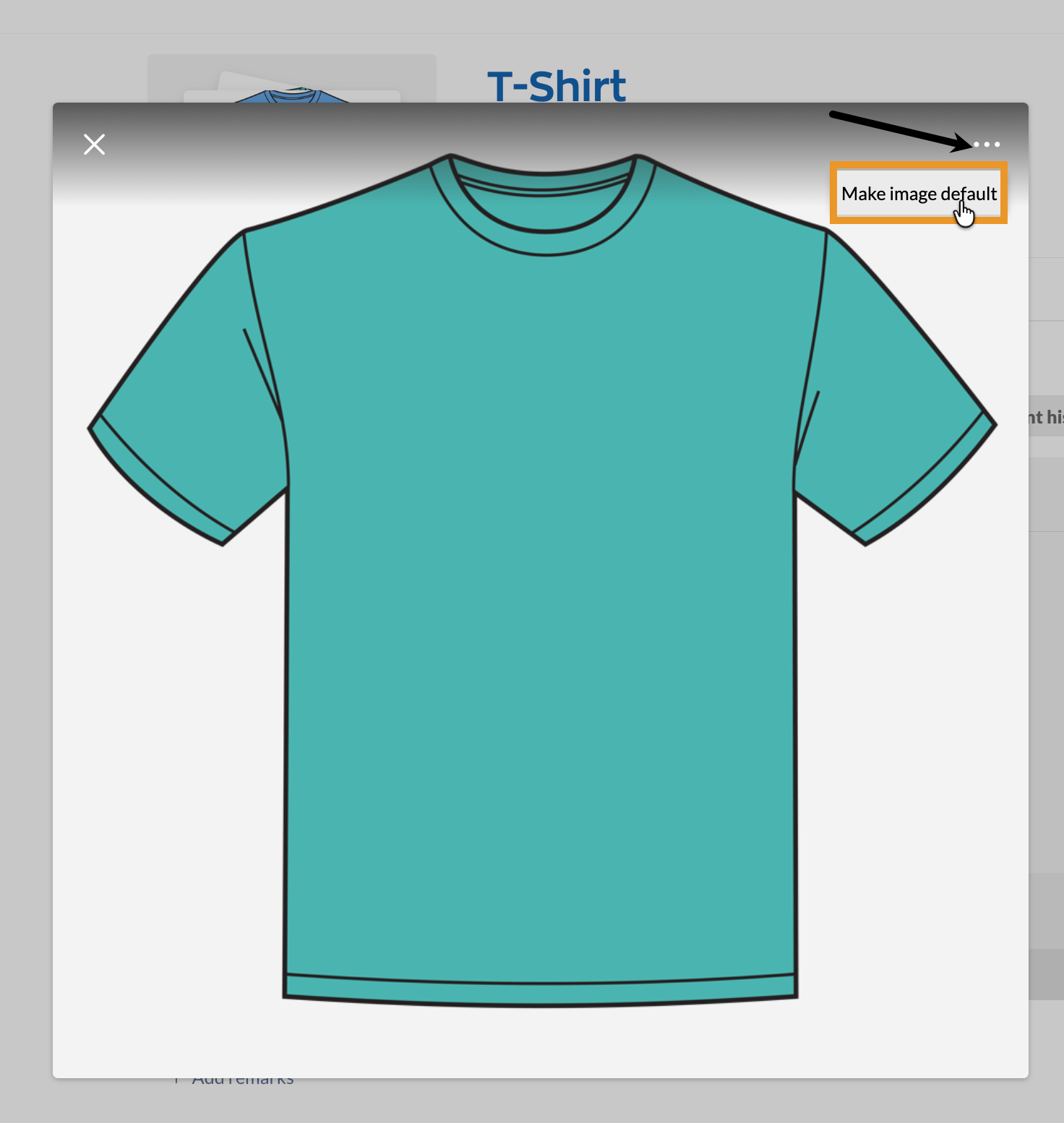
- Click on the product image section of the product record.
- Click on an image to enlarge it.
- To set a new default image, click on the ellipsis at the top-right-hand corner.
- Select Make default image.
- Click Done.
Accepted sizes and formats
Product images can be up to 25 MB in size, and the following formats are supported: JPG/JPEG, PNG, GIF, BMP, TIFF, WebP
Importing product images with a CSV file
If you want to add product images in bulk, you can include image links in a CSV file and import them to inFlow. This article explains this process.
Order example
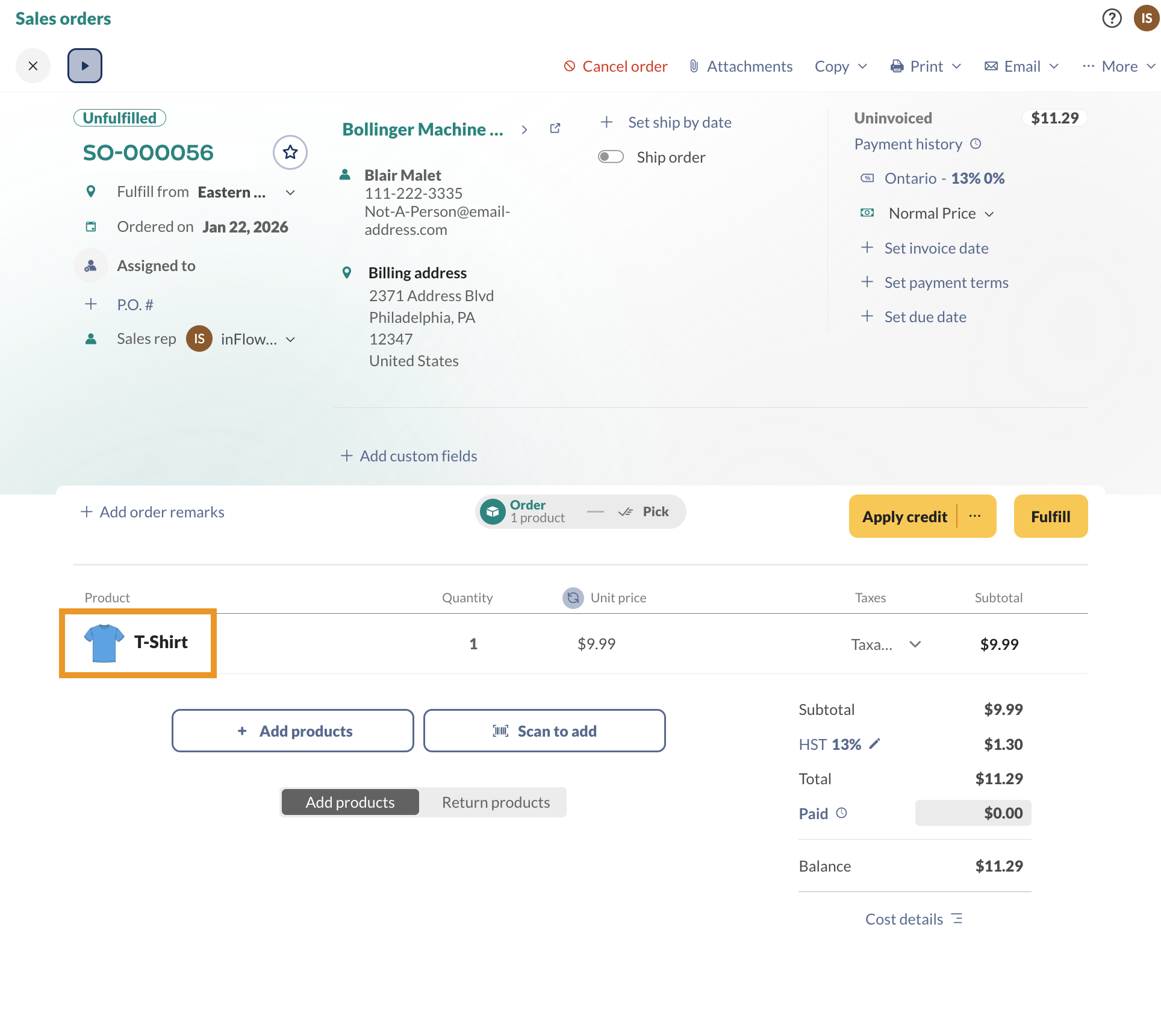
When you add a product to any order in inFlow, the default image will be displayed in the product table.
Windows
How to add images to products
You can add pictures to products to help you and your team identify them at a glance (instead of having to read the description).
- Open the product record.
- Click Add Image.
- Choose the picture you want to use and then click Open.
- Save your product.
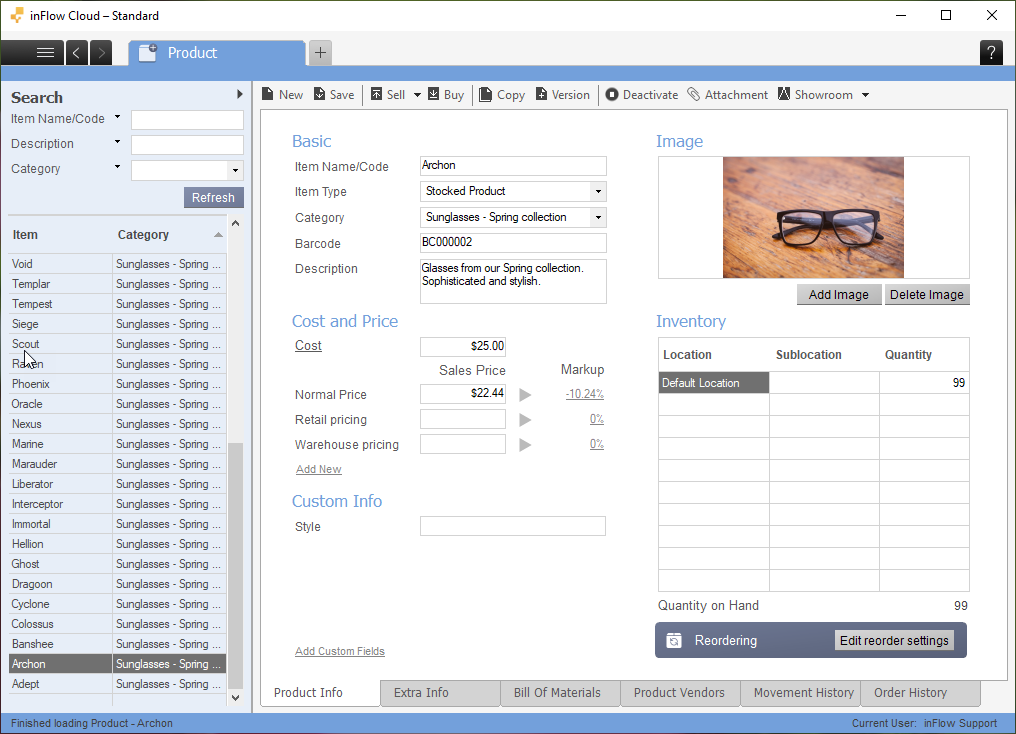
Now that your image has been added to the product, you can click on it to see the enlarged photo.
On inFlow Inventory for Windows, only one image can be displayed. Whereas inFlow Inventory for Web and Mobile can have multiple product images.
Importing product images with a CSV file
If you want to add pictures to multiple products in bulk, you can include image links in a CSV file and import them to inFlow. This article explains this process.
Accepted sizes and formats:
Pictures can be up to 20 MB in size, and the following formats are supported: jpg/jpeg, png, and bmp.
Mobile
Adding images to products with inFlow for Mobile
inFlow for mobile lets you add product photos on the go. To add an image, follow these steps:
- In the inFlow mobile app, tap on the product you want to edit.
- Select Add Image.
- If the image is saved on your phone, choose Choose from Library. If you want to take a new photo, select Take Photo to use your phone’s camera.
- After selecting or taking a photo, tap OK to use it, or tap Retry to take another photo.
- Repeat the steps above to add more images of your product.
- Once you’re finished, save the product.
 Yes, thanks!
  Not really


0 Comments