 Fellow Canadians: All inFlow plans are available in Canadian dollars




 Home
Home


How to save reports in inFlow
Repeatedly setting up report filters and columns can be time-consuming, especially when you frequently run the same reports or need to share data. Saving reports lets you configure a report once and open it instantly later.
Web

Saving Reports
- Go to Main Menu > Reports and open any report.
- Set your filters and columns the way you want them, then click Generate.
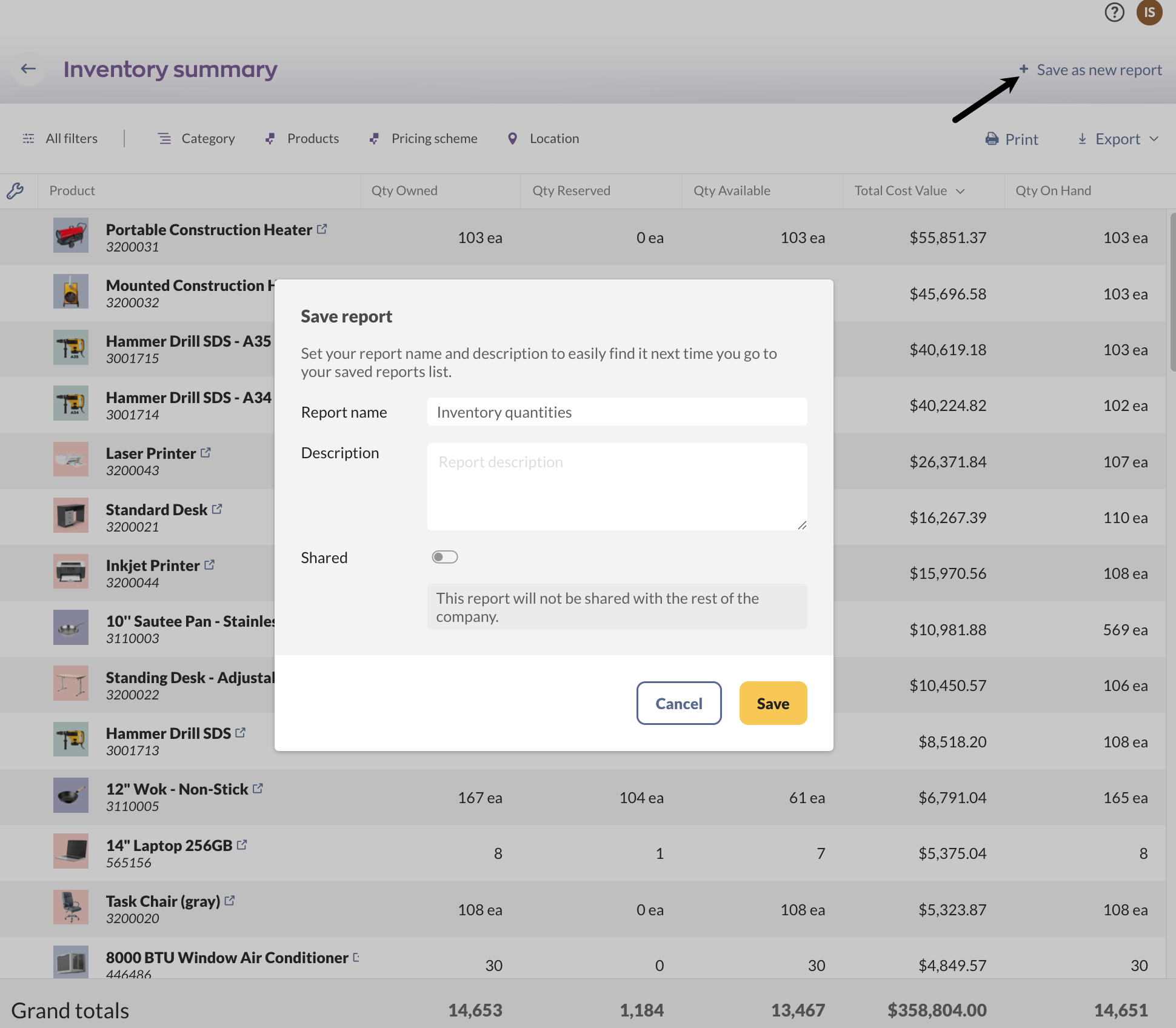
- Click Save as new report.
- Give your report a name. Optionally add a description to help your team understand what it’s for.
- Choose whether the report is Private (visible only to you) or Shared (visible to all team members who have access to that report type).
- Click Save.
Your report will now appear in the Recent & saved section of the Reports page. Shared reports will be available to all other team members on inFlow who have access to reports.
Saving changes to an existing saved report
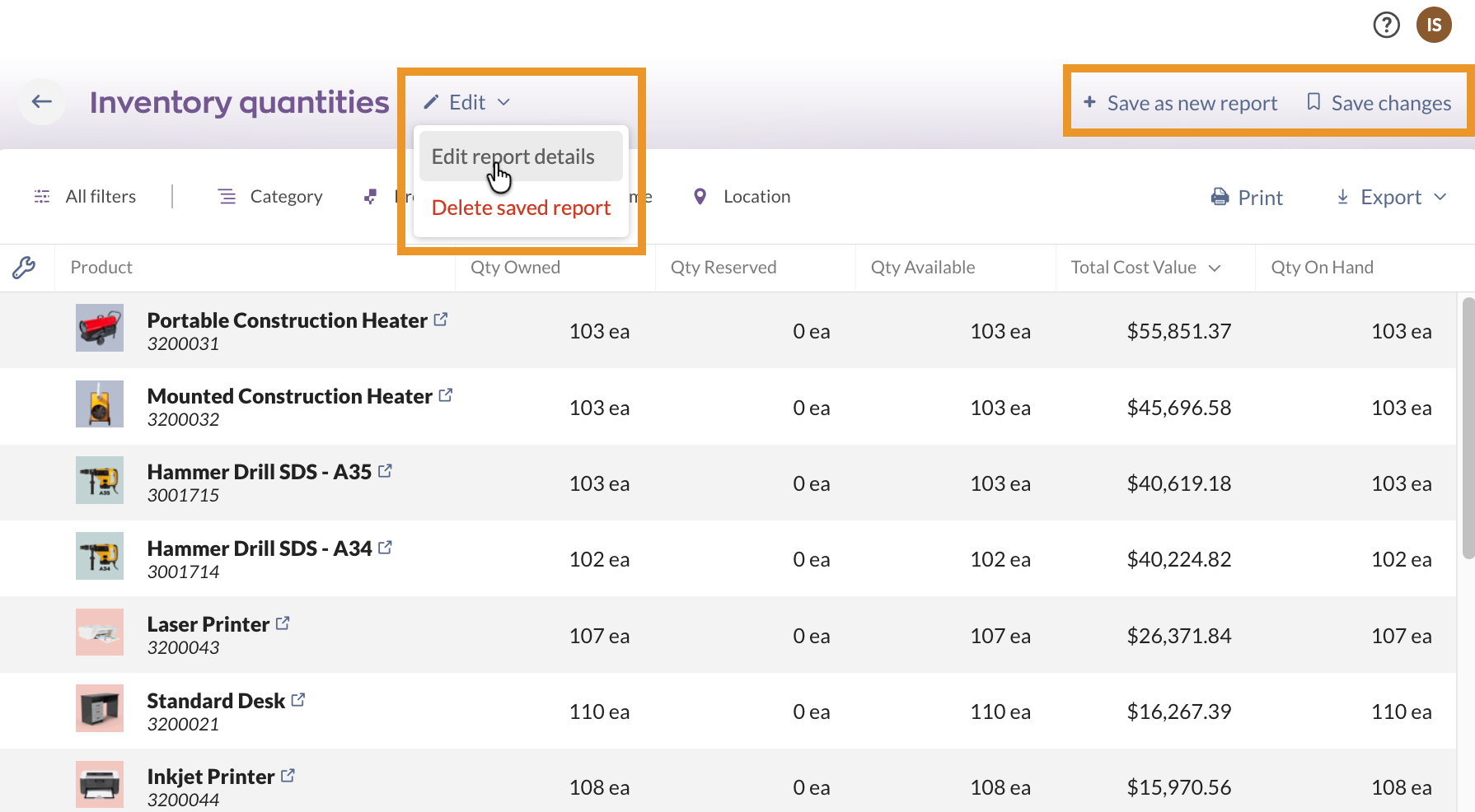
When you make any changes to a saved report’s filters or columns, you have the option to Save as a new report or Save changes to update the existing saved report.
If you navigate away without saving, inFlow will prompt you to save or discard your changes.
Click Edit to update the report name and description.
If you’d rather keep the original saved report intact, use Save as new report instead to create a separate copy with your new settings.
Scheduling reports to generate on a regular basis via Zapier
If you use inFlow’s Zapier integration, you can use saved reports to automate and schedule reporting. The following Zapier actions are available:
- Generate a saved report CSV — generates a CSV file for a specific saved report.
- Generate a saved report PDF — generates a PDF for a specific saved report.
- Find a saved report — retrieves the generated report.
One common use case: use Zapier’s Schedule trigger to automatically generate and email a saved report CSV on a regular schedule (e.g., every Monday at 9 am).
To get started, click one of the links below to connect your inFlow account and have either the CSV or PDF report emailed regularly. You can also use the Zapier template below as a reference to build your own automated Zap workflow.
Gmail:
- Automatically email PDFs of inFlow Inventory saved reports using Gmail.
- Automatically email CSVs of inFlow Inventory saved reports using Gmail.
Outlook:
- Automatically email PDFs of inFlow Inventory saved reports using Outlook.
- Automatically email CSVs of inFlow Inventory saved reports using Outlook.
Private vs. shared reports
Private reports are only visible to you. Use these for personal views you don’t need to share.
Shared reports are visible to all team members with access to reports (and any applicable add-ons, such as Lot Numbers or Production Management).
Use these when your whole team — or people outside inFlow, like your accountant — need to reference the same numbers.
A few things to know about shared reports:
- inFlow admins can edit the filters, columns, name, and description of a shared report.
- Non-admins can temporarily adjust filters and columns and generate the report, but their changes won’t be saved to the shared version. They can choose to Save as a new report to create their own private copy.
- Hovering over the Shared badge on a report shows who last edited it and when.
- When you change a private report to shared, inFlow will warn you if a shared report with the same name already exists.
Shared reports can be viewed by any team member who has access to the section of inFlow where they are stored. For example, if a report uses Production data, only team members with access to Production Management can view it.
Dashboard shortcut to saved reports
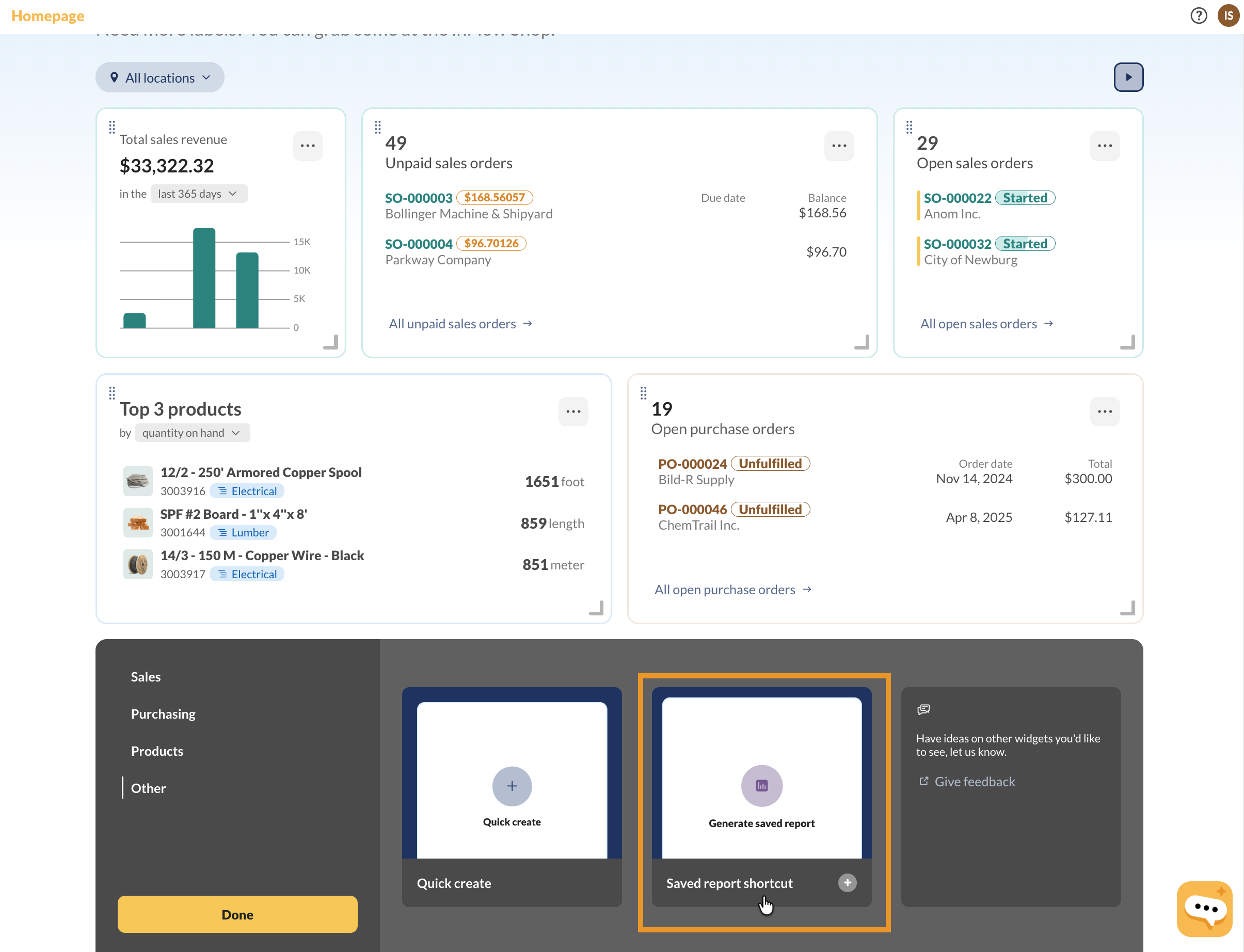
You can also add a shortcut directly to your saved reports from your web dashboard. To do that, go to your Dashboard
To add it, go to your web dashboard > Add widget > Other > Saved report shortcut
Once added, click the widget to pick a saved report from your list. After selecting a report, inFlow takes you directly to it and generates it automatically.
Windows
So you’ve set up a report just the way you like it, and you don’t want to redo it every time you generate it? No problem! Simply click the More button beside Generate Report, then click Add to My Reports.
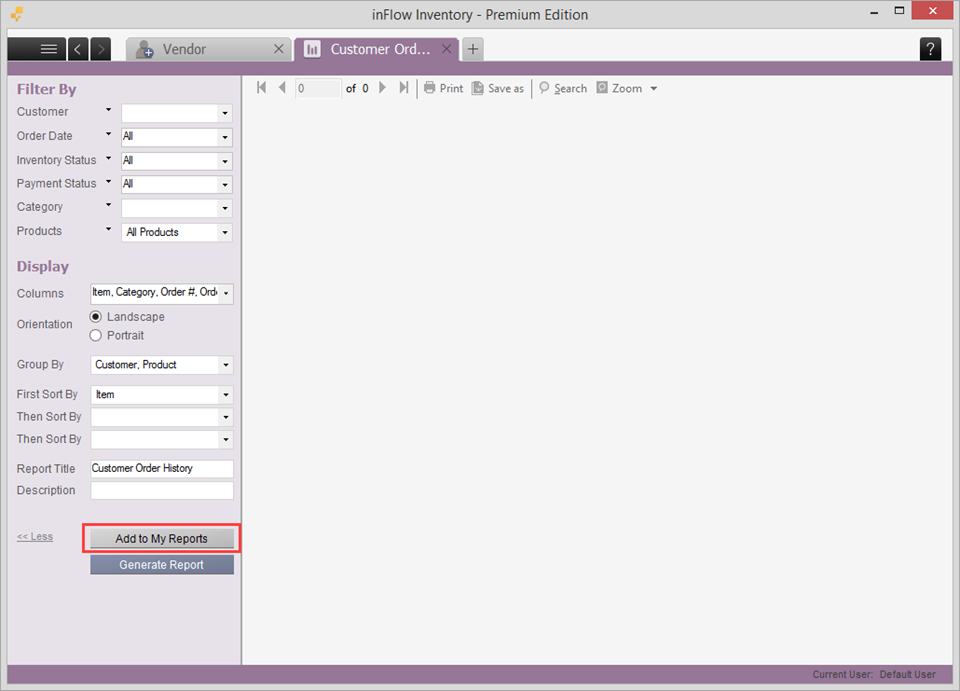
To use this report next time, you can find it under the My Reports section instead of the default reports list.
 Yes, thanks!
  Not really

0 Comments