



 Home
Home


Lot numbers & expiry dates: end-to-end product traceability (beta)
The inFlow team is excited to launch lot-number and expiry-date tracking. This feature is currently in beta. Take a look below to learn more!
Contact the inFlow team if you’d like access to the beta.

If you’ve been tracking lot numbers with our legacy steps, we have guidance on transitioning your products to inFlow’s new lot-tracked products.
Create a new lot tracking product
- From the Main Menu, hover over the Create button (plus icon), then select Products.
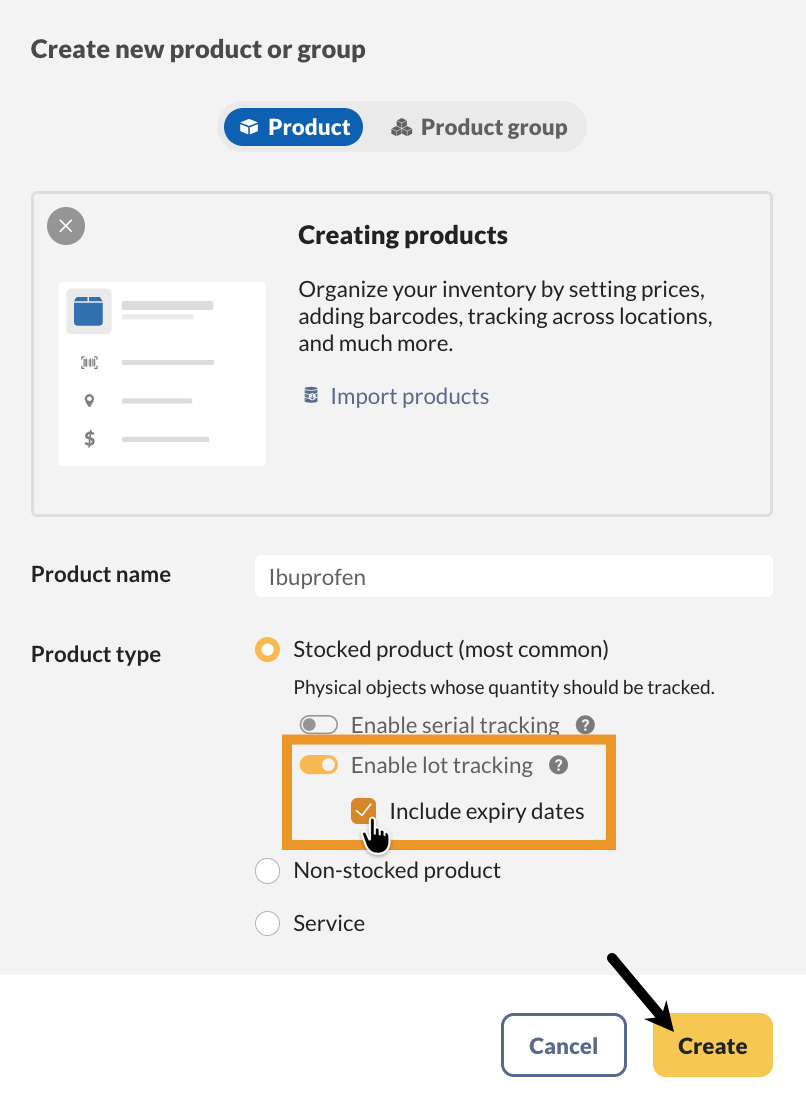
- Fill out the Product Name field.
- Stocked product is set as the default product type when you create a new product. Turn on Enable lot tracking, and Include expiry dates if needed.
- Click Create.
Lot details
Now that you’ve created the new lot-number product, you can edit the lot details in the product record.
- From the product record, click on Manage lot numbers.
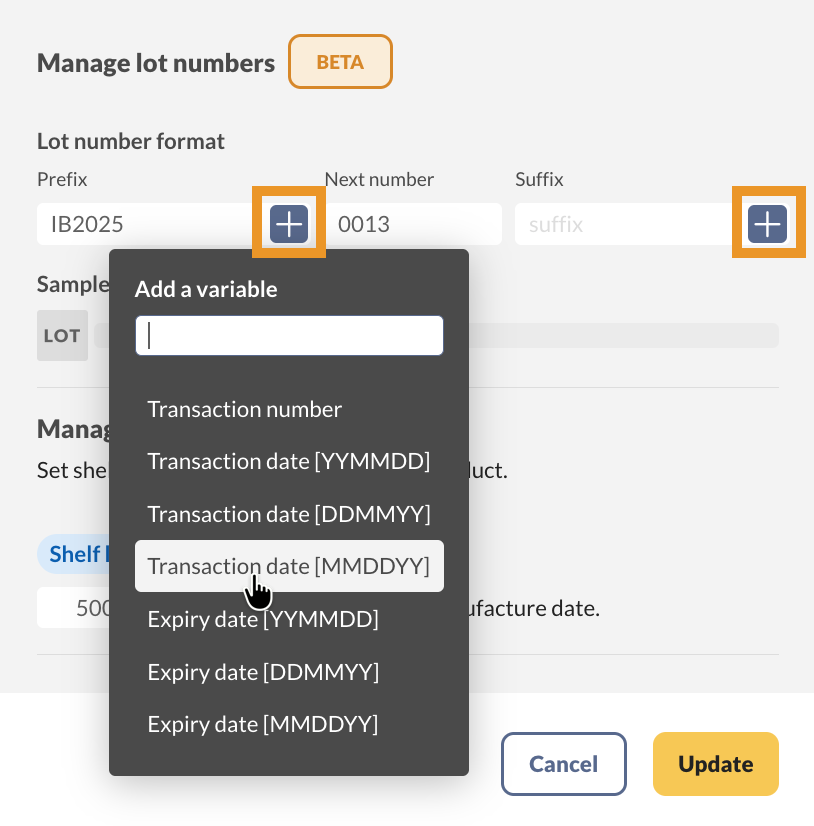
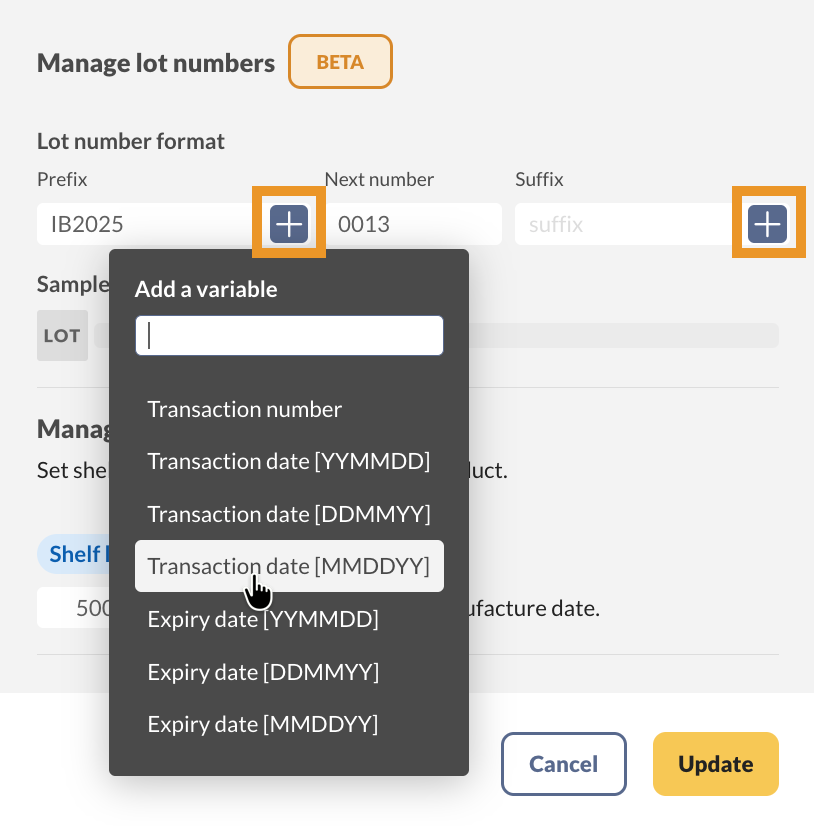
- Fill out the fields in the Lot number format section if your team follows a standardized lot-number style.
- Optionally, click the plus icons to add variables to the Prefix or Suffix fields. These fields serve as placeholders that automatically populate order details, such as the transaction number, transaction date, or expiry date.
- Below, you can set a default shelf life for this product.
- When done, click Update.
Lot number movement history
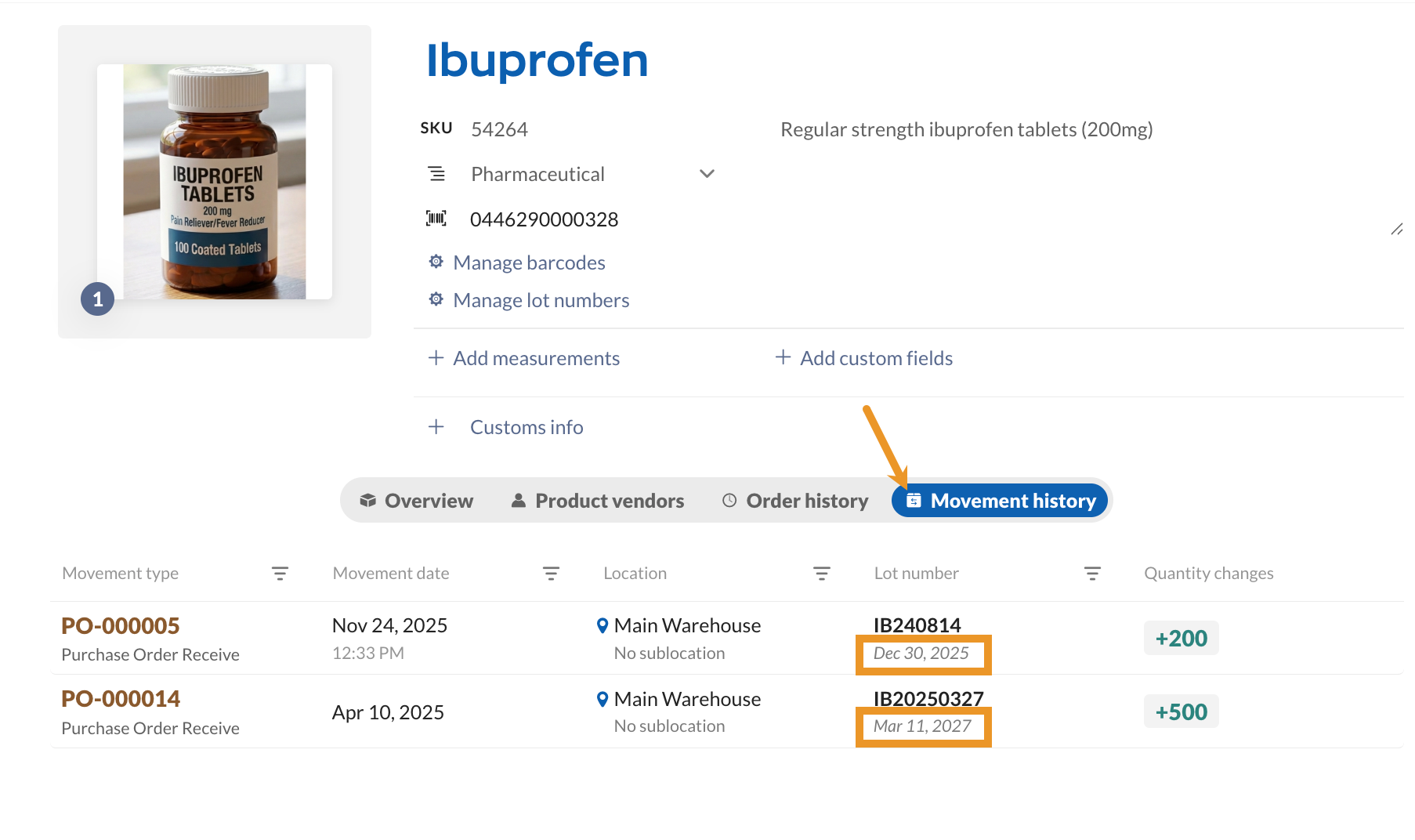
Select the Movement history tab on the product record to track the lot’s movement. Click the Lot number heading to search for a specific lot.
Expiry dates
Product quantity tile
The Quantity tile on the product record doubles as your lot-tracking dashboard. Under each location, every lot is listed by lot number along with its quantity and expiry (or sell-by) date, so you can see exactly how much stock you have and when each batch needs to move, all without leaving the product record. The quantity bar also flags an expiring segment, giving you an at-a-glance warning when stock is approaching its expiry date.
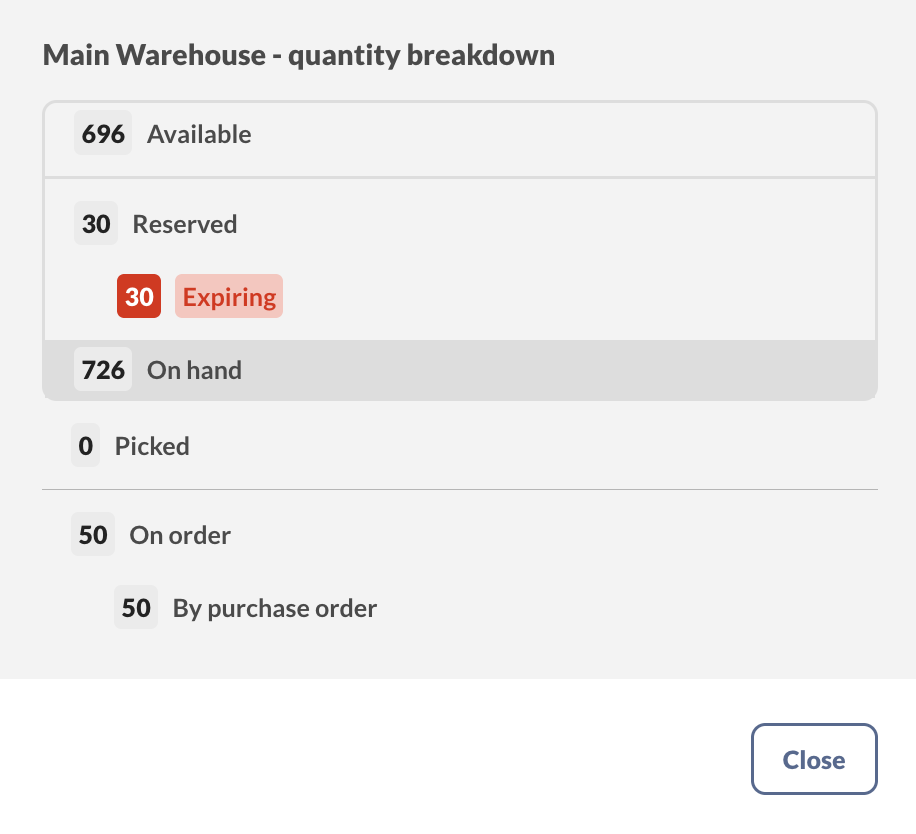
Need more detail? Click View breakdown to see the full quantity split — including available, reserved, on hand, and on order — with expiring stock called out there too.
Movement history tab
Open a product’s Movement history tab to see expiry dates listed below the lot number for each transaction.
Purchasing lot products
Purchase orders allow you to create new lot-tracked products and set their lot and expiry dates when receiving.
Receiving lot products
- Click on the Receive tab.
- Select the product, or click on Assign lot number.
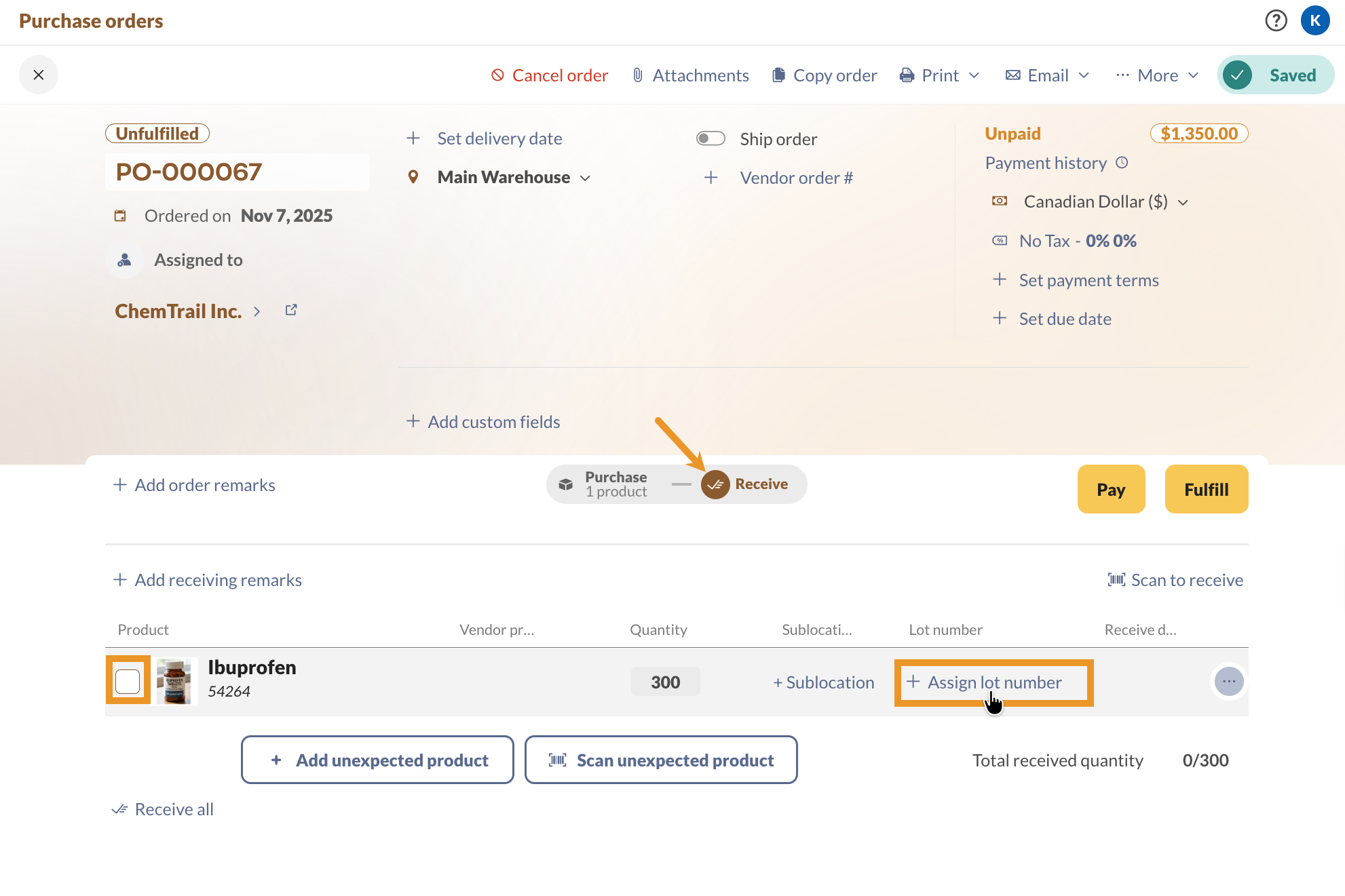
- Enter the lot number, or select Auto-generate to have inFlow generate one for you. Then click Continue.
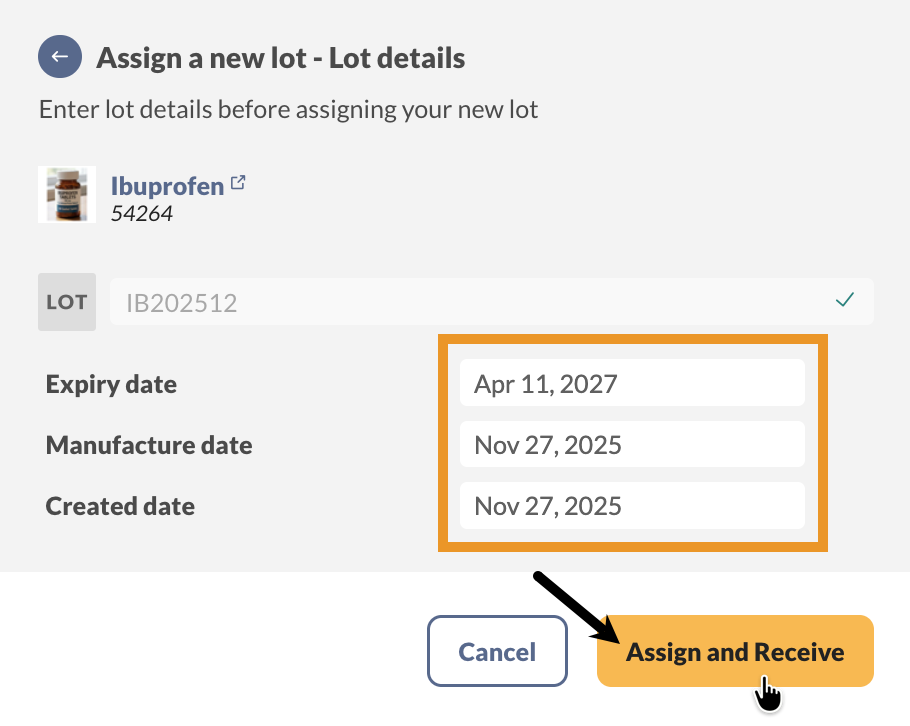
- Fill out the fields on the Lot details screen, then click Assign and receive.
- Save the purchase order when done.
If a lot-tracked product does not have a default shelf life set in the product record, the receive date will automatically be set as the expiry date.
Receiving multiple lot numbers
If you need to track multiple lot numbers for the same product, you can partially receive the products on the Receive tab to track each lot number.
- Click on the Receive tab.
- Click on the Quantity field, enter the amount related to the lot number, then click Partial receive.
- Next, enter the lot number, then click Continue.
- Fill out the remaining lot number details, then click Assign and receive.
- Repeat these steps as needed for each lot number you need to track.
Selling lot products
On sales orders, you can create a new lot-tracked product and view or change the lot number you’re selling on the Pick tab.
Picking lot products
- Open a sales order, then click on the Pick tab.
- Under the Lot & expiry heading, inFlow will suggest a lot number closest to expiry in the order location. If there are no expiry dates, inFlow will suggest a lot with the earliest manufacture date instead. Select the product to mark it as picked.
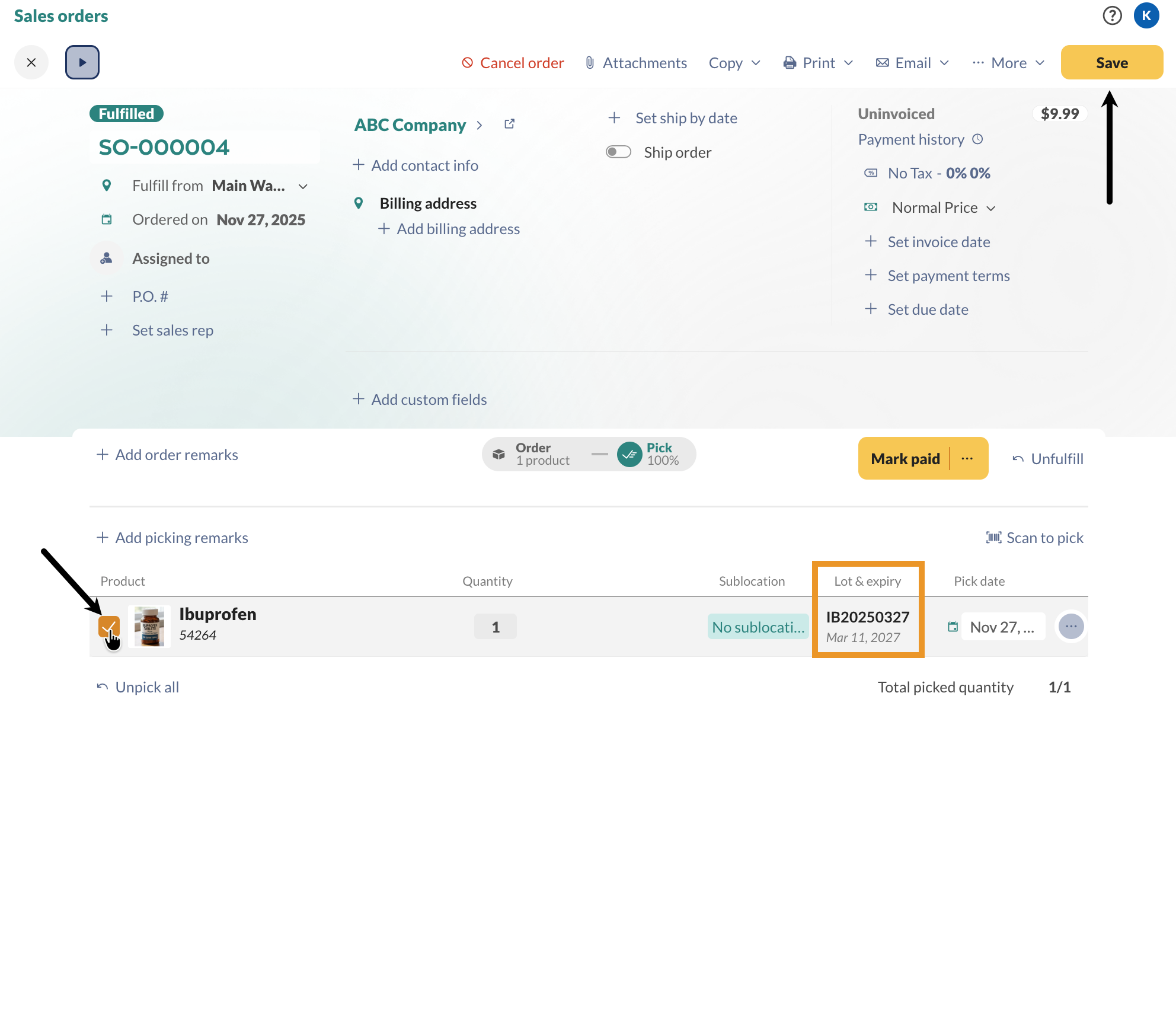
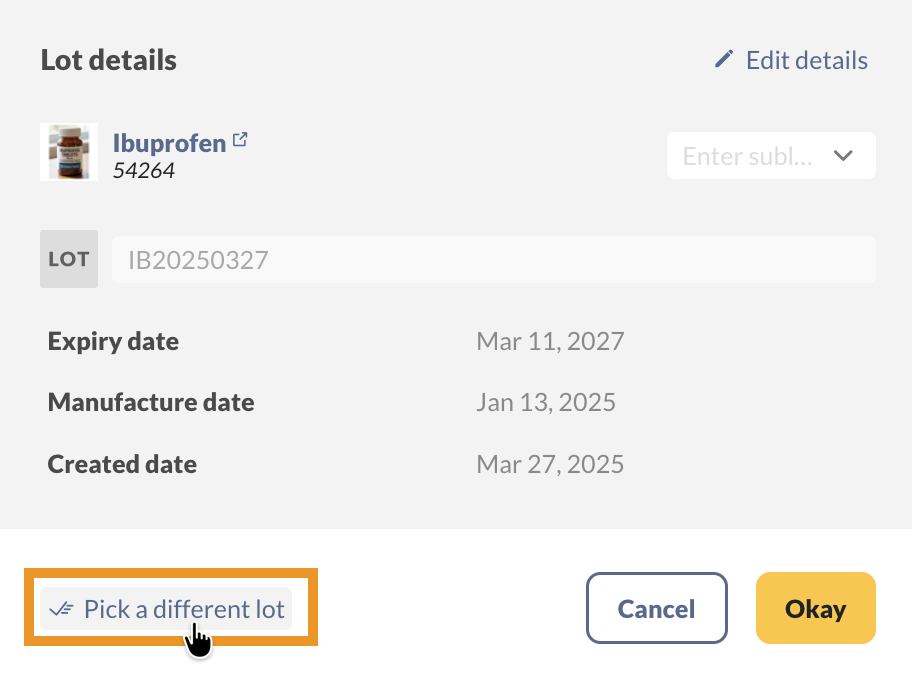
- To change the lot that is picked, click on the lot number, then click on Pick a different lot.
- Select a lot number from the list, then click the Pick button
- Save the sales order when done.
Restocking products
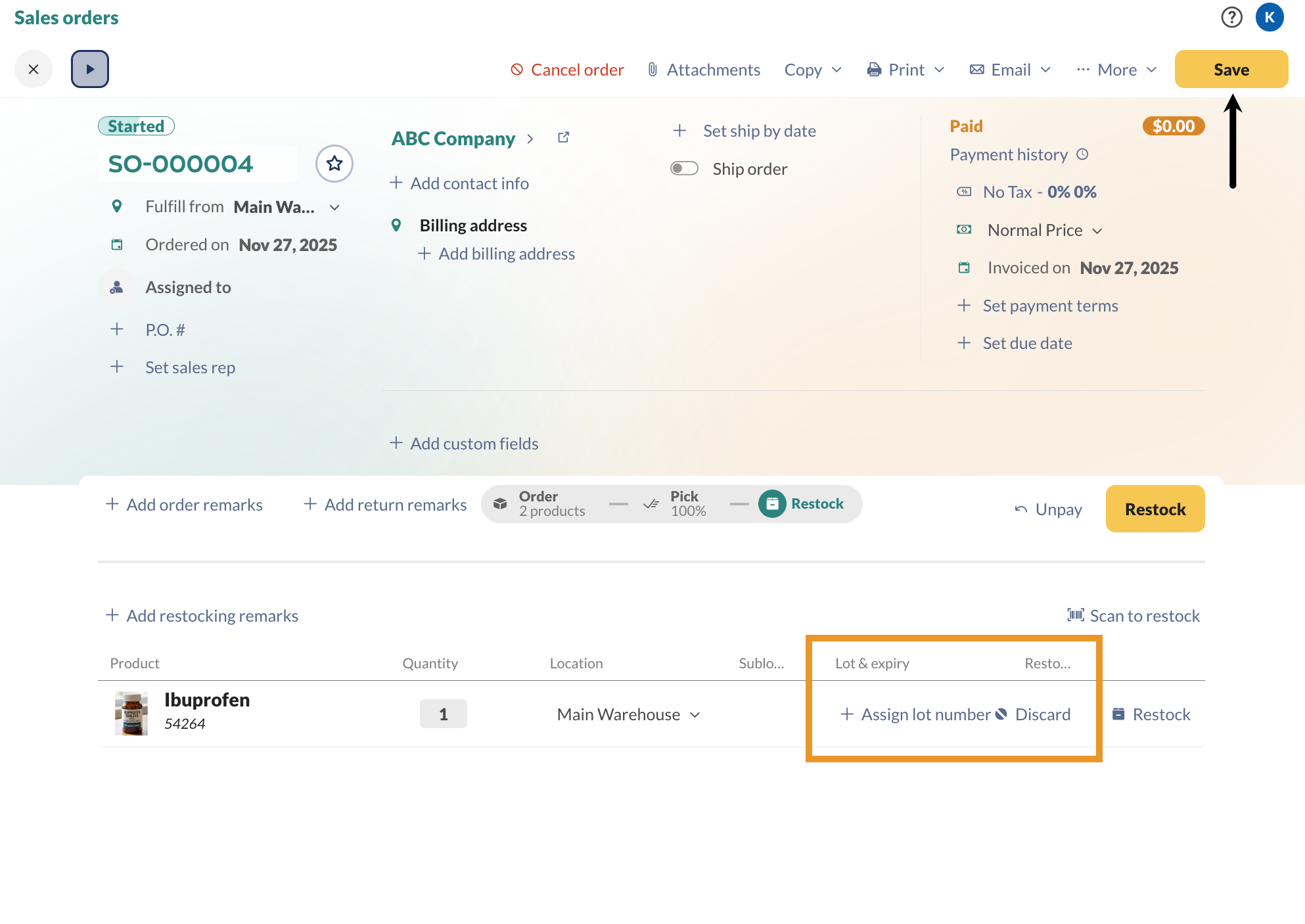
- On the sales tab, hover over the product, and select the Return button.
- Click on the Restock tab. If you’re adding the product back to your inventory, select Assign a lot number. If you’re throwing the product out, click Discard.
- Save the order when done.
Let us know your feedback!
Thank you for trying out the lot and expiry date tracking feature. We’d love to hear your feedback, so please feel free to contact us with any thoughts or suggestions.
 Yes, thanks!
  Not really

0 Comments