 Fellow Canadians: All inFlow plans are available in Canadian dollars




Key takeaways
- You can create barcodes for free with an online barcode generator, a barcode font like Code 39, Excel, or inventory software. Free barcodes work for internal inventory and asset tracking, but they can’t be used to sell through outside retailers or on Amazon.
- To sell products at retailers or on Amazon, you need GS1-registered barcodes. In the US, a single GS1 US GTIN costs $30 with no renewal fee, and a GS1 Company Prefix for 10 barcodes costs $250 plus a $50 annual renewal (GS1 US pricing as of October 2026).
- The best barcode types for internal use are Code 128 and Code 39, because they support letters and numbers and won’t be confused with the UPCs on retail products.
- 1D barcodes don’t store product details. They encode a short string of characters, and your inventory software looks up the product name, price, and stock levels tied to that code.
- A complete barcode system has four parts: barcode labels, a label printer, a barcode scanner, and inventory software that connects each barcode to a product record.
- GS1 Sunrise 2027 is the industry goal for retail point-of-sale systems to scan 2D barcodes, like QR codes and GS1 DataMatrix, by the end of 2027. Traditional UPC and EAN barcodes will still be accepted.
Since we first released inFlow, we’ve spoken with tons of small businesses about how they can improve their workflow. One of our biggest easy wins has always been teaching them how to create barcodes for their products or inventory.
And barcodes are hardly a niche tool. In our State of Inventory Management 2026 survey of 400 operators, 81.2% said they already use barcode scanning. Globally, GS1 US reports that its barcodes are scanned more than 10 billion times a day.
So, for this article, we’ll be showing you how to create your own! This post will cover four major subjects:
- An overview of barcodes, including how computers read them.
- How to create barcodes with a barcode font, barcode generator, Excel, or inventory software for internal use.
- How to get barcodes through GS1 for external use, like selling in retail stores or on Amazon.
- The hardware and software you need to print and scan them.
We wanted to keep things simple, so we’ve boiled everything down as much as possible. If you want a more in-depth look at how to start barcoding your small business, check out our Ultimate Barcoding Guide. It covers everything in this article and more! You can also watch our podcast about barcodes below. Otherwise, read on!
How to create a barcode in 6 steps
To create a barcode, decide where it will be scanned, choose a barcode type, give each item a unique number, generate the barcode image, print a test label, and link the barcode to the product in your inventory software. Here’s what each step looks like:
- Decide where the barcode will be scanned. If it only needs to work inside your own business, you can create it for free. If retailers, distributors, or Amazon will scan it, you need a GS1-registered barcode.
- Choose a barcode type. Code 128 and Code 39 are the go-to choices for internal use. Retail products use UPC-A in the US and Canada and EAN-13 in most other countries.
- Give every item a unique number. Plan a simple numbering system and never reuse a number, even after a product is discontinued.
- Generate the barcode image. Use a free online barcode generator, a barcode font, Excel, inventory software, or the GS1 US Data Hub for registered barcodes.
- Print and test a label. Print one label and scan it before you print a full batch. Most scanning problems come down to size, contrast, or crowded margins.
- Link the barcode to a product record. Add the barcode number to the product in your inventory or point-of-sale (POS) system so scanning it brings up the right item.
We’ll walk through each of these steps in more detail below, starting with the basics.
What is a barcode and how does it work?
A barcode is a machine-readable image that represents a short string of numbers or letters. When you scan it, your software matches that string to a product record and pulls up the details. Before we get into how to actually create and use barcodes, let’s go back to basics to give you a full understanding of what barcodes are and how they work.
What is a barcode?
While you may not have made barcodes yourself, chances are you’ve seen them in stores. Who hasn’t had the experience of going to the store and hearing that iconic beep as your item passes through the checkout? Instantly, the computer populates with the name and price of that item. This shared experience can cause the misconception that the barcode itself actually had all of that information embedded within it.
The truth is that 1D barcodes (a.k.a. one-dimensional or linear barcodes) are really just a series of vertical lines in varying widths. These barcodes, used by retailers around the world, don’t actually store much information about products. A retail UPC, for example, holds just 12 digits.
Note: For the sake of simplicity, we’ll be focusing mostly on 1D barcodes in this article. If you’re curious how they compare to QR codes and other 2D barcodes, check out our guide to 1D vs. 2D barcodes.
What happens when you scan a barcode?
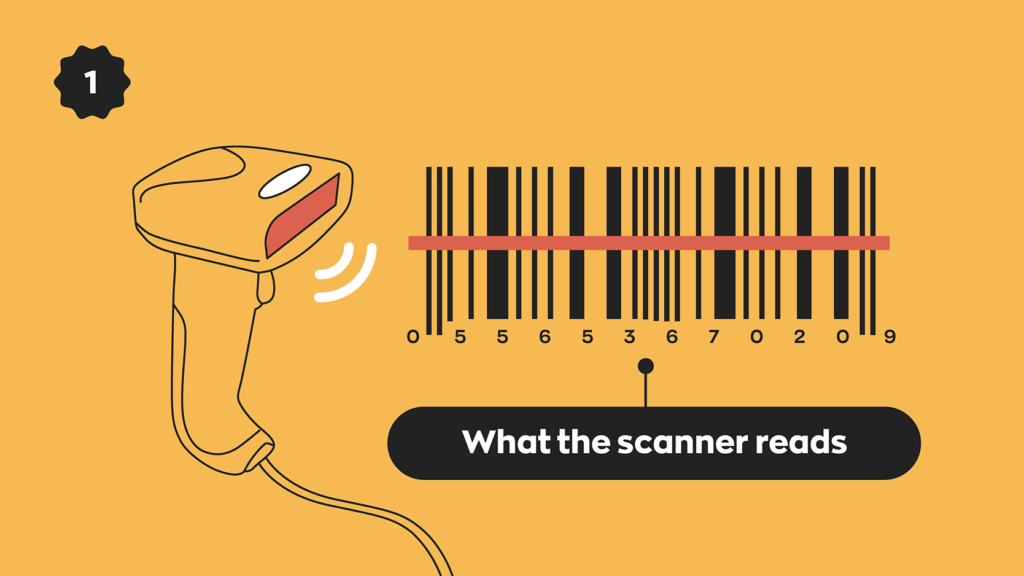
When you scan a barcode, the scanner interprets the string of vertical lines and then outputs it as text.
The barcode system can recognize that string of numbers and will know to bring up specific details such as product name and price.
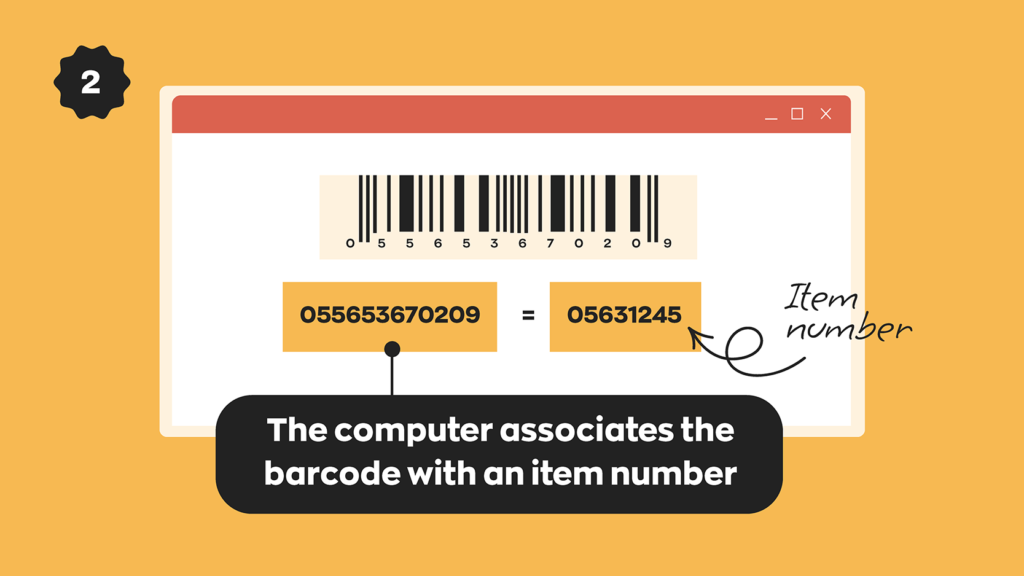
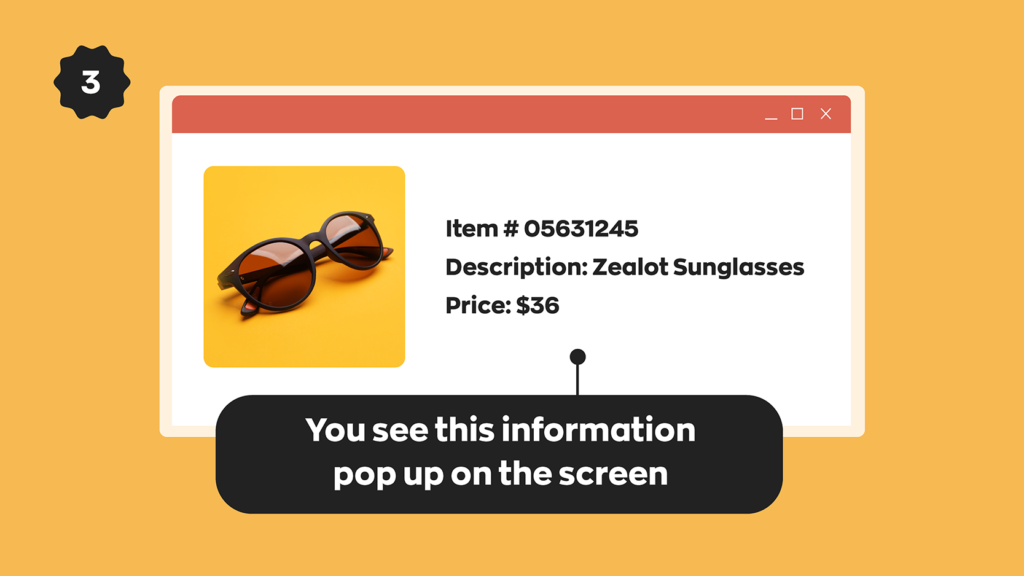
You must establish the relationship between the barcode and that item beforehand. The barcodes you create and use can be generated by your business or with the help of an organization known as GS1, which licenses barcodes to companies worldwide.
The extra setup required for a barcode system pays off quickly. Scanning is far more accurate than typing codes by hand. In a controlled study by scanner maker Datalogic, keyboard entry produced 10,000 errors per 3 million entries, compared with one error for Code 39 barcodes.
What are the most common barcode types?
The most common barcode types are UPC-A and EAN-13 for retail products, Code 128 and Code 39 for internal use, and QR codes and GS1 DataMatrix for 2D applications. Different barcodes use different symbology. That symbology determines how many characters a barcode can hold and which characters it can display.
| Barcode type | What it can encode | Length | Best for |
|---|---|---|---|
| UPC-A | Numbers only | 12 digits | Retail products sold in the US and Canada |
| EAN-13 | Numbers only | 13 digits | Retail products sold outside North America (US and Canadian scanners read them too) |
| Code 39 | Uppercase letters, numbers, and a few symbols (43 characters) | Variable | Internal labels, asset tags, and DIY barcodes made with a font |
| Code 128 | All 128 ASCII characters | Variable, more compact than Code 39 | Internal inventory labels and shipping labels |
| QR code | Numbers, letters, and URLs | Up to 7,089 digits | Links, product information, and GS1 Digital Link codes |
| GS1 DataMatrix | Numbers, letters, and GS1 data like lot and expiry dates | Up to 3,116 digits | Small items, healthcare, and lot-tracked products |
You’ll often see Code 128 representing the tracking codes on packages, while retailers rely on UPC-A (12 digits) and EAN-13 (13 digits) at the checkout.
We put together this handy guide for anyone starting out in barcoding. It covers some of the most widely used barcoding acronyms, so be sure to check it out.
Do you need free barcodes or GS1 barcodes?
You need GS1 barcodes if you want to sell your products in stores or marketplaces other than your own. If your barcodes will only ever be scanned inside your business, free barcodes work perfectly well. Here’s how the two options compare:
| Free internal barcodes | GS1 barcodes | |
|---|---|---|
| Cost | Free (you only pay for labels and hardware) | $30 one time for a single GTIN, or $250 plus $50 a year for 10 barcodes |
| Where they work | Inside your own business | Any retailer, distributor, or marketplace worldwide |
| Accepted by retailers and Amazon | No | Yes |
| Barcode types | Any, including Code 128, Code 39, and QR codes | UPC-A, EAN-13, GS1 DataMatrix, and GS1 QR codes |
| Best for | Inventory tracking, asset tracking, bin and shelf labels | Products sold through retailers, Amazon, or distributors |
| Setup time | Minutes | Minutes to buy, plus time to enter product data with GS1 |
There’s a bit of gray area for smaller local sellers. Some independent shops will happily stock products without a GS1 barcode and simply label them with their own internal codes. Larger retailers usually won’t, because a registered barcode guarantees your number won’t clash with another product already in their system. If you’re unsure, ask the stores you plan to supply before you buy.
GS1 US pricing as of October 2026. See the GS1 US pricing page for current rates.
How to create free barcodes for internal use
Creating your own barcodes for your products or inventory is easier than you think. It’s also a great option if you need barcodes for internal use, such as small-business inventory tracking or asset tracking. Before we get into how to generate your barcodes, let’s quickly go over which barcode type to use and how to structure the data you’ll be encoding.
Choose the right barcode type
For internal barcodes, Code 128 or Code 39 is usually the best choice. Both can encode letters as well as numbers, so a SKU like EC281 can become a barcode as is.
- Code 128 packs the most data into the smallest space and supports every standard keyboard character. It’s the best all-around pick for inventory labels.
- Code 39 supports uppercase letters, numbers, and a handful of symbols. It’s slightly bulkier, but it’s the easiest type to create yourself with a free font.
You might be tempted to make up your own UPC-style numbers instead. We’d advise against it. If you stock retail products, a homemade 12-digit number could match a real UPC on something you buy later, and your system won’t know which item you scanned. Using a different symbology like Code 128 is the simplest way to avoid that clash.
If you do want a UPC or EAN format internally, GS1 sets aside numbers starting with “04” for use within a single company, so they’ll never collide with a registered product. That’s exactly the range inFlow uses when it generates free internal barcodes for you.
Plan your numbering system
It’s up to you how to break down the actual barcodes, but you’ll probably want to build in a hierarchy so that you can see, at a glance, what kind of product a barcode is for.
If you use a UPC-style format, keep in mind that the UPC-A symbology gives you 12 total digits, but only the first 11 contain message data. The 12th digit is called the “check digit.” Its function is to verify the barcode has been read correctly. If you’re generating your codes manually, you can create a check digit with a bit of math.
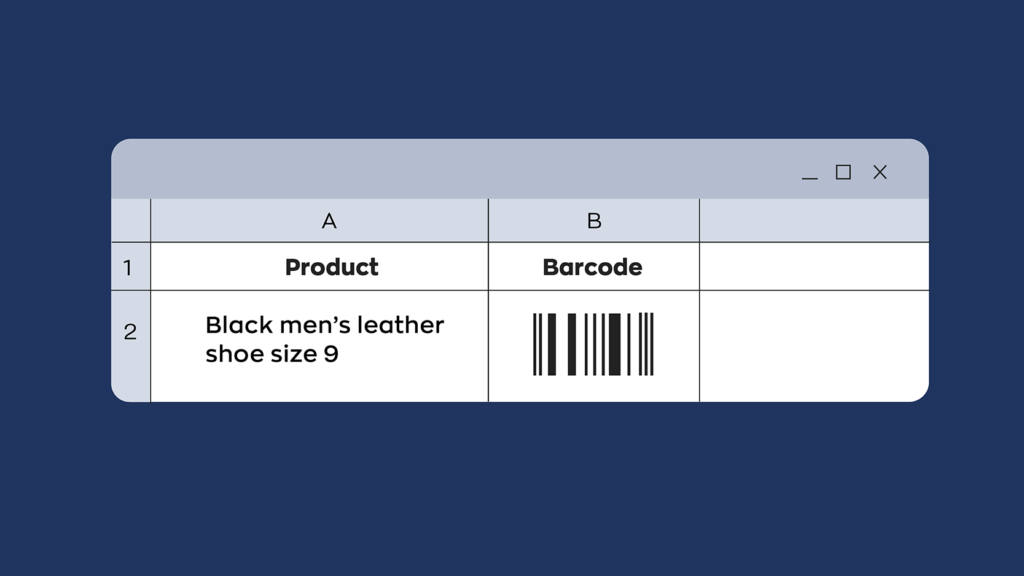
That’s the most basic breakdown of a UPC-A barcode, but you can also do more advanced stuff by breaking down the other 11 digits into sub-categories. That way, you can glean more information about a product, even if you only have the 12-digit code. Here’s a quick example of what an internal barcode for Archon Optical’s Ghost glasses could look like:
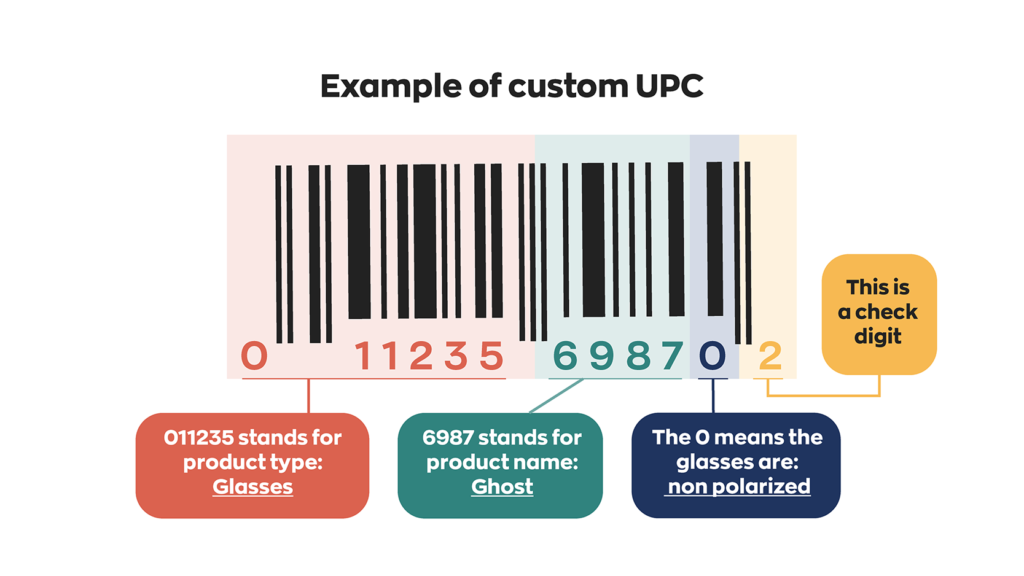
In the above example, we used numbers only, but it’s important to remember that you can create barcodes with other characters, and not all barcodes need check digits. The check digit is an error-checking feature of certain barcode symbologies such as UPCs. Other symbologies, such as CODE39 or CODE128, don’t use them.
Whichever format you choose, a few rules will save you headaches later:
- Never reuse a number. Retire old codes with the product instead of reassigning them.
- Keep a master list. Track every code in one place, whether that’s a spreadsheet or your inventory software, so two people never assign the same number.
- Keep codes short. Shorter codes produce smaller, easier-to-scan barcodes.
- Stick to uppercase. Code 39 doesn’t support lowercase letters, and many scanners won’t read them correctly.
This option is perfect if you want to create barcodes for internal inventory management or product labeling in your small business. If you need to create barcodes that other organizations will recognize, you’ll need to register them through GS1.
Generate your barcodes
Once you’ve settled on a product hierarchy and have your data ready to encode, you have a few different potential avenues.
Free online barcode generator
Most free online barcode generators are easy to use and feature a straightforward interface for inputting the product or inventory data you need.
- Select the type of barcode that you would like to generate, such as Code 39 or Code 128, for example.
- In the input field, enter the data you want to encode into the barcode. The data can be numbers, text, or both.
- Configure settings, such as the barcode size, resolution, and color.
Which characters you can use will depend on the characters that are supported in your chosen barcode type, so keep this in mind. How much or how little you can customize your barcodes will depend on the generator you’re using.
Free barcode font
A great alternative to using a barcode generator would be a free barcode font, like our handy dandy inFlow Code 39 font. This font allows you to write your own barcodes in a program like Microsoft Word. It works just like any other TrueType font.
- Download the font to your computer.
- Open the font file and click “Install.”
- Choose the font in any program that supports TrueType fonts (ex. Word or Excel).
One tip: most Code 39 fonts need an asterisk at the start and end of your data (for example, *EC281*) so the scanner knows where the barcode begins and ends.
Free barcode fonts are the easiest and most straightforward approach to creating your own barcodes.
Microsoft Excel
If your product list already lives in a spreadsheet, you can turn each code into a scannable barcode right next to it. You read that right: Excel! It’s a handy way to print a batch of labels at once. We walk through the full process in our guide on how to generate barcodes in Excel.
Inventory software
The most hands-off option is letting your inventory software create barcodes for you. In inFlow, you can turn on automatic barcode generation, and it will assign a free, unique 13-digit internal barcode to every product that doesn’t already have one. It never overwrites the barcodes your products already have, and it won’t allow duplicates. From there, you can print those barcodes as labels with inFlow’s built-in label designer.
Print and test your barcode labels
Before you print hundreds of labels, print one and scan it. A barcode that looks fine on screen can still fail to scan if it’s printed too small, too faint, or too close to other text.
Keep these basics in mind:
- Leave a quiet zone. The blank margin on either side of the bars tells the scanner where the barcode starts and stops. Don’t let text, borders, or label edges crowd it.
- Use dark bars on a light background. Black on white is safest. Red bars often won’t scan at all, because many scanners use red light.
- Don’t shrink it too far. For retail UPCs, GS1’s standard size is about 37 mm (1.47 in) wide including quiet zones, and you can scale between 80% and 200% of that. Internal barcodes are more forgiving, but the same principle applies.
- Match the label to the environment. Thermal labels work well indoors. Freezers, outdoor yards, and job sites may call for more durable, synthetic labels.
- Scan it with the device your team will actually use. If you’re scanning with phones, test with a phone.
How to get GS1 barcodes for retail and Amazon
To get barcodes that retailers and Amazon will accept, you license them from GS1, either as a single GTIN or as a block of numbers through a GS1 Company Prefix. Registered GS1 barcodes are necessary for anyone looking to sell products at large retailers or on platforms like Amazon.
Amazon is especially strict about this. It requires a valid product ID for most listings unless you qualify for a GTIN exemption, and it can verify product IDs by checking them against GS1’s database. Listings with invalid UPCs can be removed.
How much do GS1 barcodes cost?
GS1 US barcodes cost $30 for a single GTIN with no renewal fee, or start at $250 plus a $50 annual renewal for a company prefix that covers 10 products. GS1 offers different tiers for registering barcodes based on how many you need:
| Number of products | Initial fee | Annual renewal fee |
|---|---|---|
| 1 (GS1 US GTIN) | $30 | None |
| 10 | $250 | $50 |
| 100 | $750 | $150 |
| 1,000 | $2,500 | $500 |
| 10,000 | $6,500 | $1,300 |
| 100,000 | $10,500 | $2,100 |
Source: GS1 US, as of October 2026.
The single GTIN is a good option for businesses with just a handful of products. However, a few categories of products aren’t eligible, so make sure to read the GS1 US GTIN page in full before purchasing.
Single GTIN vs. company prefix: which should you buy?
Buy single GTINs if you have eight or fewer products, and a company prefix if you have more or expect your catalog to grow. The math is simple: nine single GTINs cost $270, which is already more than the $250 it costs to license a prefix for 10.
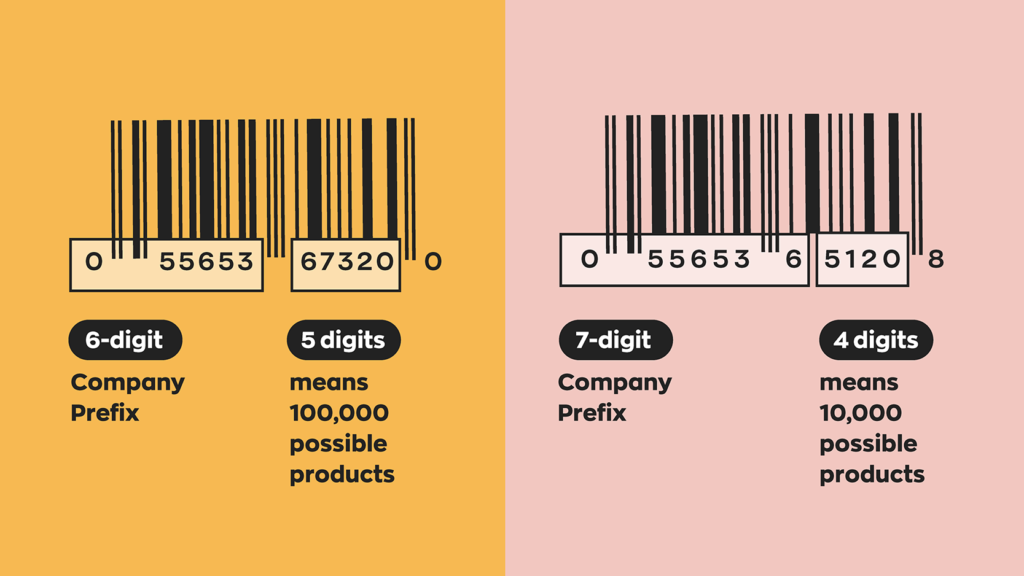
So, if you need nine or more barcodes, you’re better off purchasing a company prefix. Company prefixes start at $250 USD for ten barcodes and scale to 100,000 or more. In addition, you’ll need to pay an annual renewal fee. For the complete list of prices, head to the GS1 US Company Prefix page. But for now, here’s a breakdown of what barcodes look like at different tiers:
A few other things to weigh:
- A prefix ties every barcode to your company. Anyone who looks up one of your GTINs will see your business as the brand owner.
- A lapsed prefix is a big problem. If you stop paying the renewal, the barcodes built on that prefix are no longer licensed to you.
- You only need barcodes for your own brand. If you resell products that already have a manufacturer’s UPC, use that UPC. You only need your own GS1 barcodes for products you make or private-label.
Why you should avoid cheap UPC resellers
You’ll find websites selling UPCs for a few dollars each. Most of these numbers come from old company prefixes that were licensed to someone else years ago, so the GS1 database won’t list your business as the owner. Amazon recommends getting UPCs directly from GS1 rather than from third parties selling UPC licenses, and listings with numbers that don’t check out can be pulled.
If you already bought barcodes and want to check them, look the number up with GS1’s free verification tool. If another company comes back as the owner, it’s time to buy legitimate ones.
How to create and print your GS1 barcodes
GS1 licenses you the number (the GTIN). You still need to turn that number into a printable barcode image.
Once you’ve registered a prefix with GS1, you’ll have access to the GS1 US Data Hub | Product (yes, the name is a mouthful). That online tool will help you to generate and track all of the barcodes in your business. When you create barcodes with that tool, they will all be registered, making them eligible to be used at other businesses.
Labels can be exported from the Data Hub for printing. However, you can also work with a registered GS1 service provider. They help design and print custom barcode labels for packaging or boxes. If you use inFlow, you can also add your GTIN to a product and print it as a UPC or EAN barcode with the label designer.
Which barcode type do you need outside North America?
Most countries outside North America use EAN-13 barcodes, while the US and Canada use UPC-A. You register with the GS1 office in the country where your business is based, and it issues the right format for you. For example, North America uses UPC and Europe uses EAN-13. India also uses EAN-13 barcodes, issued through GS1 India. (You may have seen “GSTIN” mentioned alongside barcodes, but that’s India’s 15-digit tax registration number, not a barcode type.)
The good news is that retail scanners in the US and Canada also read EAN-13, so a European brand doesn’t need a separate UPC to sell in North America.
The links in this article point at US-specific resources, but you’ll be glad to hear there are GS1 offices all over the world. So if you’re looking to start barcoding your business and prepare for growth, your local GS1 office is a great place to start.
Are 2D barcodes replacing UPCs?
Not yet, and not completely. Under GS1’s Sunrise 2027 initiative, the industry goal is for retail point-of-sale systems to read 2D barcodes by the end of 2027, alongside the UPC and EAN barcodes they already scan. Traditional 1D barcodes will keep working through the transition.
The two 2D formats in play are QR codes that use GS1 Digital Link and GS1 DataMatrix codes. Both can carry the same GTIN as a UPC, plus extra details like lot numbers, expiry dates, and serial numbers. That makes them especially useful for food, cosmetics, and other lot-tracked products.
Sunrise 2027 is industry-driven rather than a legal requirement. Here’s what it means for you:
- If you only use barcodes internally, nothing changes. Your Code 128 and Code 39 labels will keep working.
- If you sell through retailers, expect to see packaging that carries both a UPC and a 2D code during the transition. Talk to your retail partners about their timelines.
- If you buy from suppliers who already use GS1 QR codes, a 2D-capable scanner can pull the lot and expiry details straight from the code.
inFlow can scan GS1 Digital Link QR codes on the web and mobile apps and fill in details like lot numbers and expiry dates automatically. It can also generate GS1 QR code labels with that information built in. For a deeper look at the timeline, see our GS1 Sunrise 2027 compliance guide. Or if you prefer you can watch our video on the topic below.

What equipment do you need for a barcode system?
A working barcode system needs four things: the barcodes themselves, a label printer, a barcode scanner, and software that connects each barcode to a product. A barcode is only as useful as the hardware and software it’s paired with. So with that in mind, here are some essentials you should consider in order to get the most out of your barcode system.
Barcode labels and printers
After you create your barcodes, you’ll need to design your product labels. If you’re an inFlow user, you can take advantage of our label designer. We wanted to make it easy for our customers to customize their labels however they want. The label designer can print Code 128, Code 39, UPC, EAN, and QR codes, and it has a built-in barcode generator for those not using registered GTINs.
Once you have your label designs ready, you’ll want to print them using a label printer and attach them to your products for inventory tracking. Thermal label printers are the most common choice, since they print quickly and don’t need ink. We recommend the inFlow Portable Printer, a compact printer designed specifically for use in warehouses and inventory management. It prints wirelessly, works seamlessly with inFlow, and its built-in battery prints over 5,000 labels on a single charge. It also works with labels from any brand up to 3 inches wide.
If you’re still comparing options, our barcode label printer guide breaks down the different types.
Barcode scanners
You’ll also want to choose a barcode scanner. The right one depends on where you scan and how much you scan:
- Wired USB scanners are best if you scan at a fixed location, like a packing station, and don’t want to worry about battery life. You can find wired scanners for under $150.
- Bluetooth scanners give you the freedom to move around a stockroom while still pairing with a computer or tablet. You can find wireless versions for under $350.
- Mobile computers are the best choice for warehouse workers on the go who need mobility to travel down different aisles. A rugged Android scanner combines a built-in laser scanner with the inventory app in one device.
- Your smartphone works too. The inFlow mobile app turns your phone’s camera into a scanner, which is a great way to start before you invest in dedicated hardware.
With Sunrise 2027 on the way, it’s worth choosing a scanner that reads both 1D and 2D barcodes. All of the inFlow scanners above do.
Barcode software
Once you’ve created barcodes and stuck them on products, it’s time to tie those barcodes to product names in the inventory or point-of-sale (POS) system you’re using. Inventory software like inFlow will have specific fields where you can scan barcodes. Instead of typing a name or item number into the computer, you can scan the barcode instead.
You can technically scan barcodes into a spreadsheet, but the scanner simply acts as a high-speed keyboard. It types the number into a cell, and that’s it. There’s no product lookup, no stock update, and no history. That gap matters. In our State of Inventory Management 2026 survey, 84.8% of operators still track inventory in spreadsheets, and 44.8% named inaccurate inventory data as one of their biggest challenges.
With our inventory barcode system, you can fill in the barcode fields yourself or have inFlow automatically generate unique barcodes for your products. Each product can also hold more than one barcode, which is handy when a supplier changes packaging. Once your barcodes are in, you can scan them to receive purchase orders, pick sales orders, transfer stock, and count inventory. You also have choices about how to print the barcodes. You can print directly to the inFlow Portable Printer or a myriad of other compatible printers. The choice is yours.
If you’d like to learn more about how inFlow can create barcodes and labels, check out this video:

Which barcode option is right for your business?
Are you still deciding whether to create your own barcodes or use GS1-registered ones? It really comes down to whether you want to sell your product at stores other than your own.
For internal inventory management in a small business, creating your own barcodes is simple and cheap. All you need is a computer, some software or font packs, a scanner, and a label printer. Once you have your setup, the costs are about the same whether you create 100 barcodes or 1,000. It just becomes more of a time investment on your part. This is an excellent option for smaller shops or if you just need DIY barcodes to help manage inventory.
However, if you want to enable other businesses (especially larger big box stores) to stock your product, you must create barcodes with GS1. That means you’ll have to pay GS1 for the registration and annual renewal fees. Remember, you could always go the single GTIN route and avoid the renewal fee if you just need a handful of barcodes.
To make that easier, we partnered with GS1 US to set up our Official GTIN Barcode Shop. It makes it easy for people to purchase individual barcodes, and you’ll pay the same $30 whether you buy them from us or directly from GS1.
Whichever route you take, the barcode is just the starting point. Pair it with software that knows what every code means, and you’ll spend a lot less time typing and a lot more time running your business.
FAQ
How much does it cost to create barcodes for a small business?
Creating your own barcodes for internal use is essentially free with an online generator, a barcode font, or inventory software. You’ll only pay for labels and a printer. GS1 barcodes for retail cost $30 for a single GTIN with no renewal fee, or $250 plus $50 a year for a company prefix that covers 10 products (GS1 US pricing as of October 2026).
Can I use free barcode generators for my inventory?
Yes. Free online barcode generators and barcode fonts work great for internal inventory. You can use symbologies like Code 128 or Code 39 to create scannable barcodes for tracking products, assets, or bin locations within your business. Just keep a master list of every code you assign so you never create duplicates, and test-scan a label before you print a full batch.
Can a barcode include letters as well as numbers?
Yes, as long as you choose a symbology that supports them. Code 128 can encode every standard keyboard character, and Code 39 supports uppercase letters, numbers, and a few symbols. Retail barcodes like UPC-A and EAN-13 are numbers only. If your SKUs already mix letters and numbers, like EC281, Code 128 lets you turn them into barcodes without renumbering anything.
Can retail stores scan barcodes I made myself?
Their scanners can usually read them, but their systems won’t recognize them. Large retailers need GS1-registered barcodes so your number can’t clash with another product in their database. Some small independent shops will accept products without a GS1 barcode and label them with their own internal codes, so check with each store you plan to supply before you buy barcodes.
What barcode do I need to sell on Amazon?
For most categories, Amazon requires a GS1-registered GTIN, which is usually a 12-digit UPC in the US. Amazon checks each UPC against the GS1 database, so self-made barcodes and numbers bought from resellers can get listings removed. If you resell a product that already has a manufacturer’s UPC, use that one. Some private-label brands may qualify for a GTIN exemption instead.
Is it safe to buy cheap UPC codes from resellers?
It’s risky. Most cheap UPCs come from old company prefixes licensed to other businesses, so the GS1 database won’t list you as the brand owner. Amazon recommends buying UPCs directly from GS1, and listings with numbers that don’t match can be removed. A single GS1 US GTIN costs $30 with no renewal fee, which is a small price for a barcode that’s verifiably yours.
Thanks for the interesting article.
Can the barcode include letters? Our SKU numbers are something like EC281. Or is a better to associate a diget only code that would specify the SKU number.
Hi Cal, your barcode can include letters if you use something like our Archon Code39 barcode: https://www.inflowstaging.com/blog/code-39-font-archon-free-barcode/.
The choice of including letters or numbers is really up to your particular business, as the letters and numbers are all the same to the scanner (it reads them as a total number of characters).
Hi I have a question. If I am selling the consignment products from other store, can I put my own 12digits barcode on the product beside UPC also?
I run a small online antiquarian book store. I want a bar code system for internal use only to keep track of sold and unsold titles. There are almost no multiples so I’d need circa 3500 individual barcodes. My sales orders arrive through Amazon and two other bookselling sites and my inventory is held in a tab-delineated database. How would this work with Inflow?
Hi Christie,
inFlow Inventory doesn’t currently sync with e-commerce platforms, but you can import comma delineated spreadsheets for setting up customers/orders/product lists. We’ve got a great set of instructions on how to do any import here: https://www.inflowstaging.com/support/cloud/how-do-i-import-data-to-inflow/
It should be a pretty simple switch to change an tab de-lineated sheet to a comma separated value (CSV) spreadsheet, but our support team would be happy to help if you have any questions: https://www.inflowstaging.com/software-contact-info
If you just need your own barcodes for internal use, then you could generate them with Excel and make sure they’re in the spreadsheet before importing your product list into inFlow. Once inFlow has the barcodes it’s as simple as scanning the barcode on the sales order screen, and the book will appear on the order.
Hi Thomas,
Thanks for the article.
We are a small business that is trying to sell products through a retail store. Would the retail store POS be able to read our internally generated barcodes or do we have to get a UPC generated barcode?
Thanks
Hi Kush,
When selling your own wares elsewhere, you’ll generally want to have a GS1 registered barcode. That ensures that your barcodes won’t clash with any existing ones in the retailer’s system (since GS1’s registration would not allow duplicates).
i want own bar code so guide me
Good info. I have a question about supermarket barcodes.
How are they created? There are multiple items on it and if we did a refund, they scan it and they can see the list of items in it and not just for one item. How did they create that?
Thanks
This is an educated guess, but if you’re talking about a receipt that has a barcode on it, that barcode probably represents the receipt number. Scanning it with their inventory system would then bring up that receipt in their database, which would have all of the items.
Or if you’re talking about the supermarket scanning just ONE item and seeing a list of other items you bought, then that item might have a unique serial or lot number on it. They could use that to bring up the date/time you bought that item, and possibly show any other items you bought on that same transaction.
Hi Thomas,
Thank you for the succinctly written informative article on how to create bar codes. I have a query which i hope you will be able to resolve.
I have a data base of Customer account numbers. For bar code purposes my sequence will include few digits in addition to the Customer account numbers to identify product scheme, brand etc. How do i go about getting my bar code data to correspond one to one with the existing Customer account numbers so that on scanning the bar codes, I will be able to get the associated Customer account number.
I need a barcode only for office inventory (about 60 employees). Is this is a right product for me?
Hi Monica, yes I believe so. We already have a lot of customers using inFlow for asset tracking specifically. We’ve got another article on that here: https://www.inflowstaging.com/blog/asset-tracking-for-small-business/
This article was a great help. We have been approached by a large company to carry our products. Looks like GS1 it is.
Hi,
Want to ask! how can I make a unique barcode for each and every item? for unlimited number of items. can that be done?
Hello Magdi, yes, you can create unique barcodes for each item, and inFlow can actually help you do this automatically. It’s one of the features we have in our web and Windows apps, so that each time you create a new product in inFlow, it can create a unique barcode for it. We even have a special tool to help you print those barcodes out on a regular printer.
If you’d like to try it out, I’d recommend starting a trial from our main site: https://www.inflowstaging.com/
It gives useful information..
Thank you for the guidance.. It does work.
This was very helpful! I wanted to ask you more about this effort and discuss a possible large project/business opportunity involving your bar code and scanner service. Where are you located? I am in Dallas and would love to jump on a 5 minute call if you have a moment.
Hi, Thanks for the knowledge on barcode setup and usage. I want to understand some more details on setup of barcode through GS1. Can you please connect back with me on email id – sharad.contact@gmail.com
First off, this is a great article, very clear and helpful – thanks.
As I work in book publishing, in which we assign ISBNs to books, which are then converted to 13-digit barcodes, I’m familiar with those stripy things. ISBNs are standardised, of course, to the GS1 standard, and there are websites that allow you to generate the barcodes from ISBNs.
However, where I work we also use a different type of code and system for identifying individual copies of security-sensitive logbooks. These were set up before any of us can remember and no one in the organisation now knows the principle behind them! We produce a series of 11-character combinations of letters and numerals and the printer creates barcodes from them. It’s in the form, eg:
20BC0000001
in which ’20’ is the year/edition (2020), ‘BC’ is the two-letter code for the product (Ballast Control Operator’s Logbook, in this case) and ‘0000001’ is the number for an individual copy of the BCO Logbook. There’s no check digit. Somehow, the printer is able to generate the barcodes and they can be scanned at the (third-party-operated) warehouse.
Nevertheless, I’m puzzled how this can work because you only give all-numeral examples and ours contain letters. Plus they are 11 characters long, which also seems non-standard.
Would it make a difference if we had three letters instead of two, or only four numerals at the end instead of seven? And is there a way we can produce and read the barcodes ourselves, or perhaps add information? However they work, we clearly can’t retrospectively change the existing numbers and barcodes because most of them still relate to active logbooks.
I’d really welcome your ideas and expertise on this. Thanks very much.
Hi Stephen, thanks for the feedback.
Good points about the numbers-only barcode examples and the check digits. You can have barcodes with other characters, and not all barcodes need check digits. I’ll update the post in a little while to clarify that.
For now, quick answers are:
You don’t need to have a check digit in all barcodes. They’re an error-checking feature of barcode symbologies like UPC, but they aren’t used in other types like CODE39.
Incidentally, CODE39 does support letters and numbers. I’m not sure which barcode your system is using, but it *could* be something like a CODE39 font. It sounds like you’re using proprietary software right now to generate and print the barcodes right now; if you wanted to try a different way you could try using a barcode font.
We offer a completely free CODE39 font on this blog post:
https://www.inflowstaging.com/blog/code-39-font-archon-free-barcode/
The font works in apps like Microsoft Word so you can type out new barcodes to generate your own. You’d just have to be careful to make the barcodes sequential, so you’d probably want to create some sort of Excel spreadsheet to track all of them if you chose to use the font.
Our software can also create barcodes and automatically sequence them with prefixes, and if you’d like to give it a try, you can book a free demo here: https://www.inflowstaging.com/bookdemo
– Thomas
How can I generate and attach barcode on an identification card?
Hi Mark, our software is meant more for barcoding products. If you wanted to make an ID card, something like DYMO’s software would work well for you. Their software comes free with their printers, and we use the LabelWriter 450 ourselves at our office.
Or you could use our free barcode font, create the ID card template in something like Microsoft Word, and then print and laminate the results.
You can find our free barcode font here: https://www.inflowstaging.com/blog/free-barcode-font-code-39-3-of-9/
GS1 or Homemade that is the question
I need barcodes to ship inventory to Amazon and Walmart among others.
Which way should I safely go ?
Hi Bob,
If you’re sending your barcodes for use elsewhere — basically outside of your own offices, then it’s wiser to use GS1. It’s more expensive, but it ensures that you have a unique barcode that won’t conflict with any of the other products in Amazon’s (gigantic) database.
There are also resellers of existing GS1 barcodes, but if you register directly through GS1, you have the guarantee that your barcodes are legitimate and aren’t registered to some other product.
Hi sir, I want to create barcode scanner, where it reads and displays all the details, can you guide me.
Thanks
Difference between GSTIN and UPC
Hi Javed, GSTIN stands for Goods and Services Tax Identification Number, and it looks like it’s specific to India. It’s 15 digits long.
The UPC is a Universal Product Code and it’s usually assigned to goods for sale in North America, and it’s 12 digits long. Europe usually deals with the EAN, which is a modified UPC)
Hi I work at an large airport car park in the uk . We can have up to 17000 cars here at any one time . Our programme starts when we create a booking . This will give us a ref number example.
YBMSB010000
All refs are YB
Customer initials. MSB
Number automatically increases every time a new booking gets created then creates a one off barcode for this customer . We create other adhoc labels to show were key or car is moved to.
To amend details on a booking is accessed via F5
To create a booking access via F4
To scan key or car to a new location or driver access via F7
To audit key or car use F8
Our programme is written and looked after by a computer company but they only add things or remove things when we ask them to as we can not access there hardware.
I,m not looking to work on my own place of work . But my wife works in a care home
And there are 200 residents who take medication . The staff who hand out the meds do occasionally make errors. So I have said to my wife I would look into getting the best software that can update meds info as and when needed by for any resident. Description below
Steve Smith Jones
Date of birth
Date entered a certain unit
Medication 1
Medication 2
Medication 3
Medication 4
Date started dd/mm/yyyy
Date ending did/mm/yyy
All the above info would be amendable as and when by senior staff qualified to issue meds. But bar code would be unique to one person for life in care home.
Do you think this could created on Microsoft 10. Or 365
Cheers
Colin Walker
Hi my name is Emma I have created my barcode ,I want to fix it on my product infor on web /interment so that if it is scanned it brings the product infor or name and company , how do I do it?
Hi Emma, that use case that you described is why we made software like inFlow. You need software that will take a barcode and associate it with a specific product record when scanned. inFlow can do that for you, and more. You can start a free trial here to try it for yourself: https://www.inflowstaging.com/
I want to list product on Amazon .Which is barcode is best for that ,gs1 or self-made?
Hi Sherry, you’ll need GS1 barcodes for listing on Amazon.
Hi ! I m PK. i hope you can answer my problem is, everytime i scan my barcode and got the result with addtional alphabet in front of my barcode number . what should i do to removed that alphabet ?
Scanning barcode is 63025033 but the result after scanning is A63025033
We have purchased barcodes , now we want to generate labels and want to put data of product .
how we can put data on bar codes and where we can register bar codes ,
we need if some one scans bar code the proeuct data should pop up
please advise
thanks
upender
I need bar codes for my products to sell in amazon. can i print this and stcik them to the products ?
Hi Colin,
You could handle something like that with Excel, but it’s harder to track when records were changed.
Something like this could be handled by inFLow, although it wasn’t specifically designed for the medical industry.
You could create each patient as a customer in the program, and then “sell” to them each time they’re given medicine.
On each sales order you could include the medications provided, and the date of the sales order would show when they were given the medicine.
The sales records could also show when they started taking each medicine, although you’d have to generate a report to see that.
That’s my advice for an inFlow-related solution, but there is of course a world of software specialized for the medical/pharmaceutical industry, and I’m afraid I don’t have experience to share there. Sites like Capterra might be able to help you with that.
Hi Maria: you would need to register some official barcodes with GS1 in order for them to work on Amazon.
Can I create QR codes?
Hi Shawn, certain barcode generators can also create QR codes as well. Our other posts highlights three of the best barcode generators: https://www.inflowstaging.com/blog/top-free-barcode-generator/
I have a bar code number and I need to generate the barcode itself. Can I generate the Barcode from the number
I’m setting up a convenience store that will be selling both commercial products and our own items, in the store only. We won’t be selling our items other than through this convenience store. Is there a way that I can generate internal UPC codes that would not be used outside of our store, and guarantee that I would never have to worry about getting in a product from some manufacturer that would duplicate that number? I don’t need to register our codes because they would not be used outside of our system, but don’t want to risk using a code and then someday we start selling a new product that uses a barcode we’ve been using internally.
Good question, Tony.
If you’re in North America then the products you stock will use UPCs. If you’d like to just use barcodes internally then the safest bet would be to use a different symbology for your own internal product barcodes. That way you can pretty much guarantee that any outside product wouldn’t replicate them. CODE-128 is a popular symbology you could use for this.
Very helpful! Super pleased
Info for make barcode
How do I create a bar code, o purchase a Bar Code? How does it work.?
Hi,
Thank you for the very helpful topic and explanation. I have question and would appreciate your answer. I am a bit wounder how does the ean dode works with the gift cards. The same code is used for a particular gift card. How the used gift card is marked as used one. How the store knows that that specific gift card is used while all the cards have the same code number?
Thanks,
Hasina
Hi Hasina, good question. In those cases it’s likely that the systems use two codes: a SKU to recognize the general type of gift card (ex. $50 gift card) and then each gift card would also have its own unique serial number. It’s the serial numbers that would differentiate one $50 gift card from another.
Hi we are a manufacturing company (food industry). I wanted to know if the data is stored and then the barcode is generated or if we generate the barcode and then save the data. I wanted to save a lot of data like batch number, production date, expiry date, product name, and size in a single code.
Hi alisha,
Thanks for reading! To answer your question you would generate a barcode, then once the barcode is generated you would connect that barcode number to your product in your database. We’ll use inFlow as an example. First I would create a new product and fill out all the information within inFlow. Then I would generate a barcode and put that number in the appropriate field in the product information. Now once I scan the barcode all of my product information can be pulled up automatically.
Hope this helps,
Jared
Thank you for all this information. Now, I have a question.
How barcodes determine the return value of a can? Here I am talking about the “Refund $0.05” at Reverse Vending Machine.
Would it be possible to create a barcodes to have a return value of $1.00 for a can? If so, how would you proceed?
Thank you,
Hi Bob,
Thanks for reading! Barcodes on cans have registered GS1 barcodes so when a reverse vending machine scans those barcodes they know exactly what they’ve scanned. There would be no way of changing that information with a new barcode. Hope this helps.
Cheers,
Jared
I’m wanting to set inventory tracking on job sites to build a cost for installation of pieces. Also , to track vehicles and warehouse items.
Inflow sounds like it would be a better option to create this ourselves vice buying a program . Am I correct.?
Hi Velvajean,
Thanks for stopping by! From what you’re saying inFlow would be a perfect fit for you. A massive chunk of our customers work on job sites and use inFlow to do the very thing you’re describing. I would encourage you to reach out to one of our sales representatives. You can walk them through your workflow and needs, and they’ll be able to tell you whether or not inFlow would be a good fit for you!
Cheers,
Jared
Can you create your own barcode as a distributor for products that already have a manufacturers barcode?
And could you use these barcodes instead of the manufacturers barcode to put the products in to Amazon or other selling platforms?
Hey Rob,
Thanks for stopping by! If you want to sell your products on Amazon, you will need to purchase UPC barcodes for the products you’re selling, but only if they don’t already have one. So, for example, let’s say I was buying Ninja Blenders in bulk with the intention of reselling them through Amazon. Since these products already have UPC barcodes, you would use those barcodes. Now let’s say I was buying blenders from an ODM manufacturer and were branding them with my own brand. In this case, you need to buy UPC barcodes for these products in order to have them listed on Amazon.
I hope this helps.
Cheers,
Jared